
Knowledge Management
Overview
Document versioning provides:- Automatic History: Versions created automatically on document save
- Full Content Snapshots: Each version stores the complete document content
- Change Tracking: Record summaries of what changed
- Restore Capability: Roll back to any previous version
How It Works
When a document is saved, the system:- Captures a snapshot of the current content
- Assigns the next version number
- Records who made the change
- Stores an optional change summary
Viewing Version History
Via Admin Interface
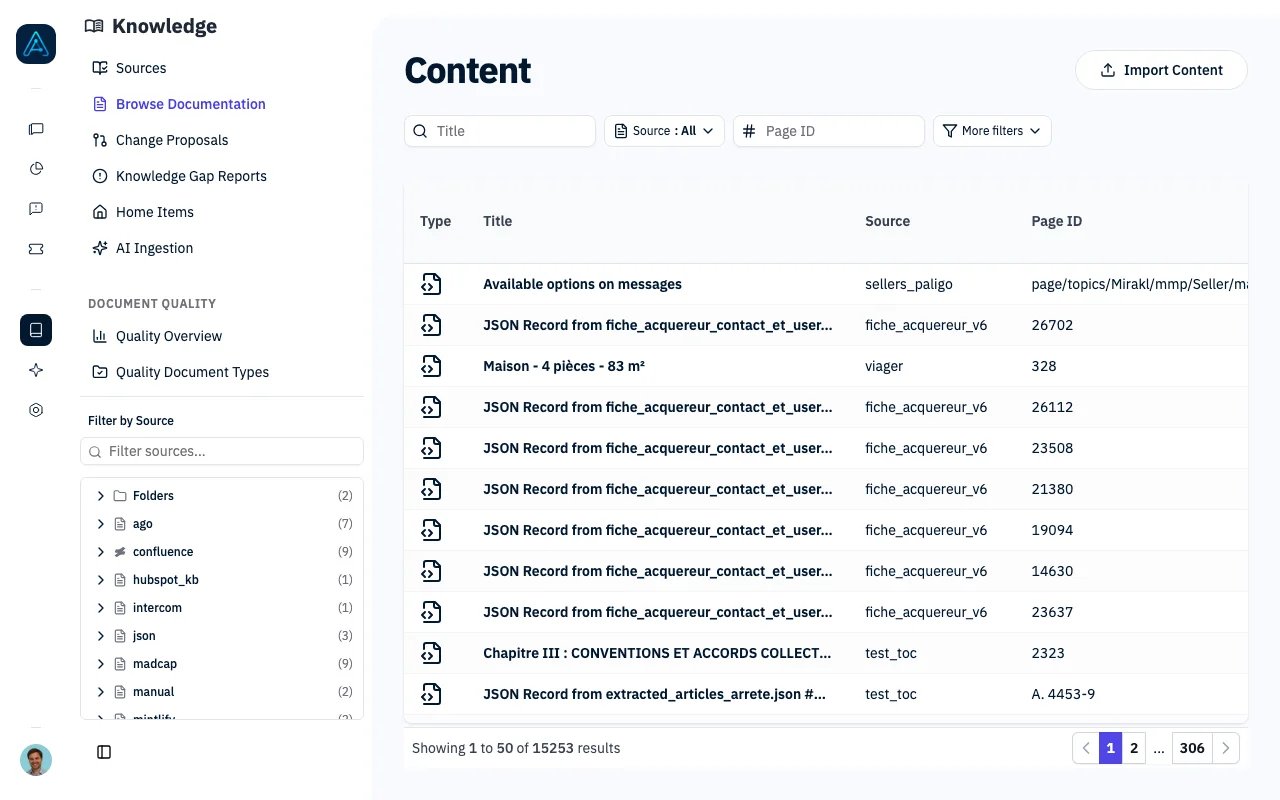
- Navigate to Knowledge → All Content
- Select a document
- Click Version History tab
- View list of all versions with timestamps
ℹ️ NOTE: Version history is also available via API. See the Public API v1 Reference for endpoint details.
Viewing a Specific Version
To view the full content of a previous version:- Open the document’s Version History tab
- Click on the version you want to view
- Review the complete content snapshot from that point in time
Restoring a Previous Version
Roll back a document to a previous version:Via Admin Interface
- Open the document’s Version History
- Find the version you want to restore
- Click Restore on that version
- Confirm the restore action
- Current document content is saved as a new version
- Document content is replaced with the restored version’s content
- A new version is created with the restoration noted in the change summary
Updating Version Metadata
To update the change summary of an existing version:- Open the document’s Version History tab
- Find the version you want to update
- Click Rename (or Name Version for unnamed versions)
- Enter the updated description (up to 500 characters)
- Click Save
Version Properties
Each version record includes the following properties:When Versions Are Created
Versions are created automatically when:- A document is edited and saved in the admin interface
- A document is updated via API
- AI ingestion updates an existing document
- A document is restored from a previous version
Version Attribution
Best Practices
Change Summaries
- Write clear, concise descriptions of what changed
- Include the reason for the change when relevant
- Use consistent terminology
- “Updated pricing table for Q1 2024”
- “Added troubleshooting section for login issues”
- “Fixed incorrect API endpoint in examples”
- “Updated” (too vague)
- “Changes” (not descriptive)
Version Management
- Review version history periodically to track document evolution
- Use restore feature to recover accidentally deleted content
- Consider version history when making significant changes
Related
- Knowledge Source Management — Managing sources
- Knowledge Overview — Feature overview