
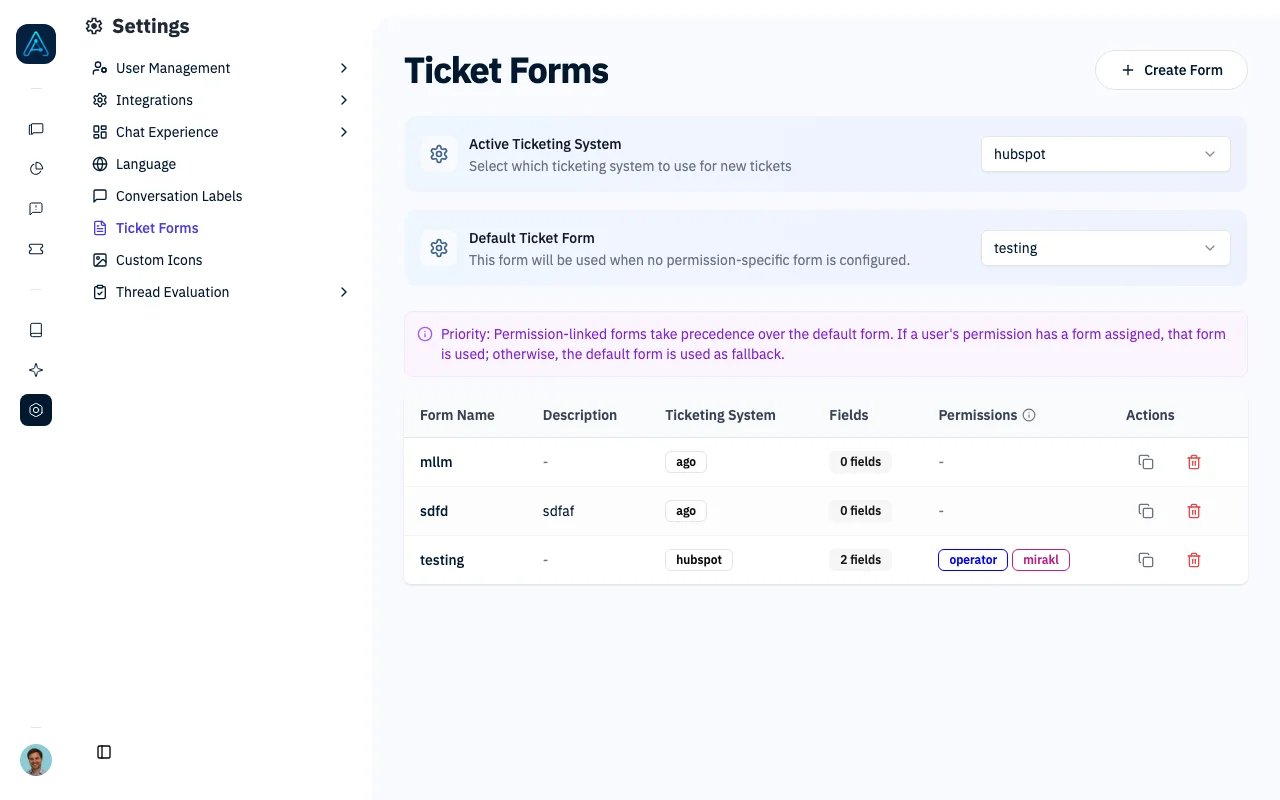
Ticket Forms - Configuration
Overview
The ticketing system enables:- Multi-system support: AGO Internal, Zendesk, HelpScout, and HubSpot
- Contact form integration: Dynamic forms with custom fields
- Ticket messaging: Two-way communication between admins and users
- Permission-based access: Control who can create tickets
- Custom configurations: Tailored messages and AI instructions
Supported Ticketing Systems
AGO Internal System
The AGO Internal ticketing system provides built-in ticket management without external dependencies. Key Features:- No additional configuration or API credentials required
- Automatic ticket status creation and management
- Integrated with business message threads for full conversation context
- Full custom fields support matching external systems
- Built-in admin dashboard for ticket management
- Email notifications for ticket updates
- AI classification and trigger-based routing to users or teams
- Organizations without existing ticketing systems
- Simple support workflows that don’t require enterprise features
- Testing and development environments
- Self-contained deployments where external integrations aren’t needed
- Navigate to Tickets → Ticket Forms
- Set Active Ticketing System to “AGO Internal”
- Configure email notification settings (optional)
- No integration with existing support team workflows
- Limited to AGO admin interface for ticket management
Zendesk Integration
- External ticket creation via Zendesk API
- User synchronization with Zendesk user management
- Private comment addition with conversation links
- Custom field mapping between systems
HelpScout Integration
- Conversation-based ticket management
- Tag support for categorization
- Email-based user management
- Automatic priority tagging
HubSpot Integration
- Ticket creation in HubSpot Service Hub
- Automatic contact creation from email
- Property mapping and sync from HubSpot
- Owner assignment for ticket routing
Configuring a Ticketing System
Resolved tickets for inactive conversations
AGO and Zendesk can automatically record conversations that ended without a support ticket. Set Auto ticket inactivity hours in the organization’s advanced configuration. For example, 2 makes a conversation eligible after two hours without a new message. 0 disables the feature (the default). For the active Zendesk system, Ticket Forms → Configure ticketing system → Advanced also provides an Automatic ticket creation selector: Disabled, 2, 4, 8, 12 hours or Every day (24 hours). This selector is currently only available for Zendesk. Conversations are checked every two hours, including those that reached the inactivity delay within the previous seven days. Each pass processes up to 500 conversations, most recent first. Conversations with an existing ticket, simulations, empty conversations, conversations awaiting processing or approval, and embedded ticket forms are skipped. The inactivity delay and the check frequency are separate: with a two-hour delay, an eligible conversation reaches its next scheduled check between two and four hours after the last message. Backlogs, processing errors or scheduler outages can delay ticket creation. A conversation whose requester is not allowed to create tickets in the provider (for example, a widget visitor unknown to Zendesk when ticket creation is not open to all users) is not retried on the following checks. The same setting works for shared platforms and single-organization installations; no central activation is required. Saving this setting or changing the active ticketing system updates the scheduler’s selection after the change is committed. Disabled organizations are excluded from the two-hour checks. The existing daily maintenance at 04:30 (scheduler time) checks all organizations to repair missing or outdated scheduling information. This daily check may wake a sleeping database. If the scheduling cache is unavailable, automatic ticket checks are skipped and logged instead of checking every organization’s database. After cache recovery, daily maintenance restores missing entries; ticket creation can be delayed until then and the next two-hour check. The AGO ticket stores the visible conversation and retains its requester and conversation link. Automatic tickets remain available in the ticket list but are excluded from dashboard ticket statistics and conversion rates. The conversation still counts toward usage, and any explicit request for human help still counts as an escalation. Tickets created manually remain included in ticket statistics. Older tickets without a recorded automatic origin remain included. In Zendesk it is created directly as Solved. The initial comment is private by default; optionally generate a public reply using a configurable prompt. Copying the visible conversation into a private Zendesk comment is also optional, and both options default to off. See Zendesk auto-resolved comments. Existing ticket creation permissions and form defaults still apply. Zendesk’s own rules may apply to these tickets. In AGO, automatic tickets skip opening notifications, assignment triggers and SLA initialization. Subsequent passes do not create another ticket for a linked conversation. AGO attempts to prefill the selected form’s active required fields from the conversation only when AI prefill (the sparkles setting) is enabled for those fields. Hidden fields are eligible when this setting is enabled; fields with it disabled keep their defaults. For taggers, the AI is asked to choose the available option that best matches the conversation. Field descriptions can explain how to choose between options, such as which team handles each type of request. Missing or invalid suggestions, or an unavailable AI, leave the usual form defaults and fallback values in place. Optional fields retain their configured defaults. This also applies to resolved tickets created manually from a conversation. For Zendesk, open Ticket Forms, select Zendesk as the active ticketing system, and click Configure ticketing system beside the selector. In Advanced, below Test connection, set Auto-resolved ticket assignee email to the email of an existing Zendesk agent who can receive tickets in the selected group, then save. This assignment applies to both automatic tickets and resolved tickets created manually from a conversation. It does not change the assignment of ordinary support tickets. Leave the field blank to let Zendesk handle assignment; its requirements for solving tickets still apply. To identify tickets created directly as resolved with a tag, open Ticket Forms → Configure ticketing system for AGO or Zendesk and set Auto-resolved ticket tag in the Advanced section at the bottom (for example,auto_created).
Enter one tag without spaces or commas, then save. The tag is added alongside existing form
and field tags, without duplicates, and is sent to Zendesk when the ticket is created.
It applies to future tickets created automatically from inactive conversations and resolved tickets
created manually from a conversation, including when no ticket form is selected. Ordinary support
tickets do not receive this additional tag. Leave the setting blank to disable it.
Manually create a resolved ticket
In the Django administration, open Business message threads, select one conversation, choose Create resolved ticket, then click Go. This immediately queues ticket creation using the organization’s active AGO or Zendesk system and the requester’s configured form. There is no preview or confirmation page. You need permission to edit conversations and add tickets. Manual creation works even when automatic ticket creation is disabled and does not require two hours of inactivity. Conversations with an existing ticket are skipped, as are simulations, empty conversations, unfinished turns and embedded ticket forms. Once the background task finishes, the resolved ticket appears in Tickets and is linked to the conversation.Connection settings
Each ticketing system has its own connection settings, tailored to what that provider requires. To configure them:- Navigate to Tickets → Ticket Forms
- Click the wrench button next to the Active Ticketing System selector to open the configuration page for the active system
- Fill in the settings and click Save
The wrench button configures the currently active system. Picking a different system in the selector makes it the active ticketing system immediately, so switch only when you are ready to use it for new tickets.
Secrets (API tokens, app secrets) are stored encrypted and never displayed in full after saving. When a secret is already configured, the field shows a masked preview (e.g.
p*******3) — leave it empty to keep the current value, or type a new one to replace it.
Testing the Zendesk connection
On the Zendesk configuration page, a Test connection button checks your credentials against Zendesk before you commit to them. It calls Zendesk with the domain, admin email, and API token currently in the form and reports the result:- Success shows the Zendesk account name AGO connected as.
- Failure explains what went wrong — wrong domain, or an admin email / API token that Zendesk rejected.
mycompany) or the full host (mycompany.zendesk.com).
All systems also support a Ticket URL override: the base URL used to build the link shown to users after their ticket is created (see Custom Ticket Link).
Contact Form Configuration
Form Fields
The contact form supports configurable fields:Custom Fields
Field Types
- Text input
- Single-select dropdown
- Boolean checkbox
Grouped Options (Hierarchical)
For select fields, create grouped options that display as hover submenus:
Options with a
group value appear under that group as a hoverable submenu. Options without a group appear as top-level items.
Progressive Disclosure and Conditional Fields
Fields can appear based on previous selections, creating dynamic forms that adapt to user input. For example, selecting “Technical Issue” can reveal a “Browser Version” field, while “Billing” reveals an “Invoice Number” field. You can also restrict priority to specific typologies using thepriority_typologies setting — the priority field only appears when a matching typology is selected.
See Ticket Form Customization for full details on conditional fields and options.
Widget User Support
For anonymous widget users (with auto-generated emails), AGO collects their real email address during ticket creation. The email is validated and stored for future reference.JWT Field Extraction
When users authenticate via JWT tokens, AGO extracts configured claims (e.g.,customer_id, plan_tier) and includes them as context in the private comment attached to the ticket. This gives your support team user metadata without manual data entry.
AI-Powered Ticket Prefilling
AI analyzes the conversation to pre-fill ticket fields — subject, description, priority, category, and any custom fields with AI pre-fill enabled. Users can review and edit visible prefilled fields before submitting. Customize the extraction behavior with a system prompt on each form. See Ticket Form Customization — AI Prefilling for configuration details.Ticket Messaging
The messaging system enables ongoing communication within tickets.Message Types
For Administrators
Open a ticket from Tickets to read the original request and conversation. The reply box stays below the conversation while you scroll through messages, including on mobile. The overview below the title shows the requester, status, and assignee with their email. Change the status or assignee here for AGO Internal tickets. Creation, last update, closure, and external synchronization dates appear together in a compact row; closure and synchronization information appear when applicable. Use the actions at the top right to open the linked chat with View Conversation, open an external ticket with its System: ticket ID button, or refresh it with Sync Now. On smaller screens, the conversation and refresh actions use icons; the external ticket reference stays visible. If no external link is available, the reference is shown as text. The Ticket details panel contains priority, tags, SLA deadlines, and form fields. On smaller screens, use the Conversation and Details tabs to switch between messages and ticket details. Your reply draft and message visibility choice are kept when you switch tabs. When an external ticket link is available, select the System: ticket ID button to make changes there. You can check the last sync time, select Sync Now, and add internal notes in AGO. Use Show internal messages to include or hide team notes. Internal notes have a lock icon and an amber background.Message Flow
Sending Messages
- Open a ticket and choose Reply or Internal note from the menu beside the send button.
- Write your message. Drag the bottom-right corner of the compact message box to enlarge it when needed. The message type menu beside the send button explains who can see each type of message.
- Select Send reply or Add note.
Email Notifications
AGO Internal can send email notifications when email delivery is enabled and configured: For Users:- Receive email when admin sends a public message
- Email includes message content and link to view ticket
- Ticket assignees receive in-app notifications for replies
- Watchers configured on a ticket form can receive email when a new ticket is created with that form
- Email delivery is disabled by default; enable it and configure the sender and delivery credentials before relying on email notifications
- For external systems (Zendesk, HelpScout), notifications are handled by the external platform
Permission Configuration
Ticket Creation Permissions
Ticket creation requires an active ticketing system. The global Allow all users setting can bypass that system’s user eligibility check. Otherwise, Zendesk requires an active user account; AGO Internal, Help Scout, and HubSpot allow users through this eligibility check. Custom permissions select the ticket form and guide the agent’s ticketing behavior. They do not provide a separate permission-first authorization check for ticket creation.Eligibility by System
Allow All Users to Create Tickets
Enable ticket creation for all users regardless of external system status: Configuration (Superadmin only): This setting is configured at the system level via the backend configuration or Config API. Behavior by System:AI Instructions Configuration
Configure instructions appended to the AI’s system prompt based on ticket permissions.Permission-Level Instructions
Configure separate instructions for:- Extra agent context when the user CAN create tickets
- Extra agent context when the user CANNOT create tickets
Example: Users With Permission
Example: Users Without Permission
Configuration via Admin Interface
- Navigate to AI Studio → Permissions
- Create or edit a permission
- Scroll to Ticket Creation Instructions section
- Fill both “Extra agent context when the user CAN create tickets” and “Extra agent context when the user CANNOT create tickets”
- Save
Denied Message Customization
When users cannot create tickets, display custom markdown messages instead of default behavior.Message Hierarchy
Live Preview
The permission editor shows a preview box under the denied message field. It renders your markdown as the user sees it in the chat, and updates as you type.Markdown Support
Messages support GitHub-flavored markdown:- Headers (
# ## ###) - Bold and italic (
**bold***italic*) - Links (
[text](url)) - Lists (
- itemor1. item) - Code blocks
- Blockquotes (
> quote)
Example Messages
Support Restrictions:User Permissions
Access Levels
Organization Filtering
- Account managers’ ticket lists are filtered to requesters in their managed organizations.
- Ticket-detail access is checked against the requester’s organization when one is present.
- Tickets without a requester or requester organization are not restricted by this organization check.
Integration Points
Business Message Thread Integration
- Tickets linked to conversation threads
- Full conversation context available
- Automatic thread URL inclusion in external systems
Link a Ticket Created in an External Portal
AGO can link a ticket created through an external portal to the conversation that led to it. The ticket keeps its original external ID, so your support team can track it from the AGO conversation without creating a duplicate. Your backend can link a configured ticketing system and external ID using an AGO API key withconversations:write, including for anonymous chat users. Your integration verifies that the ticket belongs to the customer before sending the association. AGO stores the reference and uses the connector’s existing sync for further updates. See External Ticket Linking.
For Zendesk, linking immediately queues the standard sync for the linked ticket, even when periodic sync is disabled. See Zendesk Ticketing for setup.
Trigger System Integration
- Automatic trigger processing on ticket creation
- Support for custom automation workflows
- Error handling to prevent ticket creation failures
Zendesk Ticket Sync
If you use Zendesk, AGO can automatically sync ticket statuses, assignees, comments, and custom fields back into the admin dashboard. See Zendesk Ticketing — Ticket Sync for setup details.Analytics Integration
- Ticket creation metrics
- Performance tracking
- Feedback analytics
- Dashboard statistics via API
CSV Export
Export ticket data for external analysis and reporting: How to Export:- Navigate to Tickets in the sidebar
- Apply desired filters (date range, status, priority, etc.)
- Click Export to CSV
- Download the generated file
- Ticket ID, Subject, Body
- Status, Priority, Typology
- Requester information (name, email)
- Creation and update timestamps
- Custom field values
- Monthly support metrics reporting
- SLA compliance analysis
- Trend identification across ticket categories
- Integration with external BI tools
Success Messages
Configure custom messages shown to users after successful ticket creation: Per-Form Configuration:
Example:
Custom Ticket Link
If you use an external ticketing portal, set theoverride_url_ticket_user field on a ticket form, or the Ticket URL override on the ticketing system itself (see Configuring a Ticketing System). AGO appends the external ticket ID to this URL and shows the resulting link on the success screen. Users can open the link in a new tab; they are not redirected automatically.
Troubleshooting
Issue: Email collection not working for widget users
Issue: Email collection not working for widget users
Problem: Anonymous widget users not prompted for email.Solutions:
- Check if user email starts with
unknown_ago@ - Verify widget authentication configuration
- Check email validation regex
Issue: External system integration failures
Issue: External system integration failures
Problem: Tickets not created in Zendesk/HelpScout.Solutions:
- Verify API credentials and endpoints
- Check network connectivity
- Review external system user permissions
- Validate field mapping configuration
Issue: Custom fields not displaying
Issue: Custom fields not displaying
Problem: Expected fields don’t appear in form.Solutions:
- Check field active status
- Verify conditional display logic
- Review field ordering configuration
- Check user permissions for field access
Issue: Ticket creation denied unexpectedly
Issue: Ticket creation denied unexpectedly
Problem: User cannot create tickets despite expected permission.Solutions:
- Check user’s custom permission settings
- Verify “Allow all users” global setting
- For Zendesk: Check if user exists in Zendesk
- Review permission hierarchy for conflicts
Issue: Internal messages visible to users
Issue: Internal messages visible to users
Problem: Users see admin internal notes.Solutions:
- Verify message was marked as “Internal”
- Check filter configuration
- Review API response filtering
Related
- Ticket Form Customization — Customize ticket forms
- Tickets List — Browse tickets
- Tickets Analytics — Ticket metrics
- Ticketing Tool — Agent ticketing tool
- Ticketing Connectors — External integrations
- Set Up Ticket Escalation — Setup guide
- Ticketing Best Practices — Workflow patterns