
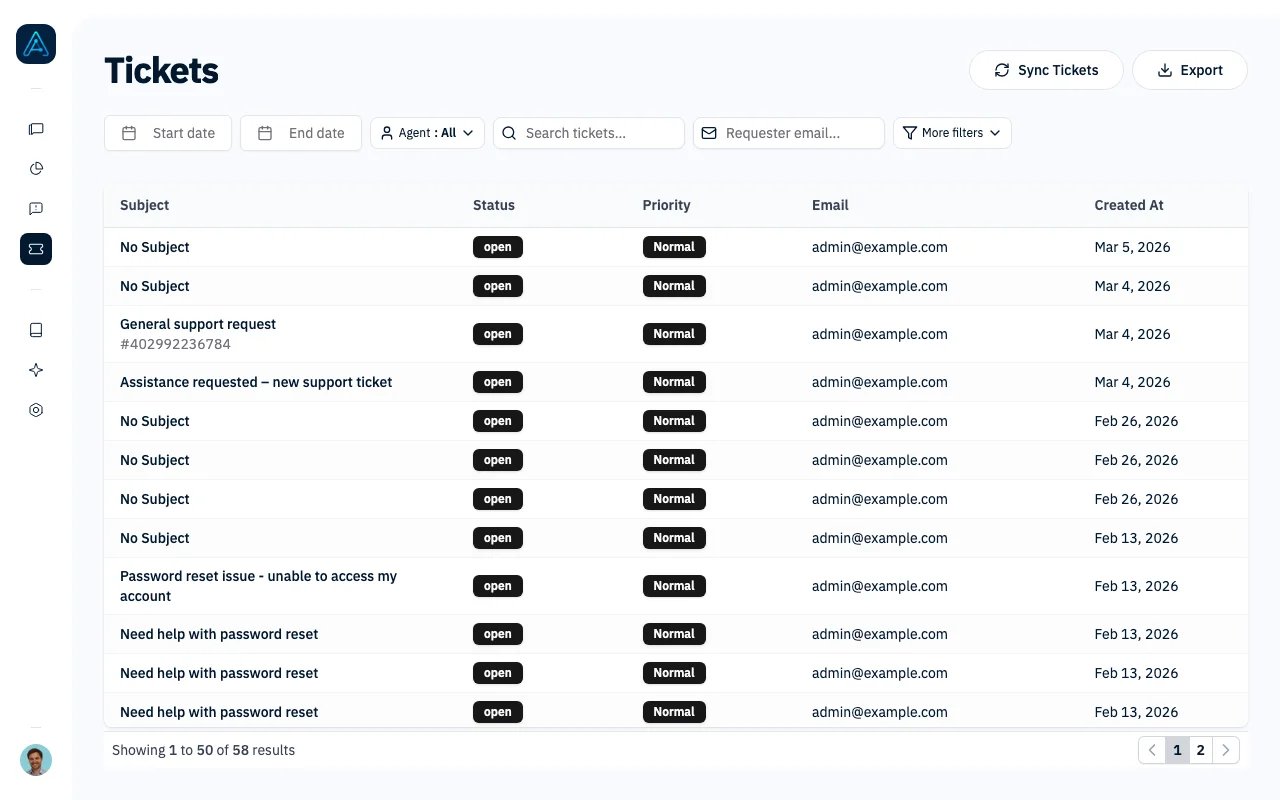
Tickets List
Accessing the Tickets List
Navigate to Tickets in the sidebar.You need Admin, Account Manager, or Viewer permissions to access the Tickets page.
Queues
Tabs below the filters split the work into queues. My tickets, My team, Unassigned and Urgent show live counts:
Queues only count open tickets: anything closed, resolved or solved drops out. The filters above apply to every queue and to its count, so you can combine My team with a tag or an organization. On narrow screens the tabs collapse into a menu.
Managing Teams
Admins can open Settings → User Management → Teams, or Tickets → Settings → Teams. The list shows each team’s name and member count, with a search by name. Choose Create team, enter a name, select the internal users who handle tickets, and click Save. Members are optional. Search by name or email to find people; selections stay selected while you search. Click anywhere on a team’s row to rename it or add and remove members, then save. You can also focus the row with the keyboard and press Enter or Space. Existing members remain selected even if they are no longer in the active user list. If saving fails, your edits stay on the page so you can retry. Saved teams are available in the ticket’s Team field and in automatic assignment rules. Membership determines which tickets appear in My team; it does not grant admin permissions or change an individual ticket’s assignee.Saved Views
Save any combination of queue and filters as a view to reopen it in one click.- Set up the queue and filters you want.
- Open Views and choose Save as view.
- Name the view. Admins can tick Share with all agents to publish it to the whole team.
Live Updates
The list, the queue counts and the view counts refresh automatically every 20 seconds and when you come back to the tab, so new or reassigned tickets appear without reloading the page.Ticket Table
The table displays tickets with the following columns:
Click any row to open the ticket detail view.
Primary Filters
These filters are always visible:Secondary Filters
Click “More filters” for additional options:Custom field filters automatically appear based on your ticket form configuration.
Status Badges
Ticket status is displayed with color-coded badges:Priority Badges
Priority levels use the following colors:Exporting Data
Click the Export button to download the current filtered results as a CSV file. Exports include:- Ticket and external IDs, subject, status, priority, and typology
- Requester email and name, creation/update/closure dates, associated conversation ID, and ticket body (up to 5,000 characters)
- All custom field values
URL Parameters
The Tickets page supports pre-filtering via URL parameters:queue(mine,team,unassignedorurgent)view(a saved view ID)status,priority,tagsassignee_id,team_id(nonefor unassigned)requester_email,searchstart_date,end_dateuser_type,organization,agent_name
Ticket Detail View
Click any ticket to open its record. Everything about the ticket and its requester is on one page:- Overview: requester, status, assignee and team, with the creation, update and closure dates.
- Activity: one timeline with the chat conversation that led to the ticket (customer, AI agent and human replies), the original request, email replies, internal notes and events such as status, priority, assignee and team changes. Each message shows its channel (Chat, Voice, Email or the external ticketing system). Use Show internal messages and Show events to focus on the conversation.
- Customer: the requester’s name, email, organization and user type, how many open and total tickets they have, and links to their other tickets and recent conversations.
- Attachments: files the customer shared in the conversation.
- Ticket details: priority, typology, tags, SLA and all form fields.
Creating a Task from a Ticket
When a ticket reveals work for your team beyond answering the customer, such as a bug to report or an article to fix, click Create task in the ticket header. The task is added to your team’s Tasks board with the ticket linked as evidence and a generic title; no customer text is copied into it. The form warns you when tasks already exist for this ticket. Available to staff users when Tasks is enabled for your workspace.Assigning Tickets
In the ticket detail view, use the Assignee dropdown to assign a ticket to a team member or set it back to Unassigned. Only internal team members appear in the list. Use the Team dropdown to hand the ticket to a team: it then shows up in the My team queue of every member. The assignment shows up in the Assignee column on the tickets list, so you can see at a glance who owns each ticket. Every change is recorded in the ticket’s activity, so you keep a history of who handled the ticket and when.Assignment is available on tickets managed inside AGO. Tickets synced from an external system (Zendesk, Help Scout, etc.) keep the assignee from that system and are managed there.
Notifications
A bell in the left sidebar shows your in-app notifications, with a badge for the number you haven’t read yet. You get a notification when:- A ticket is assigned to you (whether a teammate assigns it or a routing rule does).
- Someone else replies on a ticket assigned to you.
- A background agent needs an approval to continue (staff users only), or one of its pending approvals expired. See Action Approvals.
- Something happens on a task: see Tasks notifications (staff users only).
Integration with External Systems
If you have a ticketing integration configured (Zendesk, Help Scout, etc.), tickets display:- External ID: The ticket ID in the external system
- Last synced: When the ticket was last synced, or Never synced
- External Link: Direct link to the ticket in the external system
Workflow Tips
Working Your Queue
- Start the day on Urgent, then My tickets
- Pick up work from Unassigned and assign it to yourself
- Open a ticket to read the whole history before replying
- Save the filters you use every day as a view
Analyzing Ticket Patterns
- Filter by Organization to see which accounts create most tickets
- Filter by Agent to compare ticket creation across agents
- Use Custom Fields to segment by ticket type
Responding to Specific Users
- Enter email in Email filter
- View all tickets from that user
- Click through to see conversation history
Best Practices
- Review high-priority tickets first: Start with the Urgent queue
- Track unsynced tickets: If external ID is missing, the ticket may not have synced
- Use organization filter: Identify accounts with frequent issues
- Export for reporting: Create regular exports for ticket volume analysis
- Link to conversations: Click through to see the AI conversation that led to the ticket
Related Features
- Tickets Analytics - Dashboard view of ticket metrics
- Ticketing - Configure ticket creation settings
- Ticket Form Customization - Set up custom fields