
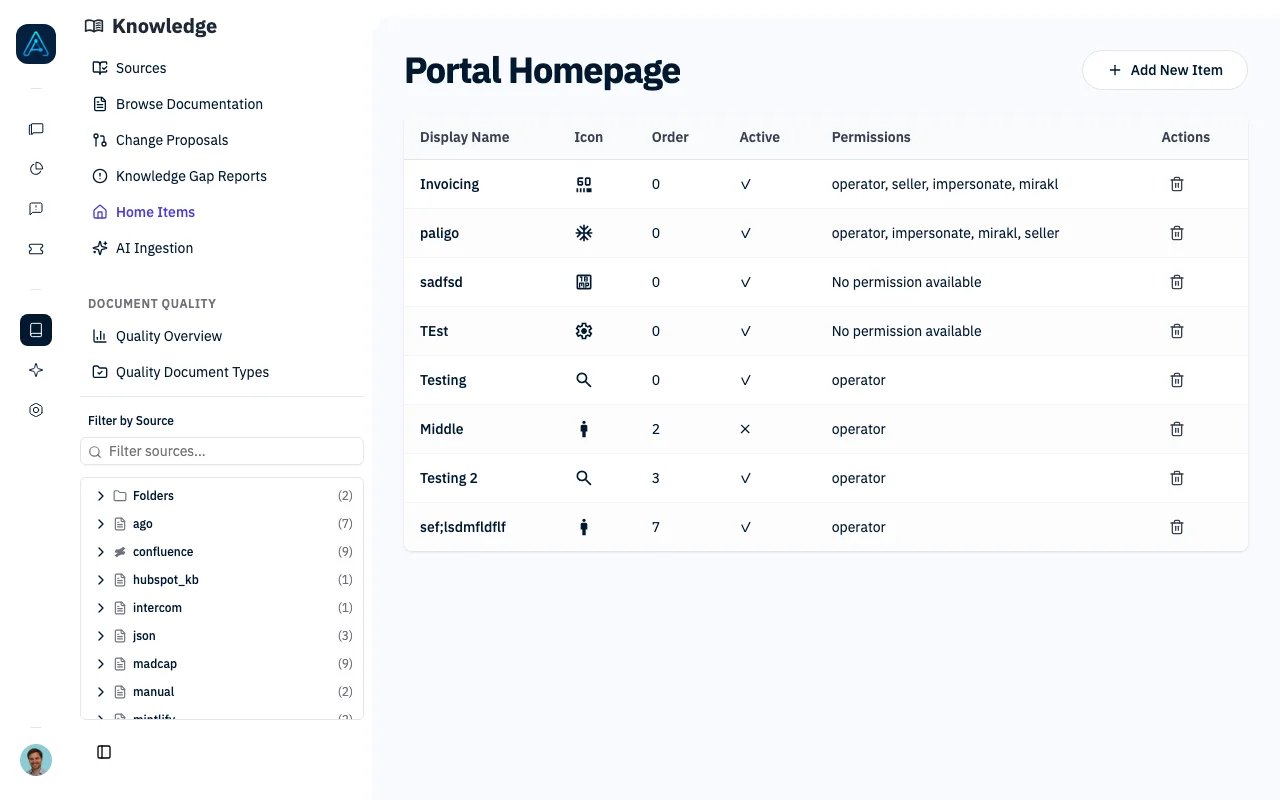
Knowledge Home Items
Overview
The Knowledge Home Page feature provides:- Custom Navigation Items: Add links to knowledge sections, external resources, or specific pages
- Permission-Based Visibility: Show items only to users with specific permissions
- Multi-Language Support: Translate item names and descriptions
- Ordering Control: Arrange items in your preferred order
- Internal/External Links: Link to knowledge content or external URLs
Home Page Items
Item Properties
Managing Home Page Items
Creating an Item
- Navigate to Channels → Knowledge home
- Click Add a link
- Configure item properties:
- Enter display name and description
- Set the URL (internal path or external URL)
- Choose an icon
- Set the display order
- Toggle whether the item is active
- Select at least one required permission so the item can appear in the home grid
- Add translations for other languages (optional)
- Click Save
Editing an Item
- Navigate to Channels → Knowledge home
- Click the item you want to edit
- Update the desired properties
- Click Save
Deleting an Item
- Navigate to Channels → Knowledge home
- Open the row menu for the item you want to remove
- Click Delete
- Confirm the deletion
Multi-Language Translations
Each home page item can have translations for different languages.Translation Properties
How Translations Work
- User visits portal: System detects user’s language preference
- Check for translation: Look for translation matching user’s language
- Display result:
- If translation exists: Show translated name and description
- If no translation: Show the default display name and description
Supported Languages
Permission-Based Visibility
Control which users can see each home page item based on their permissions.Setting Permissions
- Create the permission in AI Studio → Permissions
- When creating or editing a home page item, select the required permissions
- Users with at least one of the selected permissions will see the active item
Visibility Rules
Ordering Items
Items are displayed in order by:- Order value (ascending — lower numbers first)
- Display name (alphabetically, as tiebreaker)
Example Order Configuration
Internal vs External Links
Internal Links
- Leave the External Link toggle off
- Use relative paths (e.g.,
/knowledge/section-name) - Opens within the portal
External Links
- Enable the External Link toggle
- Use full URLs (e.g.,
https://external-site.com/docs) - Opens in a new tab/window
Best Practices
Organization
- Use consistent ordering across your portal
- Group related content with similar order numbers
- Keep the most important items at the top
Naming
- Use clear, descriptive display names
- Keep descriptions concise but helpful
- Verify translations are accurate
Permissions
- Use permissions sparingly for a simpler experience
- Test visibility with different user types
- Document which permissions are required for each section
Related
- Knowledge Overview — Feature overview