
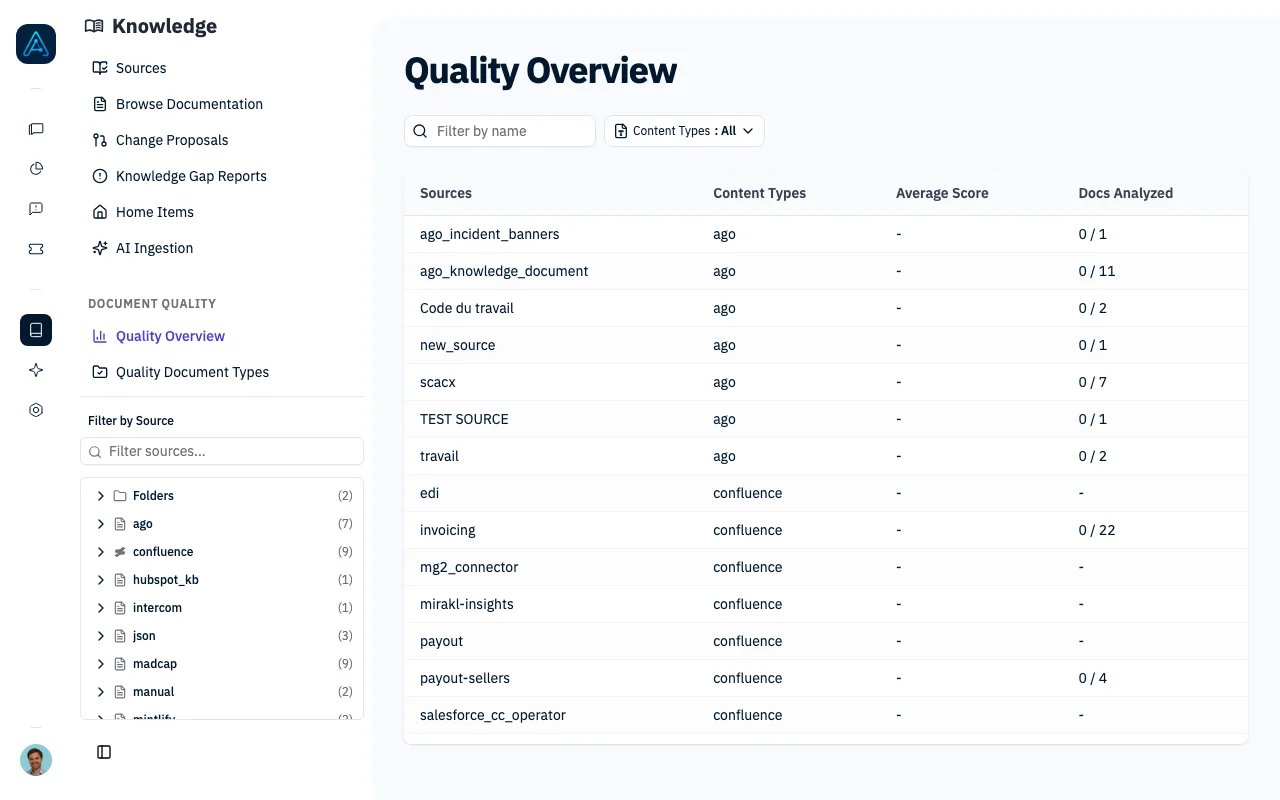
Knowledge Quality Overview
Overview
Knowledge Quality Analysis provides:- AI-Readiness Scoring: Evaluate how well documents work with AI agents
- Automated Quality Checks: Detect structural and content issues
- Actionable Recommendations: Get specific suggestions for improvement
- Bulk Analysis: Analyze documents without cached results across a source
Quality Scoring
Score Range
Documents receive a quality score from 0 to 5 points:Score Composition
When a document has a document type, either assigned directly or inherited from its source, its score is the proportion of that type’s rules it passes, multiplied by 5. Each rule has equal weight; a type with no rules produces a score of 0. When neither the document nor its source has a document type, the standard analysis combines two types of checks:Quality Checks
The checks below apply to the standard analysis for documents without a document type. Documents with a type are evaluated against its configured rules instead.Deterministic Checks (1.5 points)
These checks run instantly and evaluate document structure:LLM Semantic Checks (3.5 points)
These checks use AI to evaluate content quality:Document Types
Document types let you define custom quality rules tailored to specific documentation categories. Each document type contains a set of quality checks that documents are evaluated against.Creating Document Types
- Navigate to Knowledge > Content Types
- Click Create Doc Type
- Configure the name, description, and quality rules
- Save the document type
Starting from a Template
To quickly create document types aligned with the Diataxis documentation framework:- Navigate to Knowledge > Content Types
- Click Start from Template
- Choose from four Diataxis documentation types:
- Tutorial — Learning-oriented guides with numbered steps and code examples
- How-to Guide — Problem-focused guides for accomplishing specific tasks
- Reference — Descriptive, factual documentation of APIs and configurations
- Explanation — Conceptual documentation explaining the “why” behind decisions
- The form pre-fills with recommended quality rules
- Customize the rules as needed and save
Assigning Document Types to Sources
Once created, document types can be assigned to knowledge sources:- Navigate to Knowledge > Sources
- Edit a source
- Under Quality Evaluation, select a document type
- Documents without their own document type use the source’s rules during analysis. A document’s directly assigned type takes precedence.
Analyzing Documents
Analyze the Most Used Documents from the Dashboard
Administrators can prioritize documents that appear most often in conversations:- Open Dashboard → Knowledge and set the period and filters.
- Click Analyze quality beside Top Shared Documents, then enter a number from 1 to 500 (default: 10).
- Click Analyze quality to start the background analysis.
- Open View quality results to review scores by knowledge source once analysis finishes.
Single Document Analysis
Via Admin Interface:- Navigate to Knowledge → All Content
- Select a document
- Click Run Quality Analysis (or Re-run Analysis for an existing result)
- View the score breakdown and recommendations
Bulk Source Analysis
Analyze documents in a source that do not yet have cached results: Via Admin Interface:- Navigate to Knowledge → Sources
- Select a source
- Open the Quality tab and click Run Quality Analysis
- Analysis runs in the background
Source Quality Overview
The Quality Overview page shows aggregate quality metrics for all sources. Clicking a source row navigates to that source’s detail page, where you can view its quality data under the Quality tab. Each source’s quality tab displays:
For API access, see Public API v1 Reference.
Understanding Results
Quality Issues
For failed standard LLM checks, severity depends on the proportion of possible points earned:
Standard structural checks have rule-specific severities, independent of these percentages. Failed document-type rules are reported as Medium severity.
Unanalyzable Documents
The standard analysis marks documents as unanalyzable in these cases:
Documents marked unanalyzable are excluded from score averages. Document-type analysis does not use these minimum-content checks: even empty or very short documents are evaluated against the type’s rules and receive a score included in averages.
Cached Results
Quality scores are cached after analysis. You can view cached results without re-analyzing in the admin interface by navigating to the document’s quality tab.Improving Document Quality
High-Impact Improvements
-
Add Clear Introduction
- Explain what the document covers
- State who should read it
- Describe when to use the information
-
Use Consistent Terminology
- Pick one term and use it throughout
- Define technical terms on first use
- Avoid unexplained jargon
-
Structure with Headings
- Use hierarchical headings (H1 > H2 > H3)
- Don’t skip levels
- Make headings descriptive
-
Include Examples
- Add code examples where relevant
- Use concrete, realistic scenarios
- Show expected outputs
Quick Wins
- Add alt text to images
- Break up long documents (> 5000 words)
- Expand very short documents (< 100 words)
- Simplify complex tables
Grammar Fix
The Grammar Fix feature uses AI to detect and automatically propose corrections for spelling, grammar, and punctuation issues.How It Works
- Select a document to analyze
- Click Fix Grammar
- AI analyzes the content for:
- Spelling errors
- Grammar issues
- Punctuation problems
- Clarity improvements
- A Change Proposal is created with suggested fixes
- Review and accept/reject the proposal
Using Grammar Fix
Via Admin Interface:- Open a document in the editor
- Click Fix Grammar in the toolbar
- If issues are found, a proposal is created
- Review the changes in the proposal view
AI Readiness
AI Readiness analysis evaluates how well a document will work with AI retrieval and response generation.Understanding AI Readiness
Documents are evaluated for:AI Readiness Indicators
The admin interface shows visual indicators:Improving AI Readiness
- Clear Structure: Use headings to organize content
- Direct Answers: Put key information early in sections
- Complete Information: Include all relevant details
- Consistent Terms: Use the same terminology throughout
Document Type Classification
Automatically classify documents into doc types (e.g., Tutorial, How-to, Reference, Explanation) using AI analysis.Auto-Classification
Instead of manually assigning doc types to each document, you can classify all documents in a source at once:- Navigate to Knowledge > Sources and select a source
- Open the Quality tab
- Click Classify Documents
- Choose one of:
- Classify unassigned only — only documents without a doc type are classified
- Re-classify all documents — overwrites all existing doc type assignments
Doc Type Coverage Report
The Quality tab includes a coverage report showing how documents are distributed across doc types:- Classification progress — how many documents have been classified out of the total
- Distribution chart — visual breakdown of document counts per doc type
- Per-type cards — each doc type shows its document count and average quality score
- Gap alerts — highlights doc types that have no documents in this source, helping you identify content gaps
Integration with Change Proposals
Quality analysis integrates with the Change Proposals workflow:- Identify documents with low quality scores
- Use Grammar Fix to create proposals for quick fixes
- Create manual proposals for larger content improvements
- Review and approve changes through the proposal workflow
Related
- Knowledge Source Management — Managing sources
- Knowledge Change Proposals — Suggest content fixes
- Knowledge Best Practices — Content quality strategies