
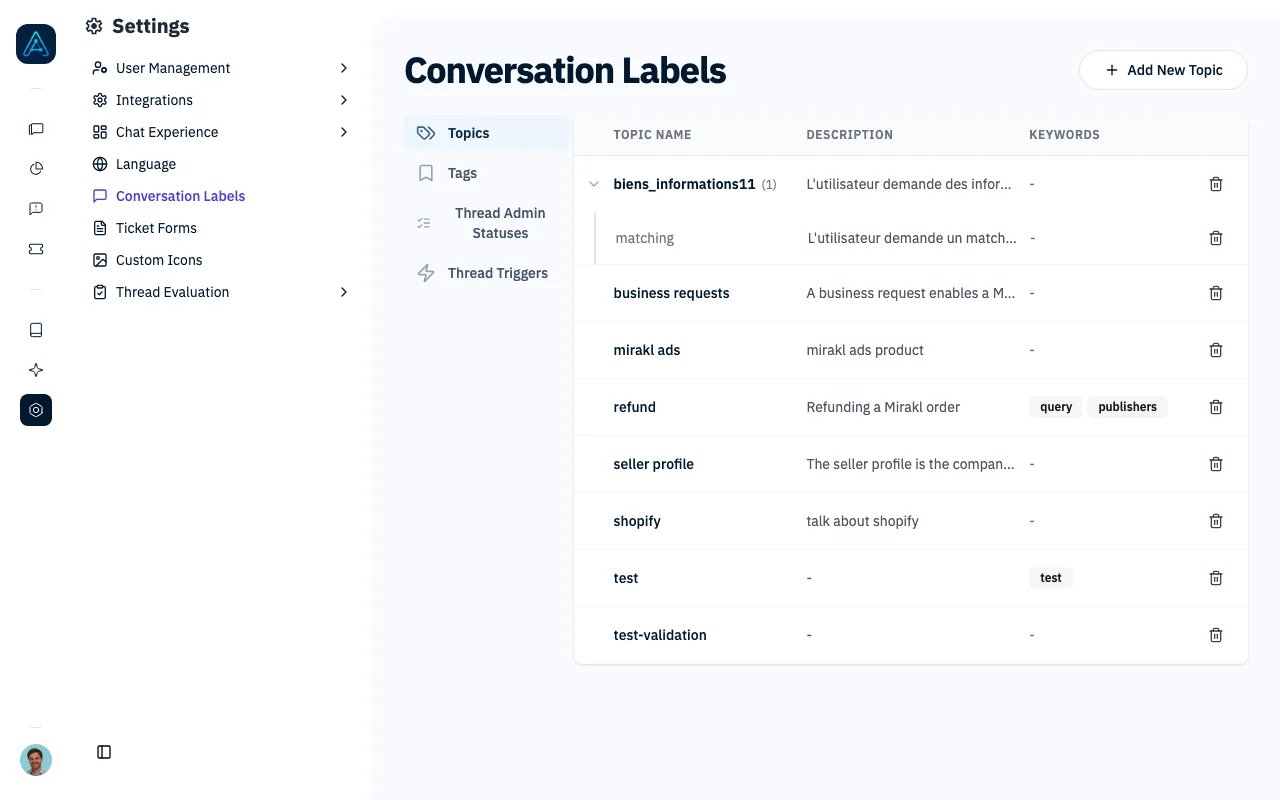
Conversation Labels
Accessing Conversation Labels
Navigate to Settings in the sidebar, then select Conversation Labels.You need Admin permissions to manage conversation labels.
Topics Tab
Topics are labels that categorize conversations by subject. The Topic Analyzer assigns them automatically, and you can also apply them manually from the conversation sidebar.Creating a Topic
- Click Add Topic
- Fill in the fields:
- Click Save
Hierarchical Topics
Topics support parent/child relationships. For example:- Support (parent)
- Billing Support (child)
- Technical Support (child)
- Sales (parent)
- Upsell (child)
- New Lead (child)
Editing and Deleting Topics
- Click a topic row to edit its name, description, keywords, or parent
- Click the delete button to remove a topic
Deleting a topic removes it from future analysis but does not remove the tag from conversations that were already tagged with it.
Admin Tags Tab
Admin tags are internal labels visible only to staff members. They help you categorize conversations for team workflows — for example, “Knowledge Gap”, “Bug Report”, or “VIP Customer”.Creating an Admin Tag
- Click Add Tag
- Enter the tag name and optional description
- Optionally assign a color for the badge
- Click Save
Admin Status Tab
Admin statuses are custom status labels for conversations — for example, “Under Investigation”, “Escalated”, or “Resolved”. They help you track conversation progress through your workflow.Creating an Admin Status
- Click Add Status
- Enter the status name and optional description
- Optionally assign a color
- Click Save
How Topics Connect to Other Features
Best Practices
- Start with 10-20 topics — too many dilutes the analysis; too few misses important patterns
- Use descriptive names — “billing-support” is clearer than “category-3” for both humans and the AI
- Add keywords for predictable terms — if users always mention “invoice” for billing topics, add it as a keyword for fast matching
- Use hierarchy for structure — group related topics under a parent to keep the Topics Analytics treemap readable
- Review quarterly — merge low-volume topics, split high-volume ones that cover too many subjects
Related Features
- Topic Analyzer - Configure automatic topic assignment
- Topics Analytics - View topic distribution and trends
- Conversation Management - Apply topics to individual conversations
- Conversations - Filter conversations by topic