
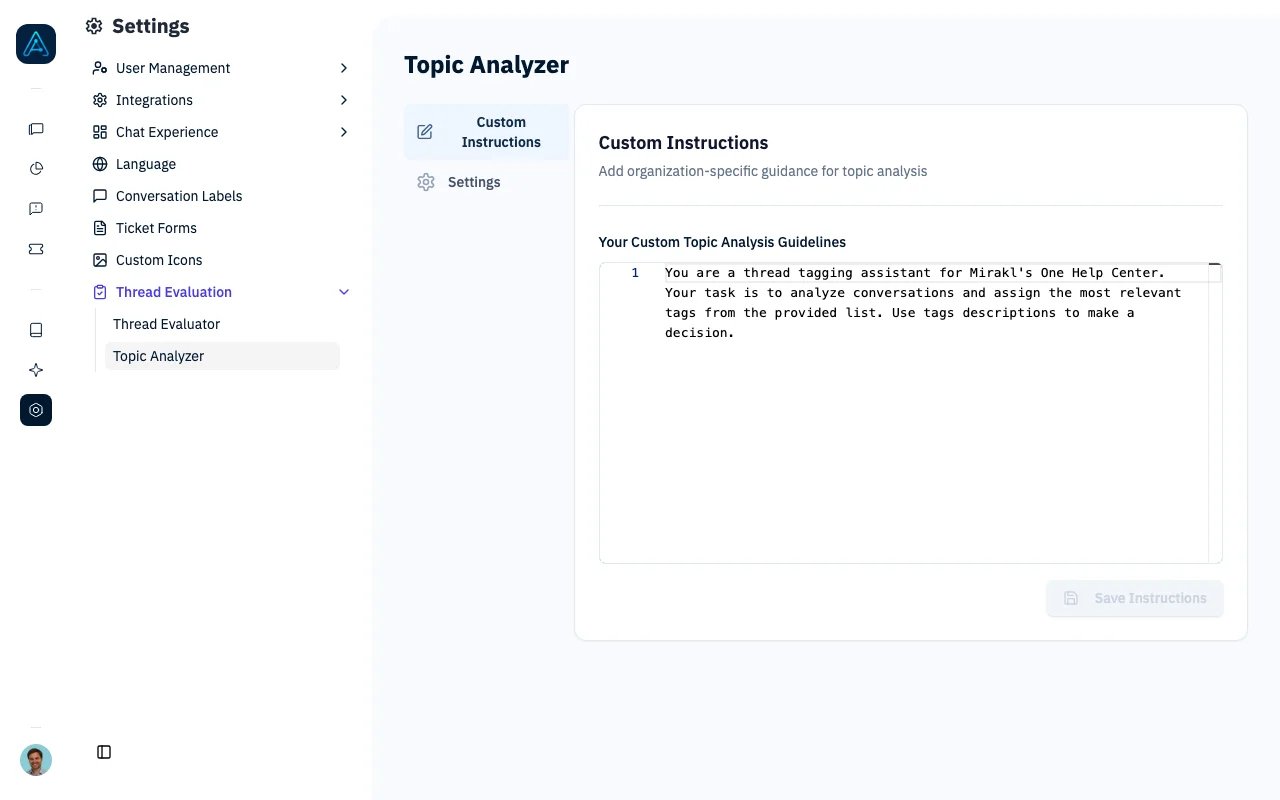
Topic Analyzer - Custom Instructions
Overview
Topic Analyzer is an add-on that:- Automatically Categorizes Conversations: Assigns relevant topics based on content
- Enables Filtering: Search and filter by auto-generated topics
- Improves Analytics: Track topic trends automatically
- Reduces Manual Work: No need for agents to manually categorize
Prerequisites
System Requirements
- AGO platform deployed
- Topic Analyzer add-on enabled
- Topics configured in Conversation Labels
Configuration Required
- Enable in Settings > Topic Analyzer
- Configure custom instructions and settings
Enabling Topic Analyzer
Via Admin Interface
- Navigate to Settings > Topic Analyzer
- The page shows two tabs: Custom Instructions and Settings
- Configure the analysis behavior using custom instructions
- Adjust settings like maximum topics per conversation
Topic Analyzer can also be configured via API. See the Public API v1 Reference for endpoint details.
How It Works
- A conversation is completed or analyzed on demand
- The system analyzes conversation content using AI
- Matching topics are identified based on configured instructions
- Topics are automatically assigned to the conversation
Analysis Methods
Both methods run together. Keyword matching provides fast, predictable tagging for known terms, while AI classification catches topics that keywords might miss.
When AI analysis selects both a topic and its sub-topic, only the sub-topic is assigned. Keyword-matched topics are kept.
Configuration
Custom Instructions
The Custom Instructions tab allows you to define how the AI should analyze conversations and assign topics. Use the editor to write specific instructions that guide the topic assignment process. You can view a diff of your changes against the saved version before saving.Settings
The Settings tab provides the following options:Managing Topics
Topics are managed in the Conversation Labels page under the Topics tab. Each topic can have:- A name and description
- Keywords for matching
- A parent topic for hierarchical organization
Running Topic Analysis
From the Conversation Sidebar
When viewing a conversation in Chat History:- Open the conversation sidebar
- Find the Topics section
- Click Run Topic Analysis to analyze the conversation
- Topics are automatically assigned based on the analysis
Filtering by Topics
In Chat History, filter conversations by topic:- Select topics in the filter panel
- Combine with other filters for targeted results
- Export filtered results
Analytics
Topics feed the Topics Analytics dashboard tab, which shows:- Topic distribution treemap
- Daily topic trends
- Topics by agent breakdown
- CX Score by topic (when the Thread Evaluator is enabled)
- Escalation rate per topic
Practical Examples
Example 1: Support Category Analysis
Automatically categorize support conversations: Topics to create:billing- Payment, invoices, subscriptionstechnical- Bugs, errors, how-to questionsaccount- Login, password, profile issuesfeature-request- New feature suggestions
Example 2: Escalation Tracking
Track conversations that require human intervention: Topics:escalated- Applied when ticketing tool is usedfrustrated-customer- Applied by AI when sentiment is negativecomplex-issue- Multi-step problems requiring follow-up
Example 3: Product-Specific Routing
Categorize conversations by product area for team assignment: Topics:product-a- Questions about Product Aproduct-b- Questions about Product Bintegration- Third-party integration issues
Example 4: Hierarchical Topic Organization
Use parent topics for structured categorization: Parent Topics:support(parent)billing-support(child)technical-support(child)
sales(parent)upsell-opportunity(child)new-lead(child)
Best Practices
Related Documentation
- Thread Evaluator - Conversation quality assessment
- CX Score - Customer experience scoring
- Conversations - Search and filter conversations
- Topics Analytics - View topic distribution and trends
- Conversation Labels - Manage topics and admin tags