
Simulation Testing
Overview
Simulation testing in AGO provides:- Automated Quality Assurance: Test agents against expected behaviors
- Regression Detection: Catch issues when changing prompts or models
- Tool Validation: Verify agents call the right tools with correct parameters
- Performance Tracking: Monitor success rates over time
Prerequisites
System Requirements
- AGO platform deployed and accessible
- Admin access to create datasets and run simulations
Knowledge Required
- Understanding of your agent’s expected behavior
- Familiarity with common user questions
How It Works
- Create a Dataset with related test cases
- Define Test Cases with questions and expected outcomes
- Run Simulation against a specific agent
- System uses LLM Evaluation to score responses
- Review Results and track success rates
Testing an Agent’s Draft
For a quick edit-and-test loop, open an existing standard text agent and select Test agent beside Publish. The panel tests the agent’s draft, including instructions, model, source and tool changes that are not published yet. Send messages from the bottom of the panel and ask follow-up questions with the previous exchanges as context. Editing the configuration keeps the conversation going with the new version, and Retry replays the last question with it. Use New conversation to start over. Selected tools and API sources can perform real actions. Tests run as your administrator account. Test activity may be retained for debugging without updating agent memory. See Drafts and Testing for the supported settings and agent types. Use Agent Lab for tests with client context or saved datasets.Testing with client context
Click Add client context in Quick Test or in the test case editor to reproduce the context supplied by your application, such as a customer’s plan or the current page.- Choose Text to enter a sentence, such as “The customer has a premium plan and prefers replies in French.”
- Choose JSON object to paste structured data, such as
{"plan": "premium", "language": "fr"}. Use JSON syntax with double quotes around property names and strings. - The lab automatically places your content in the context’s
datafield. You do not need to write the surrounding structure. - Choose Full JSON (advanced) to see the prefilled structure or edit entry names, descriptions, stability, and additional entries. Existing contexts with multiple entries open in this mode.
name, description, data, and stable. Set stable to true for context that stays the same throughout the conversation; it defaults to false.
The agent receives this context through the same mechanism as a live conversation. Saving a quick test to a dataset also saves the context used for that test. For multi-turn test cases, the saved context is sent with every message. Edit the content or click Remove client context to change or remove it from future runs. Leaving it empty runs the test without client context.
Creating Test Datasets
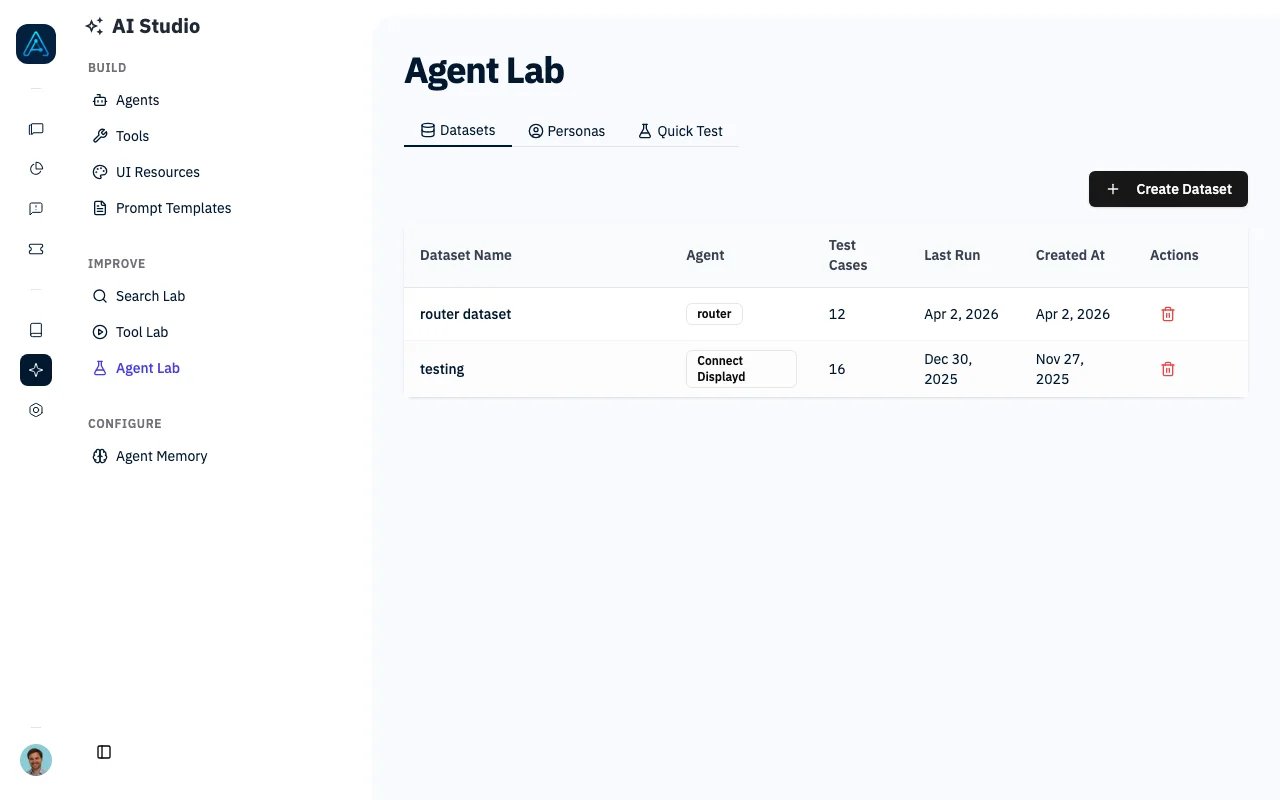
- Navigate to AI Studio → Agent Lab
- Select the Datasets tab, then click Create Dataset
- Configure dataset:
- Name: Descriptive identifier (e.g., “Support Agent Q4 Tests”)
- Description: Purpose and scope
- Agent: (Optional) Pre-bind to specific agent
- Click Save
Dataset Configuration
Defining Test Cases
Test Case Types
Single-Turn Test Cases
Single-turn tests validate a single question-and-answer exchange.Answer Type
For validating text responses:- In the dataset, click Add Test Case
- Set Expected Type to “Answer”
- Configure the test:
- Question: The user message to test (e.g., “What are your business hours?”)
- Expected Answer: The expected response content
- Click Add
Note: The expected answer doesn’t need to be exact. The LLM evaluator checks semantic similarity.
Tool Call Type
For validating tool usage:- In the dataset, click Add Test Case
- Set Expected Type to “Tool Call”
- Configure the test:
- Question: The user message that should trigger the tool
- Expected Tool Name: The tool that should be called (e.g., “ago_ticketing”)
- Expected Tool Arguments: (Optional) Expected argument values
- Click Add
Multi-Turn Test Cases
Multi-turn tests validate a full conversation flow across multiple exchanges. This is useful for testing workflows that require back-and-forth interactions, such as collecting information or guiding users through a process.- In the dataset, click Add Test Case
- Toggle from Single Turn to Multi-Turn
- For each conversation step:
- User Message: What the user says at this step
- Expected Type: “Answer” or “Tool Call”
- Expected Answer / Tool: The expected outcome for this step
- Click Add Step to add more conversation turns
- Click Add
Generating Test Cases with AI
Instead of writing every test case by hand, you can generate them from the agent’s knowledge base:- Open the dataset and go to the Test Cases tab
- Click Generate with AI
- Pick the agent, the generation mode, the number of test cases (1–50), and the maximum number of user messages per conversation (1–10)
- Click Generate with AI in the dialog
- From knowledge documents (default) — questions cover the topics found in the agent’s knowledge documents, phrased the way real users write.
- From a user profile — you describe the type of user and how they behave (for example, “a new payroll manager, in a hurry, who asks short and sometimes vague questions about leave management”). Questions are written the way that user would ask them, and expected answers stay grounded in the knowledge documents.
Generation reads the selected agent’s knowledge documents (or the whole knowledge base when the agent has no sources assigned). If no documents with readable content are found, no test cases are created.
Test Case Fields
Personas
Personas let you define reusable user profiles for simulation tests. Use user overrides to run tests with a simulated user’s email, additional information, or business context. Role, description, and behavior notes help you describe the profile; behavior notes do not change the evaluation criteria.Creating a Persona
- In Agent Lab, open the Personas tab
- Click Create Persona
- Configure:
- Name: Descriptive label (e.g., “Premium Customer”, “New User”)
- Role: Short role description
- Description: Summary of the profile
- Behavior Notes: Notes about the intended user behavior
- User Overrides: (Optional) JSON defining simulated user data
- Click Save
Using Personas
- Select a persona when adding or editing a test case
- Test cases without an explicit persona use the dataset’s default persona, if one is configured
API Data Overrides
Configure API data overrides on a test case to return mocked responses for selected API data sources during simulation. This lets you test specific responses without modifying your actual data sources. To add API overrides:- Add or edit a test case and find API Data Overrides
- Click Add API Override and select the API data source to mock
- Enter the JSON response the source should return during simulation
- Add multiple overrides for different data sources as needed
- Click Add for a new test case or Save when editing
Running Simulations
- Navigate to AI Studio → Agent Lab
- Select the Datasets tab, then select the dataset to run
- Click Run Simulation
- Select target agent (if not pre-bound)
- Optionally check Detect knowledge gaps (see below)
- Monitor progress in real-time
Detecting Knowledge Gaps from a Run
Check Detect knowledge gaps when starting a run to turn failed tests into actionable reports. When the run completes, AGO analyzes the conversations behind failed answer tests and files a Knowledge Update Request for each gap it finds, with the source “Simulation lab”. Each request includes the question, what was missing, and suggested edits to your knowledge base. Combined with AI-generated test cases, this gives you a full audit loop: generate questions from your knowledge base, run them against the agent, and review the gap reports for everything the agent could not answer correctly. Tool call and agent routing failures are not analyzed — only answer-type tests can reveal knowledge gaps.Monitoring Progress
The simulation dashboard shows:- Total Tests: Number of individual tests in the run; each multi-turn step counts separately
- Passed Tests: Tests that met expectations
- Failed Tests: Tests that didn’t meet expectations
- Success Rate: Percentage of passed tests
- Duration: Elapsed time between the run’s start and completion, shown once both timestamps are available
Run Statuses
Understanding Results
Viewing Result Details
Click on any test result to see:Debugging a Test
Expand a test result and click Self-improve to open the AI Debugger for its conversation. Choose automatic analysis to investigate the response and get suggested fixes, or select a document to improve. Super-administrators can also click Full Thread Debug View to inspect the conversation’s prompts, tool calls, and execution traces. These actions are available for both passed and failed tests when a conversation is associated with the result. For multi-turn tests, they open the full conversation associated with the selected step.Evaluation Criteria
The LLM evaluator scores responses on:Success Rate Calculation
Best Practices
Creating Effective Test Cases
-
Cover Core Functionality
- Include the most common user questions
- Test key workflows from start to finish
-
Test Edge Cases
- Ambiguous questions
- Out-of-scope requests
- Multiple intents in one message
-
Validate Tool Usage
- Test escalation scenarios
- Verify correct tool selection
- Check argument accuracy
-
Use Realistic Questions
- Base tests on actual user queries
- Include typos and variations
Organizing Datasets
Running Simulations
- Before Deployment: Run full suite before any changes
- After Prompt Changes: Validate no regressions
- After Model Updates: Test new model configurations
- Weekly: Scheduled regression testing
Interpreting Results
API Reference
For programmatic simulation management, see the Public API v1 Reference.Troubleshooting
Issue: Tests failing unexpectedly
Issue: Tests failing unexpectedly
Problem: Tests that should pass are marked as failed.Solutions:
- Review expected answer - may be too specific
- Check LLM evaluation reasoning for insights
- Adjust expected answer to be more semantic
- Verify agent has access to required knowledge
Issue: Tool call not detected
Issue: Tool call not detected
Problem: Agent uses correct tool but test fails.Solutions:
- Check exact tool name spelling
- Verify expected_tool_args are not too strict
- Review actual_tool_calls in results
- Check if tool was called with different argument names
Issue: Simulation runs too slowly
Issue: Simulation runs too slowly
Problem: Large test suites take very long.Solutions:
- Run tests in parallel (configured automatically)
- Break large datasets into smaller focused sets
- Use faster LLM for non-critical tests
- Run full test suites only before releases
Issue: Inconsistent results
Issue: Inconsistent results
Problem: Same test passes sometimes and fails others.Solutions:
- Lower agent temperature for consistency
- Make expected answers more flexible
- Add multiple acceptable variations
- Check for time-sensitive content in responses
Related
- AI Debugger — Debug agent responses
- Agents — Agent configuration reference
- Monitor and Improve Performance — Analytics workflow