
Overview
The AI Debugger provides:- Similarity Search Debugging: See which documents are retrieved for queries
- Relevance Scoring: Understand why certain documents rank higher
- Conversation Analysis: Investigate responses using conversation and tool-call context
- Query Analysis: Test retrieval without running full agent responses
Prerequisites
System Requirements
- AGO platform deployed and accessible
- Admin access to debugging tools
Knowledge Required
- Understanding of vector similarity search
- Familiarity with your knowledge base structure
Accessing the Debugger
Via Admin Interface
- Navigate to AI Studio → Search Lab for similarity search debugging
- Navigate to AI Studio → Agent Lab for conversation debugging
Debug Modes
Similarity Search Debugging
Test how queries match against your knowledge base without involving the full agent pipeline.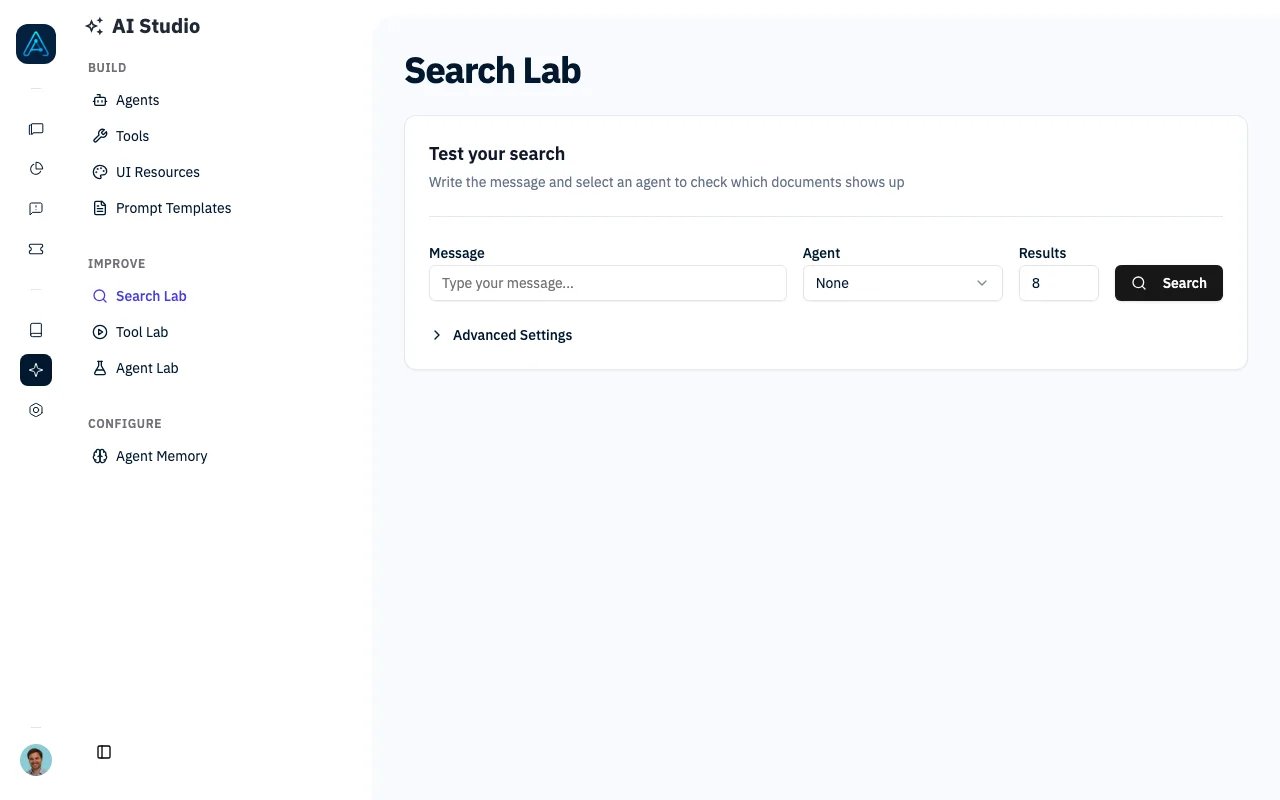
Search Lab - Test document retrieval
Running a Search Debug
- Enter your test query (e.g., “How do I reset my password?”)
- Select the agent to test against
- Set Results to the number of documents to retrieve
- Click Search
Understanding Results
Results display documents ranked by relevance:Conversation Debug
Analyze why an agent gave a specific response in an existing conversation. Automatic analysis includes the tool calls associated with messages in the conversation excerpt: the tool or delegated agent, supplied arguments, execution status, and available result. This helps distinguish a failed action from an incorrect answer based on a successful tool result. Router clarification questions and reply options are included too. Long tool inputs and results may be shortened, and stored result summaries are labelled as compressed. The analysis uses the first ten messages of the conversation. Superadmins can use Full Thread Debug View for calls outside that excerpt or for full payloads.Editing a Suggested Prompt Update
When the automatic analysis suggests updating an agent prompt, click Apply to review the proposed changes. Use Enter fullscreen in the top-right corner of the dialog to expand the editor. You can also expand Current Prompt to consult the existing instructions. Click Exit fullscreen or press Escape to return to the smaller dialog without losing your edits. Changes are only applied when you click Confirm & Apply.Accessing Conversation Debug
- Open a conversation in the administration interface
- Add an evaluation comment describing the issue in the conversation sidebar, then click Self-improve
- Choose Auto Analysis
Suggested document changes
Open Self-improve from a conversation and choose Auto Analysis to investigate an incorrect response. When the analysis recommends updating a document, its suggested action shows the target document as a link and the proposed changes as text. Follow the link to review the document before choosing Apply. For retrieval issues, the suggested action identifies the document containing the answer and shows the related question to add. When documentation is missing, it shows the proposed new document title and content. Choose Improve Document to focus on one document. After analysis, review the improvement explanation, document link, and proposed changes before applying an action.Debug Information
Debug Panel Structure
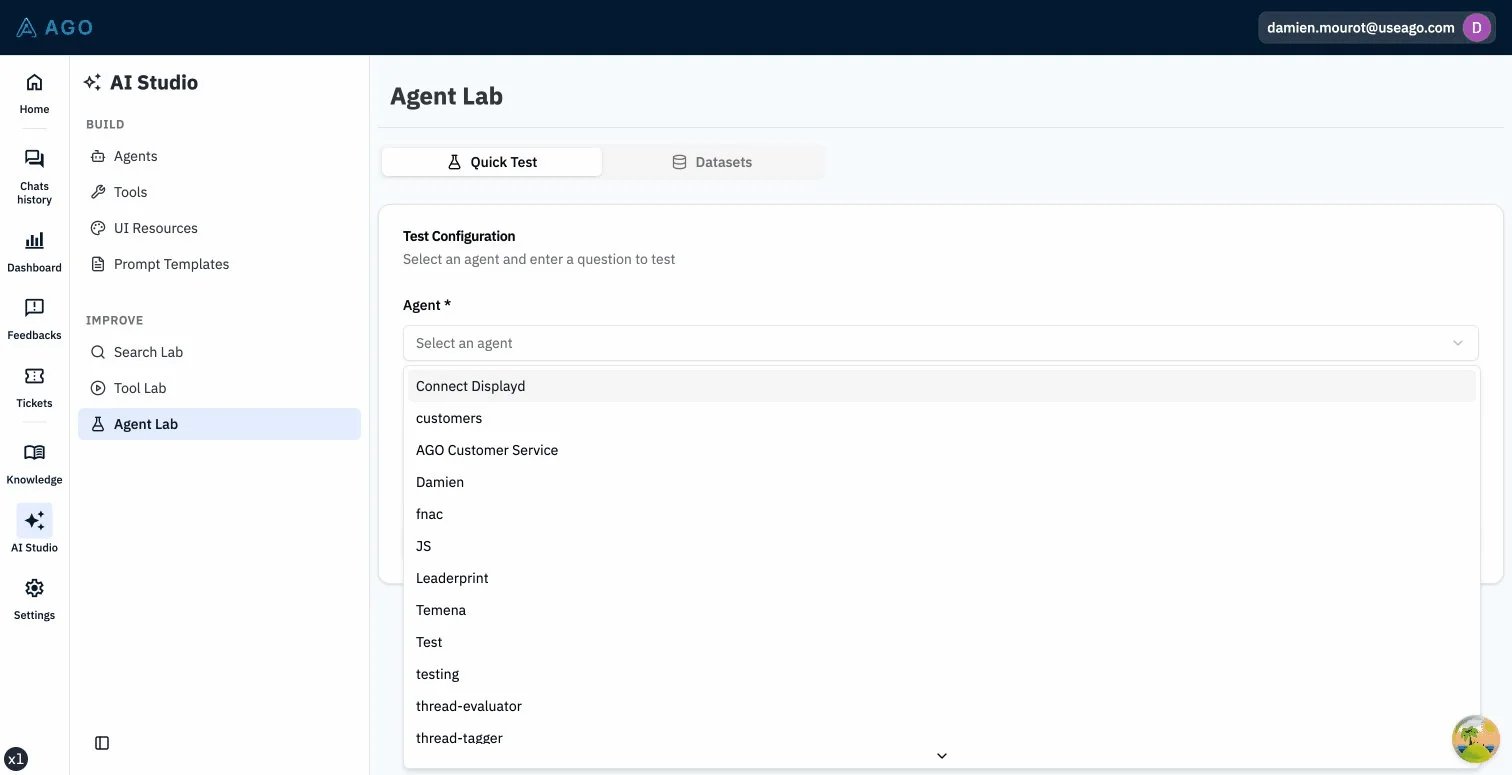
Agent Lab - Debug conversation messages
- Retrieved Documents: List of documents with relevance scores
- Tool Calls: Any tools invoked during response generation
- System Prompt: The full prompt sent to the LLM (expandable)
- Token Usage: Input, output, and total token counts
Common Debugging Scenarios
Scenario 1: Agent Can’t Find Relevant Content
Symptom: Agent says “I don’t know” for documented topics. Debug Steps:- Open AI Debugger → Similarity Search
- Enter the user’s exact question
- Review retrieved documents:
- Are relevant docs in results?
- What are their similarity scores?
- Document not synced (check source status)
- Query wording doesn’t match content
- Chunks are too large (relevant content diluted)
- Wrong knowledge source assigned to agent
Scenario 2: Wrong Document Ranked Higher
Symptom: Irrelevant content appears before relevant content. Debug Steps:- Run similarity search with the query
- Review the similarity scores for each document
- Improve document titles/headers
- Adjust chunk size for better granularity
- Add more specific content
Scenario 3: Agent Uses Wrong Tool
Symptom: Agent creates ticket when it should answer. Debug Steps:- Open conversation debug for the message
- Check retrieved documents (empty = no context)
- Review tool call details
- Check tool descriptions in configuration
- Improve tool prompt/description
- Verify knowledge covers the topic
- Adjust tool trigger conditions in prompt
Scenario 4: Response Quality Varies
Symptom: Same question gets different quality answers. Debug Steps:- Compare debug info across multiple instances
- Check if different documents are retrieved
- Review LLM temperature settings
- Lower temperature for consistency
- Pin critical documents to agent
- Improve document quality
API Reference
For programmatic debugging access, see the Public API v1 Reference.Best Practices
Regular Debugging
- Weekly Reviews: Sample random conversations to check quality
- After Sync: Debug after major knowledge updates
- User Complaints: Debug reported issues immediately
Improving Retrieval
- Test variations: Try different phrasings of the same question
- Check coverage: Verify all topics have matching content
- Monitor scores: Low similarity scores indicate gaps
Documentation
- Keep notes on common issues
- Document patterns that cause problems
- Share findings with content team
Troubleshooting
Issue: Debug panel loads slowly
Issue: Debug panel loads slowly
Solutions:
- Reduce top_k for faster results
- Check system performance
- Verify embedding service is responsive
Issue: No documents returned
Issue: No documents returned
Solutions:
- Verify knowledge source is synced
- Check agent has source assigned
- Try broader query terms
- Check embedding model is configured
Issue: Similarity scores all low
Issue: Similarity scores all low
Solutions:
- Review document quality
- Check if content matches expected queries
- Verify embedding model is appropriate
- Consider different chunking strategy
Related
- Simulation Testing — Automated testing
- Agents — Agent configuration reference