
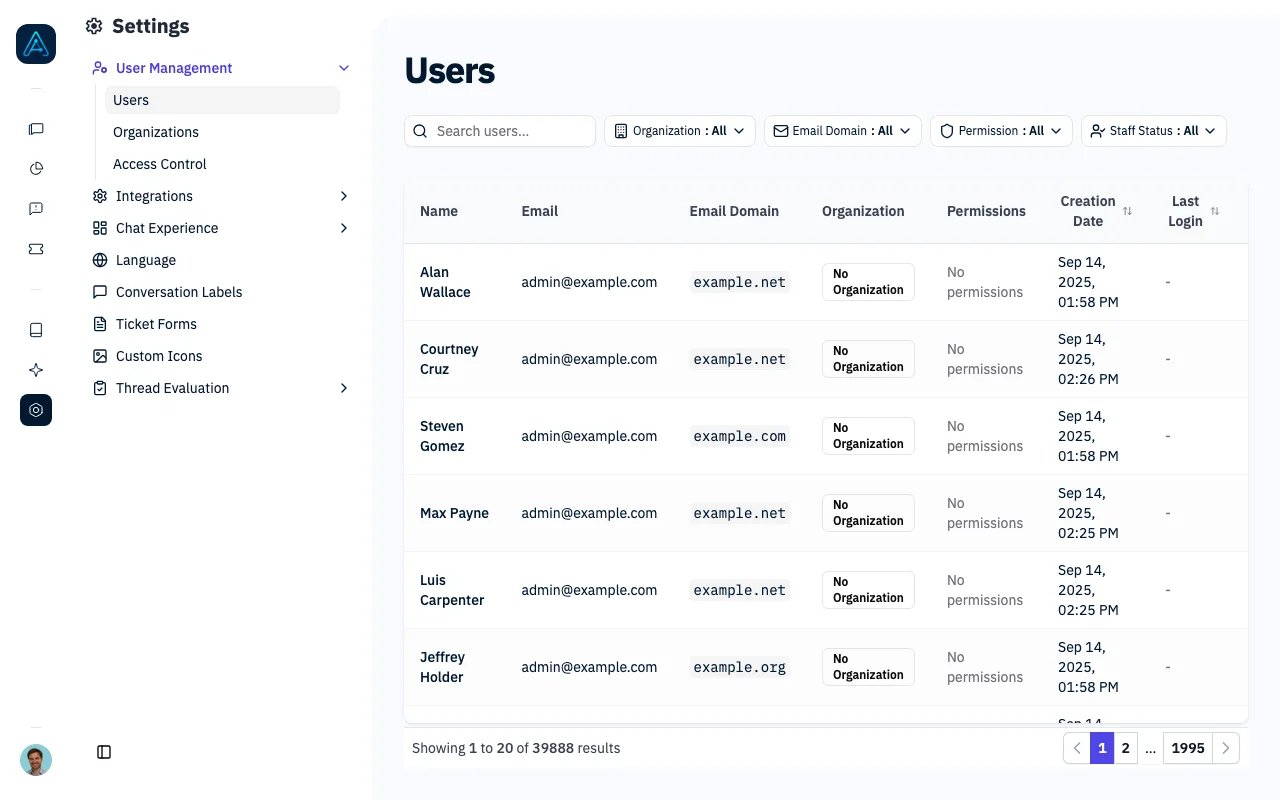
User Management
Overview
This feature allows administrators to:- View all users in the system with pagination
- Filter users by organization status
- Filter users by email domain linkage to organizations
- Filter users by staff and reviewer status
- Search users by email, first name, or last name
- View user details including organization membership and email domain information
- Manage reviewer status for staff users
Accessing User Management
Navigate to Settings → User Management → Users in the admin sidebar.Filters
Organization Filter
- All: Shows all users regardless of organization status
- Has Organization: Shows only users directly linked to an organization
- No Organization: Shows only users without direct organization links
Email Domain Filter
- All: Shows all users regardless of email domain status
- Has Domain Link: Shows users with a stored email domain; this does not necessarily mean an organization matches that domain
- No Domain Link: Shows users without a stored email domain
Permission Filter
- All: Shows all users regardless of permission status
- Specific Permission: Shows only users who have been assigned the selected permission
Staff Status Filter
- All Users: Shows all users regardless of staff or reviewer status
- Staff Only: Shows only users with staff privileges
- Reviewers Only: Shows only staff users who are also reviewers
- Non-Reviewer Staff: Shows staff users who are not reviewers
Search
Search across user emails, first names, and last names with real-time filtering.User Information Displayed
For each user, the following information is shown:- Name: Display name (first name + last name) or email if no name is set
- Email: User’s email address
- Email Domain: Extracted domain from the user’s email
- Organization: Direct organization membership (if any)
- Permissions: User’s assigned permissions displayed as badges
- Reviewer: Shows reviewer status for staff users with a badge and checkbox to toggle the status
User Profile Page
Click a user in the list to open their profile. On top of the account details (email, name, organization, status, permissions, conversation and ticket counts), the profile shows a Ticket Creation badge telling you whether that user is currently allowed to open a ticket:- Can create tickets — the user is accepted by the active ticketing system, or ticket creation is open to everyone
- Cannot create tickets — no ticketing system is active, or the user is not an active requester in it (for example, a suspended or unknown Zendesk end user)
- Unknown — the ticketing system could not be reached to answer the question
Ticket Form
The profile also has a Ticket Form selector. Pick a form here when this person needs a different form from everyone else sharing their permission. The change is saved as soon as you pick it. A form set on the user wins over the form of their permission and over the default form. Choose Use the form from permissions to remove the override.Start page
For staff, the profile of a user with admin access (staff, account manager or viewer) also has a Start page selector. It sets the page this person lands on after signing in, such as admin Home, Chat History or Tickets, instead of the chat. Only the pages that user can access are listed. The change is saved as soon as you pick it, and the user can still change it from their own account menu. Choose Chat (default) to go back to opening the chat. See Choose your start page.Creating Users in Advance
You can create a user before they sign in and assign their information up front. When authentication supplies the same email address, AGO can reuse that record. Authentication may update names and additional information, so those values are not guaranteed to stay as you entered them. To create a user:- Go to Settings → User Management → Users.
- Click Create User in the top-right corner.
- Enter the user’s email (required). This is the address they will sign in with.
- Optionally set:
- First name and last name
- Organization — pick one, or leave it empty to let AGO try to match an organization from the user’s email domain when you save
- Permissions — one or more permissions to grant
- Ticket form — the form this person gets when they open a ticket, instead of the one from their permissions
- Additional info and Business context — extra data as JSON. Additional info can be matched by permission rules.
- Statuses — Reviewer, Viewer, or Admin
- Click Save.
- Reviewer requires the user to also be an Admin.
- Admin (staff) can only be granted by a superuser. The checkbox is disabled for other admins.
Use Cases
Finding Unlinked Users
Use No Organization to find users without an organization assignment. Add No Domain Link to narrow the list to users who also have no stored email domain. This helps with:- User onboarding and organization assignment
- Identifying users who may need manual organization linking
- Data cleanup and organization management
Organization Management
- View users with or without an organization assignment
- Identify users who should be linked to organizations based on their email domains
- Manage user-organization relationships
Viewer Role
Viewers use the admin interface to review activity and feedback. They can:- View conversations and chat history
- View analytics dashboards
- View knowledge documents
- Edit feedback and ratings on messages
Managing Reviewers
Reviewers are staff users who have special privileges to review and evaluate conversations or content. To manage reviewer status:- Filter for staff users: Use the “Staff Status” filter to show only staff users or reviewers
- Toggle reviewer status: Click the checkbox in the “Reviewer” column next to a staff user’s name
- View reviewer badge: Active reviewers display a “Reviewer” badge next to their checkbox
- Quick identification: Use the “Reviewers Only” filter to see all current reviewers
ℹ️ NOTE: User management is also available via API. The Public API exposesPOST /api/v1/users(and an equivalentupsert_userMCP tool) to create or update a user, both requiring theaccounts:writescope. For security, the API can never grant Admin (staff) status. See the Users API for endpoint details.
Clean up unused anonymous accounts
In Admin interface → Users → Clean up anonymous accounts, administrators with permission to view and delete users can review a quick preview before deleting unused anonymous accounts.- Select Generate quick preview. It checks up to 5,000 candidate accounts in the background, starting with the oldest, without counting every eligible account in the tenant.
- Review the number found in the preview, cutoff date and sample of up to 25 accounts. The sample shows creation dates, current conversation counts and a View profile link for each account. Only accounts created strictly more than one calendar month ago are considered.
- Select Delete all eligible accounts to check the full set of candidates and permanently remove eligible accounts from the current tenant, including accounts outside the preview.
unknown_ago@ can be removed even if they previously logged in or have profile information and widget permissions. Accounts with conversations (including empty conversations), messages, tickets or other business records are kept, along with administrative accounts. The cutoff measures account age, not the time since the last visit. Conversation counts in the sample are refreshed when you reload the page; an account that gained a conversation after the preview will be kept.
Deletion runs in small batches and continues when you leave the page. Return to see the deleted count. Eligibility is checked again during deletion, and accounts currently being updated are skipped. If processing fails or stops reporting progress, use Resume operation to continue from the last completed batch. A preview expires after 24 hours and must then be generated again before starting deletion.