
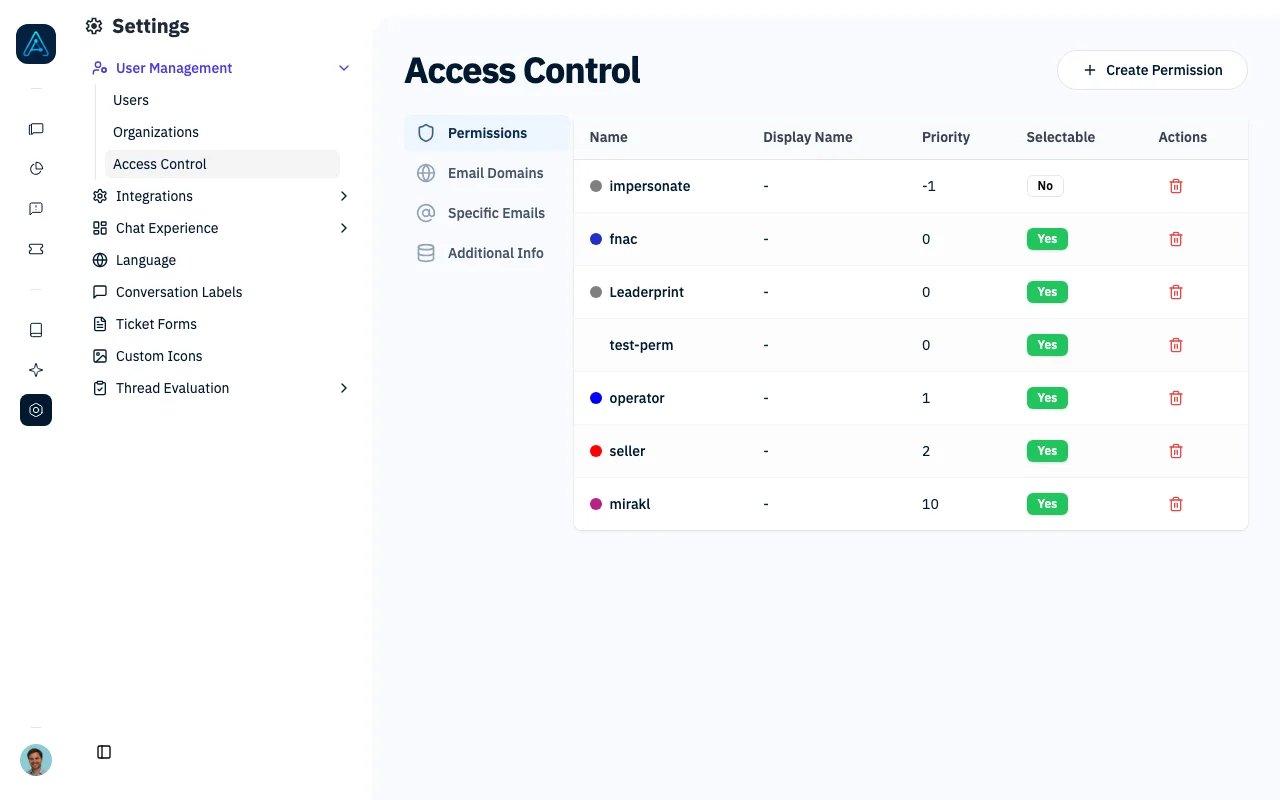
Access Control - Permissions
Overview
The system supports three types of access control rules:- Email Domain Rules - Assign permissions based on user email domains
- Specific Email Rules - Assign permissions to specific email addresses
- Additional Info Rules - Assign permissions based on custom user metadata
Client Portal Admission
For client portals using Clerk sign-in, an active Specific Email or Email Domain rule also authorizes matching non-administrator users to enter the portal. A wildcard domain rule (*) matches all email domains. Staff and superadmin accounts are exempt from this entry check.
Permissions assigned directly to a user do not grant portal admission. Neither do direct agent assignments or Additional Info rules on their own. A user can therefore have agent permissions and still receive 401 Unauthorized at portal sign-in when no active email rule matches.
See Portal Access and Agent Permissions for the distinction and troubleshooting steps.
Prerequisites
System Requirements
- AGO platform deployed and accessible
- Staff-level access to manage rules
Knowledge Required
- Understanding of AGO permission system
- JWT concepts (for additional info rules with JWT claims)
Configuration Required
- Permissions and agents created in the system
- (Optional) JWT field mapping configured for widget authentication
ℹ️ NOTE: Changes to rules take effect immediately on the user’s next request. No restart required.
Rule Types
Email Domain Rules
Automatically grant permissions to users whose email matches a specific domain pattern. Use Cases:- Grant company-wide access to all employees (e.g.,
@company.com) - Provide universal access using wildcard domain (
*) - Assign different permissions to different partner organizations
Specific Email Rules
Grant permissions to individual users based on their exact email address. Use Cases:- Provide VIP access to specific customers
- Grant special permissions to external consultants
- Create exceptions for individual users
Additional Info Rules
Grant permissions based on key-value data stored in the user’sadditional_info field. This provides maximum flexibility for custom business logic.
Use Cases:
- Grant premium features to subscription tier users
- Provide regional access based on user location
- Assign permissions based on user roles or departments
- Create complex conditional access patterns
- Use JWT claims extracted during authentication
Condition Fields:
⚠️ WARNING: All conditions within an Additional Info Rule must match (AND logic). For OR logic, create separate rules.
Data Sources for Additional Info
1. JWT Claims
When widget authentication uses JWT, configured fields are automatically extracted and flattened: JWT Configuration Example:
💡 TIP: Always use the flattened key format (snake_case) when creating rules, not the nested jwt_extracted_fields path.
2. Manual API Updates
Update user’sadditional_info via API.
3. Integration Data
Sync from external systems (CRM, subscription platforms, etc.)Type Handling
The system intelligently handles type conversion when matching conditions:
This means you can enter values in the UI as text, and they’ll correctly match numeric or boolean values.
Condition Examples
Example 1: Premium Subscribers (from JWT)
Example 2: Non-Trial Users (using negate)
Example 3: Multiple Conditions (AND logic)
How Rules Are Evaluated
When determining a user’s permissions, the system:- Checks if user is staff or superuser (grants all permissions)
- Collects permissions from direct user assignments
- Evaluates wildcard domain rules (
domain = "*") - Evaluates specific email rules matching user’s email
- Evaluates email domain rules matching user’s domain
- Evaluates additional info rules where all conditions match
- Returns all collected permissions ordered by priority
- Rules are cumulative - users receive permissions from ALL matching rules
- Priority affects ordering but doesn’t prevent lower-priority rules from applying
- Changes take effect immediately on next request
API Endpoints
⚠️ WARNING: All endpoints require staff-level access.
List All Rules
Email Domain Rules
Specific Email Rules
Additional Info Rules
Best Practices
- Use Priority Wisely: Assign higher priorities to more specific rules
- Test Rules: Verify with test users before deploying
- Document Business Logic: Add clear names and descriptions
- Regular Audits: Periodically review and remove unused rules
- Avoid Conflicts: Be mindful of overlapping rules
- Use Negate Carefully: Negative conditions can be harder to understand
- Keep Conditions Simple: Complex rules impact evaluation performance
Security Considerations
- All rule management endpoints require staff-level access
- Rules are evaluated server-side and cannot be bypassed by clients
- Changes take effect immediately
- Follow the principle of least privilege when designing rules
- Regularly audit which users have which permissions through rule assignments
Troubleshooting
User not getting expected permissions
User not getting expected permissions
Problem: Rule appears correct but user doesn’t have permissions.Solutions:
- Verify rule is active (
is_active: true) - Check all conditions match (AND logic for additional info rules)
- Verify key names use correct format (snake_case, not labels)
- Check user’s
additional_infocontains expected values - Review if a higher-priority rule is affecting results
Additional info rule not matching
Additional info rule not matching
Problem: User has correct data but rule doesn’t apply.Solutions:
- Verify key is in snake_case format (e.g.,
subscription_tiernotSubscription Tier) - Check type handling - string
"25"should match int25 - Ensure the key exists at the root level of
additional_info, not nested - Use API or admin to inspect actual user
additional_infovalues
JWT claims not appearing in additional_info
JWT claims not appearing in additional_info
Problem: JWT fields configured but not showing in user data.Solutions:
- Verify
widget_jwt_fields_mappingis correctly configured - Check JWT token actually contains the specified fields
- Ensure user authenticates via widget (not other auth methods)
- Review field normalization - labels become snake_case keys
Too many permissions granted
Too many permissions granted
Problem: Users receiving more permissions than expected.Solutions:
- Remember rules are cumulative - check for overlapping rules
- Review wildcard domain rules (
*) which apply to everyone - Check if user has direct permission assignments
- Audit all active rules for unintended matches
Related Documentation
- Agent Permissions - Control agent access
- Access Control Examples - Common patterns
- Widget Authentication - JWT integration
- Security Overview - Authentication methods