> ## Documentation Index
> Fetch the complete documentation index at: https://ago.mintlify.site/llms.txt
> Use this file to discover all available pages before exploring further.
# Tools
> Extend agent capabilities with actions like API calls, tickets, and emails
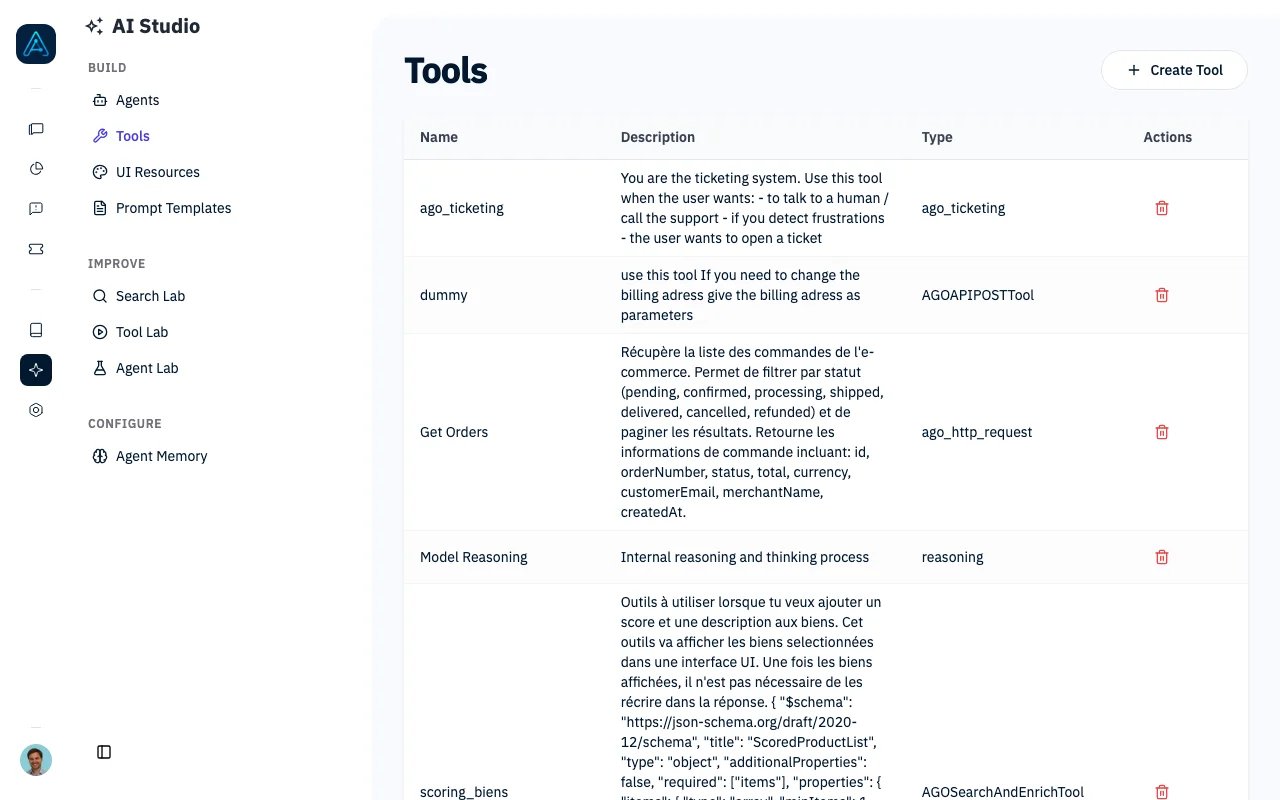
Tools extend agent capabilities by allowing them to perform actions beyond answering questions. Agents can create tickets, query APIs, send emails, and execute custom workflows through tools.
 ## Overview
Tools in AGO enable agents to:
* Execute external API calls
* Create support tickets and escalate to humans
* Send emails
* Invoke other specialized agents
* Search knowledge with parameters
* Return structured UI components
* Perform web searches
## Prerequisites
### System Requirements
* AGO platform deployed and accessible
* Admin access to configure tools
### Knowledge Required
* Understanding of REST APIs (for HTTP tools)
* JSON Schema basics (for custom input schemas)
### Configuration Required
* Agent created and configured
* API credentials for external services (if using HTTP tools)
***
## Built-in Tools
AGO provides several built-in tools ready to use. Each tool has dedicated documentation with complete configuration guides.
Create support tickets and escalate to humans (`ago_ticketing`)
Make HTTP requests to external APIs (`ago_http_request`)
Send emails via AWS SES (`ago_send_email`)
Delegate tasks to other agents (`ago_agent_invocation`)
Search knowledge with filters (`ago_parameterized_search`)
Return rich UI components (`ui_resource`)
### Additional Tools
| Tool | Name | Description |
| -------------------- | ----------------------- | -------------------------------------------------------------- |
| Report Knowledge Gap | `report_knowledge_gap` | Signals missing or incomplete knowledge so you can fill gaps |
| Conversation Tagger | `conv_tagger` | Automatically tags conversations with categories for analytics |
| Linkup Web Search | `ago_linkup` | Web search for real-time information |
| AGO API POST | `ago_api_post` | Specialized POST requests for API integrations |
| Search and Enrich | `ago_search_and_enrich` | Search knowledge and enrich with metadata |
***
## Tool Configuration
### Tool Configuration Fields
| Setting | Description |
| ----------------- | ----------------------------------------------------------- |
| Name | Internal identifier (must be unique) |
| Display Name | User-facing name shown in tool calls |
| Description | What the tool does (helps the AI decide when to use it) |
| Tool Type | Template that provides default configuration |
| Additional Info | Tool-specific configuration (base URL, API key, etc.) |
| Input Schema | Parameter schema defining what the tool accepts (see below) |
| Prompt | Instructions for when and how to use the tool |
| Secret Key | API keys or secrets (stored encrypted) |
| Strict Mode | Enforce OpenAI function calling compliance |
| Forward User Auth | Pass user credentials to external APIs |
### Permission and Security Fields
| Setting | Description |
| -------------------- | ------------------------------------------------- |
| Required Permissions | Permissions a user must have to use this tool |
| Source Restrictions | Limit the tool to specific knowledge sources |
| Admin Tags | Tags automatically applied when the tool executes |
***
## Input Schema
Tools use input schemas to define their parameters. AGO supports two formats.
Easy-to-use format for common parameter types:
```json theme={null}
{
"input_schema": {
"customer_email": {
"type": "str",
"description": "Customer email address"
},
"priority": {
"type": "int",
"default": 1,
"description": "Ticket priority (1-5)"
},
"notify": {
"type": "bool",
"default": true,
"description": "Send notification"
},
"category": {
"type": "str",
"enum": ["billing", "technical", "general"],
"description": "Ticket category"
},
"tags": {
"type": "str[]",
"description": "List of tags"
}
}
}
```
**Supported Types:**
* `str` - String
* `int` - Integer
* `float` - Float
* `bool` - Boolean
* `str[]` or `list[str]` - Array of strings
* `int[]` or `list[int]` - Array of integers
**Optional Properties:**
* `default` - Default value
* `enum` - Allowed values
* `description` - Parameter description
For complex schemas, use standard JSON Schema (must include `$schema` key):
```json theme={null}
{
"input_schema": {
"$schema": "http://json-schema.org/draft-07/schema#",
"type": "object",
"properties": {
"query": {
"type": "string",
"description": "Search query"
},
"filters": {
"type": "object",
"properties": {
"date_from": { "type": "string", "format": "date" },
"date_to": { "type": "string", "format": "date" }
}
}
},
"required": ["query"]
}
}
```
***
## Tool Execution States
Tools can have different execution states, enabling interactive workflows.
| State | Description |
| --------------------- | ----------------------------------- |
| CREATED | Tool call created, not yet executed |
| WAITING\_CONFIRMATION | Awaiting user confirmation |
| CONFIRMED | User confirmed, proceeding |
| REJECTED | User rejected the action |
| WAITING\_INPUT | Tool needs additional user input |
| RUNNING | Tool is executing |
| DONE | Execution completed successfully |
| ERROR | Execution failed |
### Interactive Tools
Tools can request user input mid-execution using `WAITING_INPUT` state:
1. Tool returns `status: "WAITING_INPUT"` with a `form_schema`
2. Frontend renders the form to the user
3. User submits the form via `/api/tool-calls/{id}/submit/`
4. Tool continues execution with user input
***
## Creating Custom Tools
Tool types serve as templates with default configurations:
1. Navigate to **AI Studio** → **Tools**, then click **Tool Types**
2. Click **Create Tool Type**
3. Configure the template:
* **Name**: Internal identifier (e.g., "custom\_api\_tool")
* **Description**: What this tool type is for
* **Additional Info Schema**: Define required configuration fields
4. Click **Save**
1. Navigate to **AI Studio** → **Tools**
2. Click **Create Tool**
3. Select your tool type (or a built-in type)
4. Configure the tool:
* **Name**: Internal identifier
* **Display Name**: User-facing name
* **Description**: What the tool does
* **Additional Info**: Tool-specific configuration (base URL, API key, etc.)
* **Input Schema**: Define parameters
* **Prompt**: Instructions for when/how to use
5. Click **Save**
1. Navigate to **AI Studio** → **Agents**
2. Select the agent
3. Go to the **Tools** tab
4. Add your custom tool to the agent's tool list
5. Click **Save**
***
## Tool Permissions
### Restricting Tool Access
Tools can be restricted to users with specific permissions:
1. Edit the tool in **AI Studio** → **Tools**
2. Go to the **Permissions** section
3. Add **Required Permissions** to limit access
4. Click **Save**
Only users with the specified permissions will see and use the tool.
### Source Restrictions
Limit tools to specific knowledge sources:
1. Edit the tool
2. Go to the **Sources** section
3. Add **Source Restrictions** to limit which knowledge sources the tool can access
4. Click **Save**
The tool will only operate on documents from the specified sources.
### Approval for Background Runs
For tools that perform sensitive write actions (issuing a refund, updating a record), you can require a human decision before a background agent may use them:
1. Edit the tool
2. Go to the **Access & Restrictions** tab
3. Turn on **Require approval in background runs**
4. Click **Save**
When a background agent reaches this tool, the run pauses and staff users get an approval card in the conversation showing the tool and the values it wants to send. The agent only executes the action after a staff member approves it; a rejected or expired approval (72 hours) skips the action. Regular chat agents are not affected by this setting — it applies to background runs only. See [Action Approvals](/agent/agents#action-approvals) for the full flow.
***
## Agents Using a Tool
When editing a tool, the **Agents** tab lists every agent that has this tool attached. Use it to check what depends on a tool before you change or remove it.
1. Edit the tool in **AI Studio** → **Tools**
2. Open the **Agents** tab
3. Click an agent in the list to open it
If no agent uses the tool, the tab shows an empty state.
***
## API Reference
For programmatic tool management, see the [Public API v1 Reference](../api/public-api-v1).
***
## Best Practices
### Tool Design
* **Clear descriptions**: Write descriptions that help the LLM understand when to use the tool
* **Focused purpose**: Each tool should do one thing well
* **Sensible defaults**: Provide default values for optional parameters
* **Validation**: Use input schemas to validate parameters
### Security
* **Least privilege**: Only grant necessary permissions
* **Source restrictions**: Limit tools to relevant knowledge sources
* **Secret management**: Store API keys in the Secret Key field (encrypted at rest)
* **Auth forwarding**: Use Forward User Auth carefully, only when needed
### Performance
* **Timeout handling**: External APIs may be slow; implement timeouts
* **Error handling**: Return helpful error messages
* **Caching**: Consider caching frequent tool responses
***
## Troubleshooting
**Problem**: Users can't see or use a configured tool.
**Solutions**:
1. Check if the tool is assigned to the agent in the Tools tab
2. Verify the user has the required permissions
3. Verify the tool status is active
**Problem**: AGO HTTP Request Tool returns errors.
**Solutions**:
1. Check if target URL is accessible (not internal IP - SSRF protection)
2. Verify API credentials in the tool's Additional Info configuration
3. Check request format matches API expectations
4. Review tool logs for detailed error messages
**Problem**: Tool creation/update fails with validation errors.
**Solutions**:
1. Verify the Input Schema format (simplified or JSON Schema)
2. Check that the Additional Info matches the expected schema of the tool type
3. Check that required fields are provided
**Problem**: Agent doesn't call tool when it should.
**Solutions**:
1. Review the tool's Description and Prompt — make them clearer
2. Check if tool is assigned to the agent
3. Verify user message clearly indicates need for tool
4. Test with explicit tool-triggering phrases
**Problem**: Tool is in WAITING\_INPUT but no form shows.
**Solutions**:
1. Verify the form schema is properly formatted
2. Check frontend widget supports interactive tools
3. Verify tool returns correct status
***
## Related
Create support tickets
Call external APIs
Send emails
Delegate to other agents
Advanced retrieval
Rich UI responses
How to write effective descriptions
## Overview
Tools in AGO enable agents to:
* Execute external API calls
* Create support tickets and escalate to humans
* Send emails
* Invoke other specialized agents
* Search knowledge with parameters
* Return structured UI components
* Perform web searches
## Prerequisites
### System Requirements
* AGO platform deployed and accessible
* Admin access to configure tools
### Knowledge Required
* Understanding of REST APIs (for HTTP tools)
* JSON Schema basics (for custom input schemas)
### Configuration Required
* Agent created and configured
* API credentials for external services (if using HTTP tools)
***
## Built-in Tools
AGO provides several built-in tools ready to use. Each tool has dedicated documentation with complete configuration guides.
Create support tickets and escalate to humans (`ago_ticketing`)
Make HTTP requests to external APIs (`ago_http_request`)
Send emails via AWS SES (`ago_send_email`)
Delegate tasks to other agents (`ago_agent_invocation`)
Search knowledge with filters (`ago_parameterized_search`)
Return rich UI components (`ui_resource`)
### Additional Tools
| Tool | Name | Description |
| -------------------- | ----------------------- | -------------------------------------------------------------- |
| Report Knowledge Gap | `report_knowledge_gap` | Signals missing or incomplete knowledge so you can fill gaps |
| Conversation Tagger | `conv_tagger` | Automatically tags conversations with categories for analytics |
| Linkup Web Search | `ago_linkup` | Web search for real-time information |
| AGO API POST | `ago_api_post` | Specialized POST requests for API integrations |
| Search and Enrich | `ago_search_and_enrich` | Search knowledge and enrich with metadata |
***
## Tool Configuration
### Tool Configuration Fields
| Setting | Description |
| ----------------- | ----------------------------------------------------------- |
| Name | Internal identifier (must be unique) |
| Display Name | User-facing name shown in tool calls |
| Description | What the tool does (helps the AI decide when to use it) |
| Tool Type | Template that provides default configuration |
| Additional Info | Tool-specific configuration (base URL, API key, etc.) |
| Input Schema | Parameter schema defining what the tool accepts (see below) |
| Prompt | Instructions for when and how to use the tool |
| Secret Key | API keys or secrets (stored encrypted) |
| Strict Mode | Enforce OpenAI function calling compliance |
| Forward User Auth | Pass user credentials to external APIs |
### Permission and Security Fields
| Setting | Description |
| -------------------- | ------------------------------------------------- |
| Required Permissions | Permissions a user must have to use this tool |
| Source Restrictions | Limit the tool to specific knowledge sources |
| Admin Tags | Tags automatically applied when the tool executes |
***
## Input Schema
Tools use input schemas to define their parameters. AGO supports two formats.
Easy-to-use format for common parameter types:
```json theme={null}
{
"input_schema": {
"customer_email": {
"type": "str",
"description": "Customer email address"
},
"priority": {
"type": "int",
"default": 1,
"description": "Ticket priority (1-5)"
},
"notify": {
"type": "bool",
"default": true,
"description": "Send notification"
},
"category": {
"type": "str",
"enum": ["billing", "technical", "general"],
"description": "Ticket category"
},
"tags": {
"type": "str[]",
"description": "List of tags"
}
}
}
```
**Supported Types:**
* `str` - String
* `int` - Integer
* `float` - Float
* `bool` - Boolean
* `str[]` or `list[str]` - Array of strings
* `int[]` or `list[int]` - Array of integers
**Optional Properties:**
* `default` - Default value
* `enum` - Allowed values
* `description` - Parameter description
For complex schemas, use standard JSON Schema (must include `$schema` key):
```json theme={null}
{
"input_schema": {
"$schema": "http://json-schema.org/draft-07/schema#",
"type": "object",
"properties": {
"query": {
"type": "string",
"description": "Search query"
},
"filters": {
"type": "object",
"properties": {
"date_from": { "type": "string", "format": "date" },
"date_to": { "type": "string", "format": "date" }
}
}
},
"required": ["query"]
}
}
```
***
## Tool Execution States
Tools can have different execution states, enabling interactive workflows.
| State | Description |
| --------------------- | ----------------------------------- |
| CREATED | Tool call created, not yet executed |
| WAITING\_CONFIRMATION | Awaiting user confirmation |
| CONFIRMED | User confirmed, proceeding |
| REJECTED | User rejected the action |
| WAITING\_INPUT | Tool needs additional user input |
| RUNNING | Tool is executing |
| DONE | Execution completed successfully |
| ERROR | Execution failed |
### Interactive Tools
Tools can request user input mid-execution using `WAITING_INPUT` state:
1. Tool returns `status: "WAITING_INPUT"` with a `form_schema`
2. Frontend renders the form to the user
3. User submits the form via `/api/tool-calls/{id}/submit/`
4. Tool continues execution with user input
***
## Creating Custom Tools
Tool types serve as templates with default configurations:
1. Navigate to **AI Studio** → **Tools**, then click **Tool Types**
2. Click **Create Tool Type**
3. Configure the template:
* **Name**: Internal identifier (e.g., "custom\_api\_tool")
* **Description**: What this tool type is for
* **Additional Info Schema**: Define required configuration fields
4. Click **Save**
1. Navigate to **AI Studio** → **Tools**
2. Click **Create Tool**
3. Select your tool type (or a built-in type)
4. Configure the tool:
* **Name**: Internal identifier
* **Display Name**: User-facing name
* **Description**: What the tool does
* **Additional Info**: Tool-specific configuration (base URL, API key, etc.)
* **Input Schema**: Define parameters
* **Prompt**: Instructions for when/how to use
5. Click **Save**
1. Navigate to **AI Studio** → **Agents**
2. Select the agent
3. Go to the **Tools** tab
4. Add your custom tool to the agent's tool list
5. Click **Save**
***
## Tool Permissions
### Restricting Tool Access
Tools can be restricted to users with specific permissions:
1. Edit the tool in **AI Studio** → **Tools**
2. Go to the **Permissions** section
3. Add **Required Permissions** to limit access
4. Click **Save**
Only users with the specified permissions will see and use the tool.
### Source Restrictions
Limit tools to specific knowledge sources:
1. Edit the tool
2. Go to the **Sources** section
3. Add **Source Restrictions** to limit which knowledge sources the tool can access
4. Click **Save**
The tool will only operate on documents from the specified sources.
### Approval for Background Runs
For tools that perform sensitive write actions (issuing a refund, updating a record), you can require a human decision before a background agent may use them:
1. Edit the tool
2. Go to the **Access & Restrictions** tab
3. Turn on **Require approval in background runs**
4. Click **Save**
When a background agent reaches this tool, the run pauses and staff users get an approval card in the conversation showing the tool and the values it wants to send. The agent only executes the action after a staff member approves it; a rejected or expired approval (72 hours) skips the action. Regular chat agents are not affected by this setting — it applies to background runs only. See [Action Approvals](/agent/agents#action-approvals) for the full flow.
***
## Agents Using a Tool
When editing a tool, the **Agents** tab lists every agent that has this tool attached. Use it to check what depends on a tool before you change or remove it.
1. Edit the tool in **AI Studio** → **Tools**
2. Open the **Agents** tab
3. Click an agent in the list to open it
If no agent uses the tool, the tab shows an empty state.
***
## API Reference
For programmatic tool management, see the [Public API v1 Reference](../api/public-api-v1).
***
## Best Practices
### Tool Design
* **Clear descriptions**: Write descriptions that help the LLM understand when to use the tool
* **Focused purpose**: Each tool should do one thing well
* **Sensible defaults**: Provide default values for optional parameters
* **Validation**: Use input schemas to validate parameters
### Security
* **Least privilege**: Only grant necessary permissions
* **Source restrictions**: Limit tools to relevant knowledge sources
* **Secret management**: Store API keys in the Secret Key field (encrypted at rest)
* **Auth forwarding**: Use Forward User Auth carefully, only when needed
### Performance
* **Timeout handling**: External APIs may be slow; implement timeouts
* **Error handling**: Return helpful error messages
* **Caching**: Consider caching frequent tool responses
***
## Troubleshooting
**Problem**: Users can't see or use a configured tool.
**Solutions**:
1. Check if the tool is assigned to the agent in the Tools tab
2. Verify the user has the required permissions
3. Verify the tool status is active
**Problem**: AGO HTTP Request Tool returns errors.
**Solutions**:
1. Check if target URL is accessible (not internal IP - SSRF protection)
2. Verify API credentials in the tool's Additional Info configuration
3. Check request format matches API expectations
4. Review tool logs for detailed error messages
**Problem**: Tool creation/update fails with validation errors.
**Solutions**:
1. Verify the Input Schema format (simplified or JSON Schema)
2. Check that the Additional Info matches the expected schema of the tool type
3. Check that required fields are provided
**Problem**: Agent doesn't call tool when it should.
**Solutions**:
1. Review the tool's Description and Prompt — make them clearer
2. Check if tool is assigned to the agent
3. Verify user message clearly indicates need for tool
4. Test with explicit tool-triggering phrases
**Problem**: Tool is in WAITING\_INPUT but no form shows.
**Solutions**:
1. Verify the form schema is properly formatted
2. Check frontend widget supports interactive tools
3. Verify tool returns correct status
***
## Related
Create support tickets
Call external APIs
Send emails
Delegate to other agents
Advanced retrieval
Rich UI responses
How to write effective descriptions