> ## Documentation Index
> Fetch the complete documentation index at: https://ago.mintlify.site/llms.txt
> Use this file to discover all available pages before exploring further.
# Tickets
> Browse and manage support tickets created from conversations
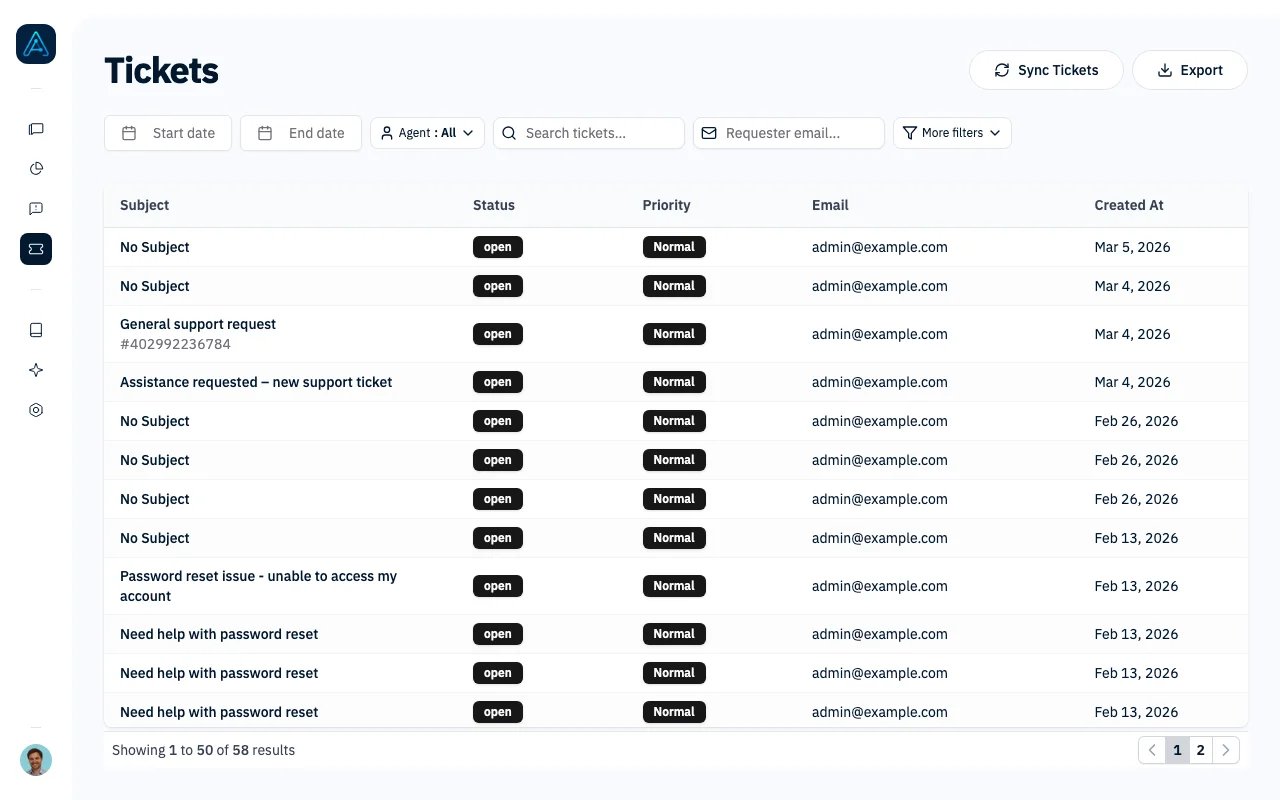
The Tickets page displays all support tickets created through your AI agents, providing a centralized view of escalated issues with filtering and export capabilities.
 ## Accessing the Tickets List
Navigate to **Tickets** in the sidebar.
You need Admin or Account Manager permissions to access the Tickets page.
## Ticket Table
The table displays tickets with the following columns:
| Column | Description |
| -------------- | ------------------------------------------------------ |
| **Subject** | Ticket subject line and external ID (if synced) |
| **Status** | Current ticket status |
| **Priority** | Priority level (Low, Normal, High, Urgent) |
| **Email** | Requester's email address |
| **Assignee** | Team member the ticket is assigned to, or "Unassigned" |
| **Created At** | When the ticket was created |
Click any row to open the ticket detail view.
## Primary Filters
These filters are always visible:
| Filter | Description |
| -------------- | ---------------------------------------------- |
| **Start Date** | Show tickets from this date onwards |
| **End Date** | Show tickets up to this date |
| **Agent** | Filter by the AI agent that created the ticket |
| **Search** | Search ticket subjects and content |
| **Email** | Search by requester email address |
## Secondary Filters
Click "More filters" for additional options:
| Filter | Description |
| ----------------- | ------------------------------------------------------------------------------------- |
| **Status** | Filter by ticket status |
| **Priority** | Filter by priority level |
| **User Type** | Filter by requester's permission level |
| **Organization** | Filter by requester's organization |
| **Tags** | Filter by ticket tags (multiselect, AND logic -- tickets must have all selected tags) |
| **Custom Fields** | Filter by any custom enum fields configured in your ticket forms |
Custom field filters automatically appear based on your ticket form configuration.
## Status Badges
Ticket status is displayed with color-coded badges:
| Status Type | Badge Color |
| ------------------------ | ----------- |
| New, Open | Default |
| In Progress, Pending | Outline |
| Closed, Resolved, Solved | Secondary |
## Priority Badges
Priority levels use the following colors:
| Priority | Badge Color |
| ---------- | ----------------- |
| **Urgent** | Red (destructive) |
| **High** | Red (destructive) |
| **Normal** | Default |
| **Low** | Secondary |
## Exporting Data
Click the **Export** button to download the current filtered results as a CSV file. Exports include:
* All visible columns
* Current filter settings applied
* All custom field values
## URL Parameters
The Tickets page supports pre-filtering via URL parameters:
```
/admin/tickets?requester_email=user@example.com&start_date=2024-01-01
```
Supported parameters:
* `requester_email`
* `start_date`
* `end_date`
* `user_type`
* `organization`
* `agent_name`
This is useful for linking to filtered views from dashboards or external tools.
## Ticket Detail View
Click any ticket to open the detail view, which shows:
* Full ticket subject and description
* All ticket fields and custom fields
* Associated conversation (if available)
* External ticket link (if synced to Zendesk, Help Scout, etc.)
## Assigning Tickets
In the ticket detail view, use the **Assignee** dropdown to assign a ticket to a team member or set it back to **Unassigned**. Only internal team members appear in the list.
The assignment shows up in the **Assignee** column on the tickets list, so you can see at a glance who owns each ticket. Every change is recorded, so you keep a history of who handled the ticket and when.
Assignment is available on tickets managed inside AGO. Tickets synced from an external system (Zendesk, Help Scout, etc.) keep the assignee from that system and are managed there.
## Notifications
A bell in the left sidebar shows your in-app notifications, with a badge for the number you haven't read yet. You get a notification when:
* A ticket is assigned to you (whether a teammate assigns it or a routing rule does).
* Someone else replies on a ticket assigned to you.
* A background agent needs an approval to continue (staff users only), or one of its pending approvals expired. See [Action Approvals](/agent/agents#action-approvals).
Open the bell to see the list. Click a notification to jump straight to the ticket or conversation; that marks it as read. Use **Mark all read** to clear the badge in one click. The list refreshes on its own while you work, so you don't need to reload the page.
## Integration with External Systems
If you have a ticketing integration configured (Zendesk, Help Scout, etc.), tickets display:
* **External ID**: The ticket ID in the external system
* **Sync Status**: Whether the ticket was successfully synced
* **External Link**: Direct link to the ticket in the external system
## Workflow Tips
### Following Up on Tickets
1. Filter by date range to see recent tickets
2. Check priority to identify urgent issues
3. Click to view ticket details
4. Use external link to manage in your ticketing system
### Analyzing Ticket Patterns
1. Filter by **Organization** to see which accounts create most tickets
2. Filter by **Agent** to compare ticket creation across agents
3. Use **Custom Fields** to segment by ticket type
### Responding to Specific Users
1. Enter email in **Email** filter
2. View all tickets from that user
3. Click through to see conversation history
## Best Practices
1. **Review high-priority tickets first**: Filter by Urgent/High priority
2. **Track unsynced tickets**: If external ID is missing, the ticket may not have synced
3. **Use organization filter**: Identify accounts with frequent issues
4. **Export for reporting**: Create regular exports for ticket volume analysis
5. **Link to conversations**: Click through to see the AI conversation that led to the ticket
## Related Features
* [Tickets Analytics](/features/tickets-analytics) - Dashboard view of ticket metrics
* [Ticketing](/features/ticketing) - Configure ticket creation settings
* [Ticket Form Customization](/features/ticket-form-customization) - Set up custom fields
## Accessing the Tickets List
Navigate to **Tickets** in the sidebar.
You need Admin or Account Manager permissions to access the Tickets page.
## Ticket Table
The table displays tickets with the following columns:
| Column | Description |
| -------------- | ------------------------------------------------------ |
| **Subject** | Ticket subject line and external ID (if synced) |
| **Status** | Current ticket status |
| **Priority** | Priority level (Low, Normal, High, Urgent) |
| **Email** | Requester's email address |
| **Assignee** | Team member the ticket is assigned to, or "Unassigned" |
| **Created At** | When the ticket was created |
Click any row to open the ticket detail view.
## Primary Filters
These filters are always visible:
| Filter | Description |
| -------------- | ---------------------------------------------- |
| **Start Date** | Show tickets from this date onwards |
| **End Date** | Show tickets up to this date |
| **Agent** | Filter by the AI agent that created the ticket |
| **Search** | Search ticket subjects and content |
| **Email** | Search by requester email address |
## Secondary Filters
Click "More filters" for additional options:
| Filter | Description |
| ----------------- | ------------------------------------------------------------------------------------- |
| **Status** | Filter by ticket status |
| **Priority** | Filter by priority level |
| **User Type** | Filter by requester's permission level |
| **Organization** | Filter by requester's organization |
| **Tags** | Filter by ticket tags (multiselect, AND logic -- tickets must have all selected tags) |
| **Custom Fields** | Filter by any custom enum fields configured in your ticket forms |
Custom field filters automatically appear based on your ticket form configuration.
## Status Badges
Ticket status is displayed with color-coded badges:
| Status Type | Badge Color |
| ------------------------ | ----------- |
| New, Open | Default |
| In Progress, Pending | Outline |
| Closed, Resolved, Solved | Secondary |
## Priority Badges
Priority levels use the following colors:
| Priority | Badge Color |
| ---------- | ----------------- |
| **Urgent** | Red (destructive) |
| **High** | Red (destructive) |
| **Normal** | Default |
| **Low** | Secondary |
## Exporting Data
Click the **Export** button to download the current filtered results as a CSV file. Exports include:
* All visible columns
* Current filter settings applied
* All custom field values
## URL Parameters
The Tickets page supports pre-filtering via URL parameters:
```
/admin/tickets?requester_email=user@example.com&start_date=2024-01-01
```
Supported parameters:
* `requester_email`
* `start_date`
* `end_date`
* `user_type`
* `organization`
* `agent_name`
This is useful for linking to filtered views from dashboards or external tools.
## Ticket Detail View
Click any ticket to open the detail view, which shows:
* Full ticket subject and description
* All ticket fields and custom fields
* Associated conversation (if available)
* External ticket link (if synced to Zendesk, Help Scout, etc.)
## Assigning Tickets
In the ticket detail view, use the **Assignee** dropdown to assign a ticket to a team member or set it back to **Unassigned**. Only internal team members appear in the list.
The assignment shows up in the **Assignee** column on the tickets list, so you can see at a glance who owns each ticket. Every change is recorded, so you keep a history of who handled the ticket and when.
Assignment is available on tickets managed inside AGO. Tickets synced from an external system (Zendesk, Help Scout, etc.) keep the assignee from that system and are managed there.
## Notifications
A bell in the left sidebar shows your in-app notifications, with a badge for the number you haven't read yet. You get a notification when:
* A ticket is assigned to you (whether a teammate assigns it or a routing rule does).
* Someone else replies on a ticket assigned to you.
* A background agent needs an approval to continue (staff users only), or one of its pending approvals expired. See [Action Approvals](/agent/agents#action-approvals).
Open the bell to see the list. Click a notification to jump straight to the ticket or conversation; that marks it as read. Use **Mark all read** to clear the badge in one click. The list refreshes on its own while you work, so you don't need to reload the page.
## Integration with External Systems
If you have a ticketing integration configured (Zendesk, Help Scout, etc.), tickets display:
* **External ID**: The ticket ID in the external system
* **Sync Status**: Whether the ticket was successfully synced
* **External Link**: Direct link to the ticket in the external system
## Workflow Tips
### Following Up on Tickets
1. Filter by date range to see recent tickets
2. Check priority to identify urgent issues
3. Click to view ticket details
4. Use external link to manage in your ticketing system
### Analyzing Ticket Patterns
1. Filter by **Organization** to see which accounts create most tickets
2. Filter by **Agent** to compare ticket creation across agents
3. Use **Custom Fields** to segment by ticket type
### Responding to Specific Users
1. Enter email in **Email** filter
2. View all tickets from that user
3. Click through to see conversation history
## Best Practices
1. **Review high-priority tickets first**: Filter by Urgent/High priority
2. **Track unsynced tickets**: If external ID is missing, the ticket may not have synced
3. **Use organization filter**: Identify accounts with frequent issues
4. **Export for reporting**: Create regular exports for ticket volume analysis
5. **Link to conversations**: Click through to see the AI conversation that led to the ticket
## Related Features
* [Tickets Analytics](/features/tickets-analytics) - Dashboard view of ticket metrics
* [Ticketing](/features/ticketing) - Configure ticket creation settings
* [Ticket Form Customization](/features/ticket-form-customization) - Set up custom fields