> ## Documentation Index
> Fetch the complete documentation index at: https://ago.mintlify.site/llms.txt
> Use this file to discover all available pages before exploring further.
# Organization Management
> Manage organizations and their associated email domains
The Organization Management feature provides administrators with a centralized interface to manage organizations and
their associated email domains. This feature enables organizations to have multiple email domains, allowing for more
flexible user-to-organization linking and management.
 Previously, organizations could only have a single email domain, which created limitations for organizations that use
multiple email domains (e.g., different departments, subsidiaries, or acquired companies). The system now
provides:
* Support for multiple email domains per organization
* Primary and secondary domain designation
* Centralized admin interface for organization and domain management
* Improved user-to-organization linking based on any of the organization's domains
* Flexible email domain configuration with primary and secondary designations
## Features
#### Organization Management
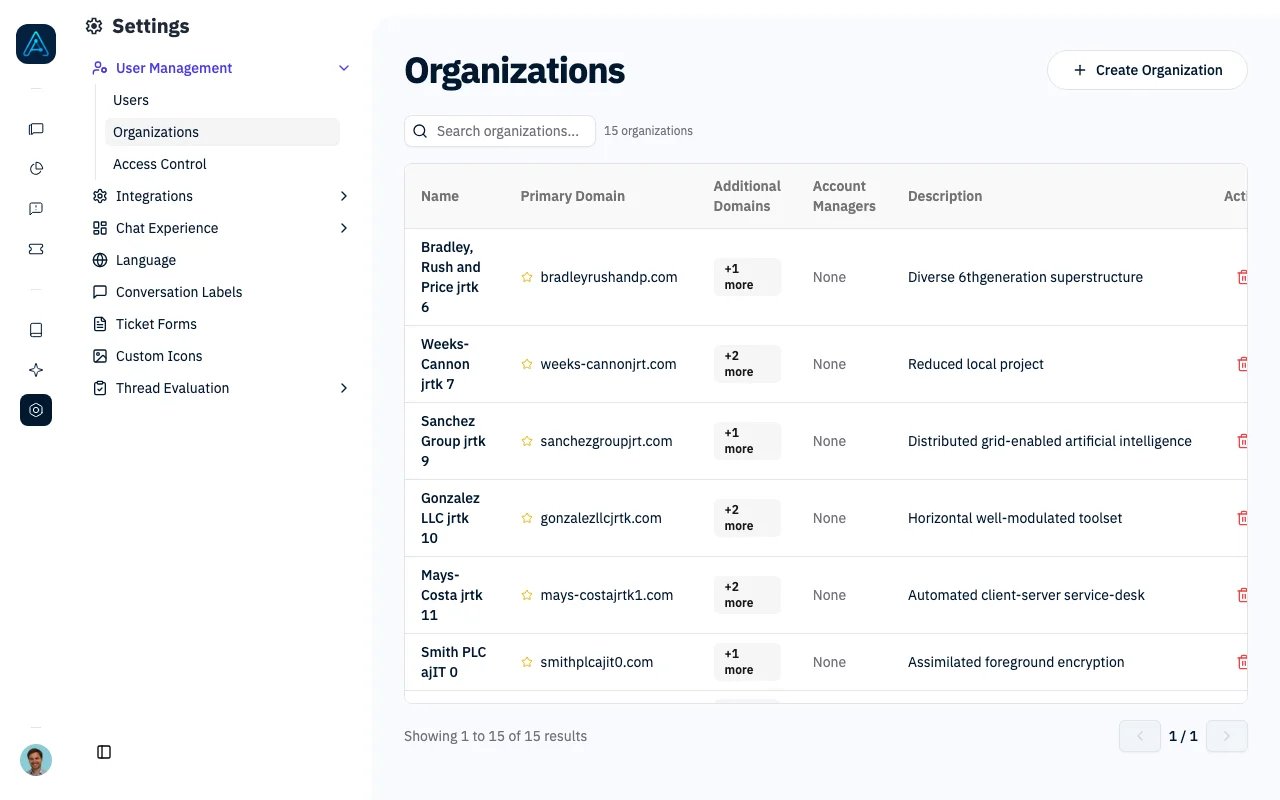
* **List Organizations**: View all organizations in a table format
* **Create Organization**: Add new organizations with name, primary domain, additional domains, and description
* **Edit Organization**: Update organization details (name and description)
* **Delete Organization**: Remove organizations with confirmation dialog
#### Email Domain Management
* **View Domains**: See all email domains associated with an organization
* **Add Domains**: Add new email domains to an organization
* **Set Primary Domain**: Designate which domain is the primary one
* **Delete Domains**: Remove email domains from an organization
### User Interface
#### Main Organization Table
* Organization name
* Primary domain (marked with star icon)
* Additional domains count
* Description
* Actions dropdown menu
#### Create/Edit Dialog
* Organization name (required)
* Primary email domain (required for new orgs)
* Additional email domains (multiple inputs)
* Description (optional)
#### Email Domain Management Dialog
* Add new domain form with primary checkbox
* List of current domains with primary/secondary indicators
* Make primary and delete actions for each domain
### Navigation
* Accessible from the **Organizations** page under **Settings** → **User Management**
### Permissions
* Only users with staff-level privileges can access organization management
> **ℹ️ NOTE**: Organizations can also be managed via API. See the [Public API v1 Reference](../api/public-api-v1) for endpoint details.
## User Linking Behavior
### Automatic User-Organization Linking
When a user registers or is created:
1. The system extracts the email domain from the user's email
2. Searches for organizations with a matching email domain configured
3. Links the user to the first matching organization found
### Bulk User Linking
The system provides functionality to automatically link existing users without organizations to appropriate
organizations based on their email domains.
#### Admin Interface
* **Admin Action**: "Link users to organizations based on email domains" available as an admin action
* **Immediate Execution**: Process runs synchronously and provides immediate feedback
* **Usage Statistics**: Shows detailed results including users processed, linked, and organizations matched
#### Linking Process
1. **Email Domain Extraction**: For each user without an organization, the system extracts their email domain
2. **Organization Lookup**: Searches for organizations that have the matching email domain configured
3. **User Assignment**: If a match is found, the user is automatically assigned to that organization
4. **Statistics Tracking**: The process tracks and reports detailed statistics
#### Usage Examples
**Via Admin Interface:**
1. Navigate to **Settings** → **User Management**
2. Select "Link users to organizations based on email domains" from Actions dropdown
3. Click "Go" to execute immediately
## Business Rules
### Domain Management
* Each organization must have at least one email domain
* Domains must be unique within an organization
* Only one domain can be marked as primary per organization
* Deleting the last domain is prevented
### User Assignment
* Users are automatically linked to organizations based on any matching domain
* Manual organization assignment takes precedence over automatic domain matching
* Users can only belong to one organization at a time
## Error Handling
The system provides detailed error handling:
* Form validation for required fields
* User-friendly error messages when operations fail
* Loading indicators for asynchronous operations
* Confirmation dialogs for destructive actions
## Security Considerations
* Staff-only access enforced on all operations
* All requests require authentication and authorization
* Confirmation dialogs prevent accidental deletions
Previously, organizations could only have a single email domain, which created limitations for organizations that use
multiple email domains (e.g., different departments, subsidiaries, or acquired companies). The system now
provides:
* Support for multiple email domains per organization
* Primary and secondary domain designation
* Centralized admin interface for organization and domain management
* Improved user-to-organization linking based on any of the organization's domains
* Flexible email domain configuration with primary and secondary designations
## Features
#### Organization Management
* **List Organizations**: View all organizations in a table format
* **Create Organization**: Add new organizations with name, primary domain, additional domains, and description
* **Edit Organization**: Update organization details (name and description)
* **Delete Organization**: Remove organizations with confirmation dialog
#### Email Domain Management
* **View Domains**: See all email domains associated with an organization
* **Add Domains**: Add new email domains to an organization
* **Set Primary Domain**: Designate which domain is the primary one
* **Delete Domains**: Remove email domains from an organization
### User Interface
#### Main Organization Table
* Organization name
* Primary domain (marked with star icon)
* Additional domains count
* Description
* Actions dropdown menu
#### Create/Edit Dialog
* Organization name (required)
* Primary email domain (required for new orgs)
* Additional email domains (multiple inputs)
* Description (optional)
#### Email Domain Management Dialog
* Add new domain form with primary checkbox
* List of current domains with primary/secondary indicators
* Make primary and delete actions for each domain
### Navigation
* Accessible from the **Organizations** page under **Settings** → **User Management**
### Permissions
* Only users with staff-level privileges can access organization management
> **ℹ️ NOTE**: Organizations can also be managed via API. See the [Public API v1 Reference](../api/public-api-v1) for endpoint details.
## User Linking Behavior
### Automatic User-Organization Linking
When a user registers or is created:
1. The system extracts the email domain from the user's email
2. Searches for organizations with a matching email domain configured
3. Links the user to the first matching organization found
### Bulk User Linking
The system provides functionality to automatically link existing users without organizations to appropriate
organizations based on their email domains.
#### Admin Interface
* **Admin Action**: "Link users to organizations based on email domains" available as an admin action
* **Immediate Execution**: Process runs synchronously and provides immediate feedback
* **Usage Statistics**: Shows detailed results including users processed, linked, and organizations matched
#### Linking Process
1. **Email Domain Extraction**: For each user without an organization, the system extracts their email domain
2. **Organization Lookup**: Searches for organizations that have the matching email domain configured
3. **User Assignment**: If a match is found, the user is automatically assigned to that organization
4. **Statistics Tracking**: The process tracks and reports detailed statistics
#### Usage Examples
**Via Admin Interface:**
1. Navigate to **Settings** → **User Management**
2. Select "Link users to organizations based on email domains" from Actions dropdown
3. Click "Go" to execute immediately
## Business Rules
### Domain Management
* Each organization must have at least one email domain
* Domains must be unique within an organization
* Only one domain can be marked as primary per organization
* Deleting the last domain is prevented
### User Assignment
* Users are automatically linked to organizations based on any matching domain
* Manual organization assignment takes precedence over automatic domain matching
* Users can only belong to one organization at a time
## Error Handling
The system provides detailed error handling:
* Form validation for required fields
* User-friendly error messages when operations fail
* Loading indicators for asynchronous operations
* Confirmation dialogs for destructive actions
## Security Considerations
* Staff-only access enforced on all operations
* All requests require authentication and authorization
* Confirmation dialogs prevent accidental deletions