> ## Documentation Index
> Fetch the complete documentation index at: https://ago.mintlify.site/llms.txt
> Use this file to discover all available pages before exploring further.
# Document Versioning
> Track changes to knowledge documents with automatic version history
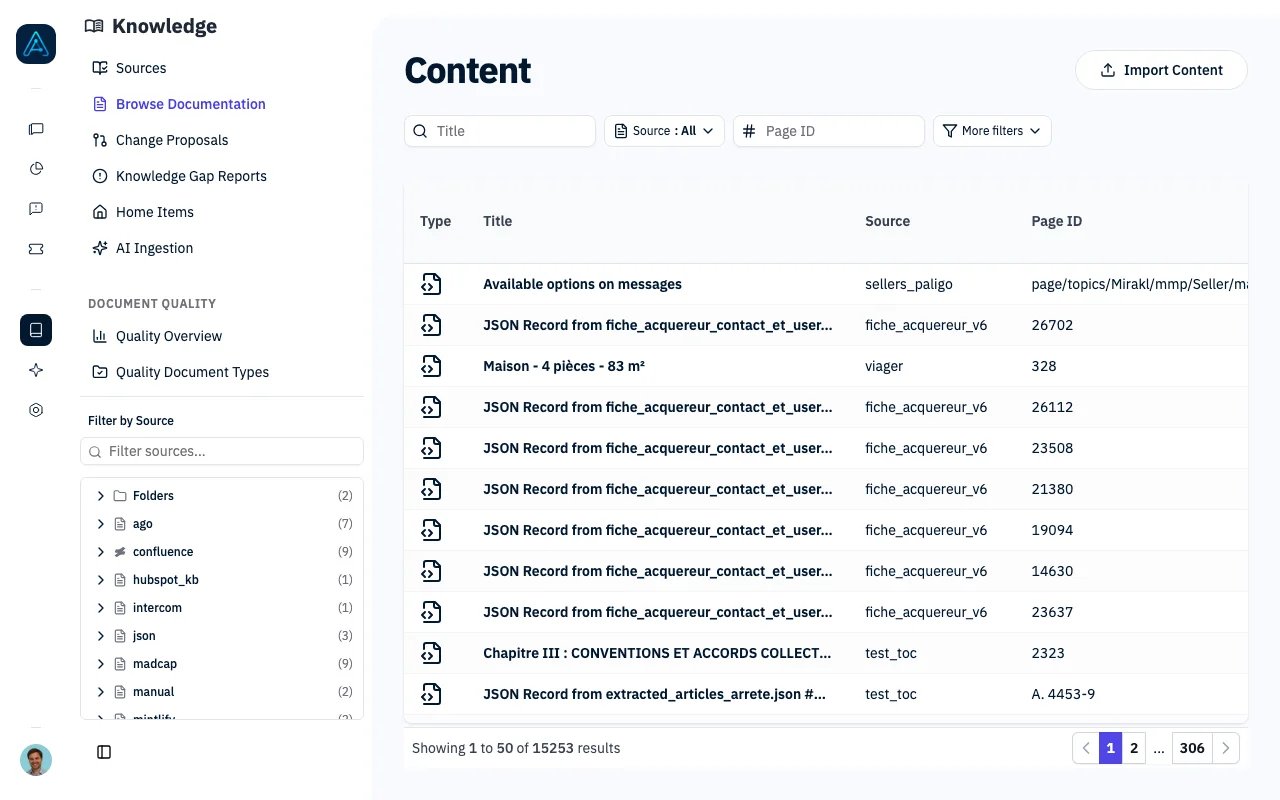 Track changes to your knowledge documents with automatic version history. Every edit creates a version snapshot, allowing you to review changes over time and restore previous versions when needed.
## Overview
Document versioning provides:
* **Automatic History**: Versions created automatically on document save
* **Full Content Snapshots**: Each version stores the complete document content
* **Change Tracking**: Record summaries of what changed
* **Restore Capability**: Roll back to any previous version
## How It Works
```mermaid theme={null}
flowchart LR
A[Edit Document] --> B[Save]
B --> C[Create Version]
C --> D[Store Snapshot]
D --> E[Increment Version Number]
```
When a document is saved, the system:
1. Captures a snapshot of the current content
2. Assigns the next version number
3. Records who made the change
4. Stores an optional change summary
***
## Viewing Version History
### Via Admin Interface
1. Navigate to **Knowledge** → **All Content**
2. Select a document
3. Click **Version History** tab
4. View list of all versions with timestamps
> **ℹ️ NOTE**: Version history is also available via API. See the [Public API v1 Reference](../api/public-api-v1) for endpoint details.
***
## Viewing a Specific Version
To view the full content of a previous version:
1. Open the document's **Version History** tab
2. Click on the version you want to view
3. Review the complete content snapshot from that point in time
Each version displays the content, who made the change, when it was made, and the change summary.
***
## Restoring a Previous Version
Roll back a document to a previous version:
### Via Admin Interface
1. Open the document's Version History
2. Find the version you want to restore
3. Click **Restore** on that version
4. Confirm the restore action
**What happens:**
1. Current document content is saved as a new version
2. Document content is replaced with the restored version's content
3. A new version is created with the restoration noted in the change summary
***
## Updating Version Metadata
To update the change summary of an existing version:
1. Open the document's **Version History** tab
2. Find the version you want to update
3. Click **Rename** (or **Name Version** for unnamed versions)
4. Enter the updated description (up to 500 characters)
5. Click **Save**
***
## Version Properties
Each version record includes the following properties:
| Property | Description |
| -------------- | ----------------------------------------------------------------------- |
| Version Number | Sequential version number (1, 2, 3...) |
| Content | Full document content snapshot at that point in time |
| Created By | The user who created this version (blank for system-generated versions) |
| Created At | When the version was created |
| Change Summary | Description of changes (up to 500 characters) |
***
## When Versions Are Created
Versions are created automatically when:
* A document is edited and saved in the admin interface
* A document is updated via API
* AI ingestion updates an existing document
* A document is restored from a previous version
### Version Attribution
| Scenario | Attributed To |
| -------------------------- | ---------------------- |
| Admin edits document | The admin user |
| API update | The authenticated user |
| AI ingestion update | System |
| Sync update from connector | System |
***
## Best Practices
### Change Summaries
* Write clear, concise descriptions of what changed
* Include the reason for the change when relevant
* Use consistent terminology
**Good examples:**
* "Updated pricing table for Q1 2024"
* "Added troubleshooting section for login issues"
* "Fixed incorrect API endpoint in examples"
**Avoid:**
* "Updated" (too vague)
* "Changes" (not descriptive)
### Version Management
* Review version history periodically to track document evolution
* Use restore feature to recover accidentally deleted content
* Consider version history when making significant changes
***
## Related
* [Knowledge Source Management](./knowledge-source-management) — Managing sources
* [Knowledge Overview](./knowledge-overview) — Feature overview
Track changes to your knowledge documents with automatic version history. Every edit creates a version snapshot, allowing you to review changes over time and restore previous versions when needed.
## Overview
Document versioning provides:
* **Automatic History**: Versions created automatically on document save
* **Full Content Snapshots**: Each version stores the complete document content
* **Change Tracking**: Record summaries of what changed
* **Restore Capability**: Roll back to any previous version
## How It Works
```mermaid theme={null}
flowchart LR
A[Edit Document] --> B[Save]
B --> C[Create Version]
C --> D[Store Snapshot]
D --> E[Increment Version Number]
```
When a document is saved, the system:
1. Captures a snapshot of the current content
2. Assigns the next version number
3. Records who made the change
4. Stores an optional change summary
***
## Viewing Version History
### Via Admin Interface
1. Navigate to **Knowledge** → **All Content**
2. Select a document
3. Click **Version History** tab
4. View list of all versions with timestamps
> **ℹ️ NOTE**: Version history is also available via API. See the [Public API v1 Reference](../api/public-api-v1) for endpoint details.
***
## Viewing a Specific Version
To view the full content of a previous version:
1. Open the document's **Version History** tab
2. Click on the version you want to view
3. Review the complete content snapshot from that point in time
Each version displays the content, who made the change, when it was made, and the change summary.
***
## Restoring a Previous Version
Roll back a document to a previous version:
### Via Admin Interface
1. Open the document's Version History
2. Find the version you want to restore
3. Click **Restore** on that version
4. Confirm the restore action
**What happens:**
1. Current document content is saved as a new version
2. Document content is replaced with the restored version's content
3. A new version is created with the restoration noted in the change summary
***
## Updating Version Metadata
To update the change summary of an existing version:
1. Open the document's **Version History** tab
2. Find the version you want to update
3. Click **Rename** (or **Name Version** for unnamed versions)
4. Enter the updated description (up to 500 characters)
5. Click **Save**
***
## Version Properties
Each version record includes the following properties:
| Property | Description |
| -------------- | ----------------------------------------------------------------------- |
| Version Number | Sequential version number (1, 2, 3...) |
| Content | Full document content snapshot at that point in time |
| Created By | The user who created this version (blank for system-generated versions) |
| Created At | When the version was created |
| Change Summary | Description of changes (up to 500 characters) |
***
## When Versions Are Created
Versions are created automatically when:
* A document is edited and saved in the admin interface
* A document is updated via API
* AI ingestion updates an existing document
* A document is restored from a previous version
### Version Attribution
| Scenario | Attributed To |
| -------------------------- | ---------------------- |
| Admin edits document | The admin user |
| API update | The authenticated user |
| AI ingestion update | System |
| Sync update from connector | System |
***
## Best Practices
### Change Summaries
* Write clear, concise descriptions of what changed
* Include the reason for the change when relevant
* Use consistent terminology
**Good examples:**
* "Updated pricing table for Q1 2024"
* "Added troubleshooting section for login issues"
* "Fixed incorrect API endpoint in examples"
**Avoid:**
* "Updated" (too vague)
* "Changes" (not descriptive)
### Version Management
* Review version history periodically to track document evolution
* Use restore feature to recover accidentally deleted content
* Consider version history when making significant changes
***
## Related
* [Knowledge Source Management](./knowledge-source-management) — Managing sources
* [Knowledge Overview](./knowledge-overview) — Feature overview