> ## Documentation Index
> Fetch the complete documentation index at: https://ago.mintlify.site/llms.txt
> Use this file to discover all available pages before exploring further.
# Knowledge Sources
> Import, synchronize, and organize documentation from external platforms
Manage your organization's knowledge sources to import, synchronize, and organize documentation from external platforms or manual uploads.
 ## Overview
Knowledge sources are the foundation of your AI's knowledge base. Each source connects to an external platform (like Notion, Confluence, or Zendesk) or contains manually created content, bringing documentation into AGO where it can be indexed and used by your AI agents.
**Key capabilities:**
* Connect to 14+ external documentation platforms
* Schedule automatic synchronization
* Monitor sync status and history
* Organize content with folder structures
* Filter content with restricted keywords
## Features
### Knowledge Source List
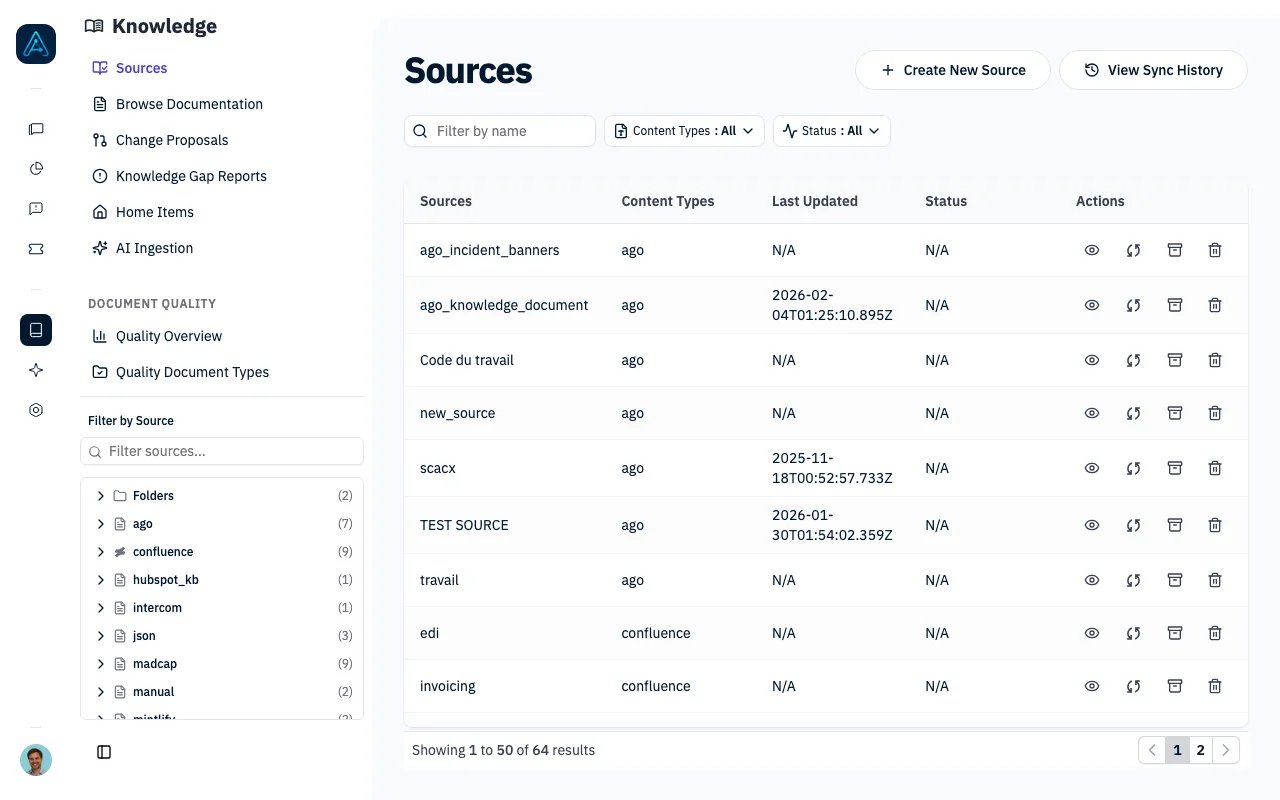
The Knowledge Sources page displays all available knowledge sources with information such as:
* Source name
* Source type
* Last sync date
* Sync status
From this page, administrators can:
* Filter sources by name, type, and sync status
* Create new sources
* Edit existing sources
* Trigger manual synchronization of sources
* Empty all documents from a source
* Delete sources entirely
### Creating Knowledge Sources
The Create Knowledge Source page provides a form to create new sources with the following fields:
* Name (required)
* Source Type (required)
* Collection Name
* Version
* Source ID
* Domain
* Additional Info (JSON)
* API Key (encrypted)
* Included Sources
* Restricted Keywords
### Editing Knowledge Sources
The Edit Knowledge Source page allows administrators to modify existing sources. The form is pre-populated with the current values of the source.
When updating the API key field, administrators only need to enter a value if they want to change the existing key.
Leaving the field empty will preserve the current key.
### Sync Status Knowledge Sources
The Knowledge Source Sync Status feature allows administrators to track and manage the synchronization status of
knowledge sources through the admin interface.
If a source has a wrong sync status, administrators can update it to reflect the current state which is probably
no sync is happening and thus can select the `reset` option in the sync status dropdown.
### Sync History and Timing
The sync history page lists every import run for your knowledge sources, with its status, the user who started it, and how long it took.
For each finished import you can see the time spent in each phase of the run:
* **Import** — fetching documents from the source
* **Cleanup** — removing old versions
* **Links** — resolving internal links (only for sources that support it, such as Confluence and Paligo)
* **Embeddings** — preparing documents for search
* **Translation** — translating documents into your active languages
When an import fails, the history row shows which phase it stopped on (for example "Crashed at: Embeddings") next to the error message, so you can tell where the run broke without reading the full log.
### Emptying Knowledge Sources
Administrators can empty all documents from a knowledge source without deleting the source itself. This is useful when:
* You want to clear all imported documents before re-importing
* You need to remove outdated content while keeping the source configuration
* You want to start fresh with a source's content
The empty action will:
* Remove all knowledge documents associated with the source
* Preserve the source configuration and settings
* Show a confirmation dialog before proceeding
* Display the number of documents that were deleted
This feature is accessed through the "Empty" button (archive icon) next to each source in the sources list.
***
## Auto-Sync Scheduling
Keep your knowledge base up-to-date automatically with scheduled synchronization. AGO checks for scheduled syncs every hour and processes them in the background.
### Schedule Types
| Type | Description | Configuration |
| ----------- | ------------------------- | ------------------------------------------------- |
| **Minutes** | Sync at regular intervals | Set interval (e.g., every 60 minutes) |
| **Daily** | Sync once per day | Set time (e.g., 02:00 AM) |
| **Weekly** | Sync on specific days | Set days and time (e.g., Mon/Wed/Fri at 03:00 AM) |
### Configuring Auto-Sync
1. Navigate to **Knowledge** → **Sources**
2. Edit an existing source or create a new one
3. Enable **Auto-Sync**
4. Select a schedule type:
**Minute-based sync:**
```
Schedule Type: Minutes
Interval: 60 (syncs every hour)
```
**Daily sync:**
```
Schedule Type: Daily
Time: 02:00
Timezone: America/New_York
```
**Weekly sync:**
```
Schedule Type: Weekly
Days: Monday, Wednesday, Friday
Time: 03:00
Timezone: Europe/Paris
```
### Schedule Configuration Fields
| Field | Description |
| ------------------ | ----------------------------------------------------- |
| Auto-Sync Enabled | Enable or disable automatic sync |
| Schedule Type | Minutes, Daily, or Weekly |
| Interval (Minutes) | Sync interval in minutes (for minute-based schedules) |
| Time | Time in HH:MM format (for daily/weekly schedules) |
| Days | Days of the week (for weekly schedules) |
| Timezone | Timezone for scheduling (e.g., America/New\_York) |
### Timezone Handling
* All times are stored in UTC internally
* Configure your preferred timezone per source
* Next sync time is calculated in your timezone, then converted to UTC
* Common timezone examples: `UTC`, `America/New_York`, `Europe/Paris`, `Asia/Tokyo`
### Viewing Next Sync Time
The source list displays:
* **Next Sync At**: When the next automatic sync will run
* **Last Auto Sync At**: When the last automatic sync completed
***
## Sync History and Monitoring
Track synchronization activity and diagnose issues with the sync history feature.
### Viewing Sync History
Access sync history via **Knowledge** → **Sources** → Select source → **Sync History**.
### Sync History Fields
| Field | Description |
| ------------- | ------------------------------------------------------------------------ |
| Started At | When the sync began |
| Completed At | When the sync finished (blank if in progress) |
| Duration | How long the import took, from start to finish (blank while in progress) |
| Status | Success, Failed, In Progress, Pending, or Cancelled |
| Error Message | Error details if sync failed |
| User | User who triggered sync (blank for automatic syncs) |
### Live Import Progress (SharePoint)
While a SharePoint import is running, the row in sync history shows live stats so you can tell whether a long import is healthy or stuck:
* **Counter**: `x/n done` plus failed and skipped counts
* **Current document**: name of the file currently being extracted
* **Last finished**: how long ago the previous document completed
* **Throughput**: documents per minute
* **ETA**: estimated time left
The page refreshes automatically every 2 seconds while any row is in progress or pending.
### Translation Progress
Every import finishes with a translation step. When your knowledge base has more than one active language, this step translates new and changed documents into the other languages, and the sync history row shows how many documents are left to translate (for example, `6/10 documents remaining to translate`). Only documents that actually need translation are counted: documents whose translations are already up to date and documents that link to an external page are skipped.
### Cancelling a SharePoint Import
Running SharePoint imports can be stopped from the sync history row:
1. Click **Cancel** on the row
2. Confirm in the dialog
The import stops as soon as the files currently being extracted finish (a few may complete after you click Cancel because extractions run in parallel). Documents already imported are kept, and the row's final status becomes **Cancelled**.
### Identifying Sync Types
* **Manual sync**: Shows the user who triggered it
* **Automatic sync**: User field is blank
***
## Restricted Keywords
Filter out sensitive or irrelevant content from being imported into your knowledge base.
### How It Works
1. Add keywords to the **Restricted Keywords** field in your source settings
2. During sync, documents containing these keywords are excluded
3. Existing documents with restricted keywords are marked as restricted
### Example Use Cases
* Exclude internal-only documents: `[internal, confidential, draft]`
* Filter test content: `[test, sample, example]`
* Remove deprecated content: `[deprecated, outdated, legacy]`
***
## Breadcrumb Navigation
Configure how navigation breadcrumbs appear in the knowledge portal.
### Enabling Breadcrumbs
1. Edit your knowledge source
2. Enable **Breadcrumbs** toggle
3. Save the source
When enabled, users see navigation paths like:
```
Product Documentation > Getting Started > Installation
```
### When to Use Breadcrumbs
| Scenario | Recommendation |
| ---------------------------- | ----------------------------- |
| Deep hierarchies (3+ levels) | Enable for navigation clarity |
| Flat structure (1-2 levels) | Optional, adds minimal value |
| Portal-only content | Enable for user orientation |
| API-only usage | Disable (not displayed) |
***
## Public Display
Control which sources and documents appear in the public knowledge portal.
### Source-Level Visibility
Each source has a **Public Display** setting:
| Setting | Behavior |
| -------- | ------------------------------------------------------ |
| Enabled | Documents appear in portal |
| Disabled | Documents hidden from portal (still available via API) |
### Use Cases
* **Internal documentation**: Disable public display for staff-only content
* **Draft sources**: Keep new content hidden until ready
* **API-only sources**: Sources used only by AI agents
AI agents can read documents with public display disabled to inform their answers, but they never cite, quote, link, or reveal them in a reply (not even the title). Use this for internal-only content the agent should know but not show to end users. Disabling public display on either the document or its source makes it internal.
***
## Document Attachments
Add images and files to documents.
### Uploading Attachments
**Via Admin Interface:**
1. Open a document in the editor
2. Click **Add Attachment** or drag-and-drop
3. Select your image file
4. The attachment is uploaded and can be referenced in content
For API access, see [Public API v1 Reference](../api/public-api-v1).
### Supported Formats
* **Images**: PNG, JPEG, GIF, WebP, SVG
* **Documents**: PDF (for reference attachments)
### Referencing Attachments
Once uploaded, attachments can be referenced in document content using Markdown image syntax. The system automatically generates the correct URL when you insert an attachment through the editor.
***
## Table of Contents Management
Organize document ordering within sources.
### Reordering Documents
**Via Admin Interface:**
1. Navigate to **Knowledge** → select a source
2. Use drag-and-drop to reorder documents
3. Changes are saved automatically
### Moving Documents
Move documents between parents in the hierarchy using drag-and-drop in the admin interface.
For API access, see [Public API v1 Reference](../api/public-api-v1).
### Best Practices
* Order by importance (most-used documents first)
* Group related documents together
* Keep getting-started content at the top
* Place troubleshooting at the end
***
## Folder Sources (Included Sources)
Organize multiple knowledge sources into logical groups using folder sources.
### Creating a Folder Source
1. Create a new source with type **Folder**
2. In **Included Sources**, select the sources to group
3. The folder acts as a container for navigation and organization
### Use Cases
* Group related documentation (e.g., all product documentation)
* Create department-specific knowledge sections
* Organize by content type (guides, FAQs, tutorials)
***
## Troubleshooting
**Symptom:** Source shows "In Progress" for extended time.
**Solutions:**
1. Go to **Knowledge** → **Sources**
2. Find the affected source
3. Use the sync status dropdown to select **Reset**
4. Trigger a new manual sync
**Symptom:** Sync completes with "Failed" status.
**Check:**
1. View sync history for error message
2. Verify API credentials are valid and not expired
3. Check external service is accessible
4. Check that rate limits haven't been exceeded
**Symptom:** Sync succeeds but documents are missing.
**Check:**
1. Verify the source ID/page ID is correct
2. Check restricted keywords aren't filtering content
3. Verify documents have content (empty pages may be skipped)
4. For Notion: Verify the integration has access to the pages
**Symptom:** Notion sync fails with authentication error.
**Solution:**
1. Edit the source
2. Click **Reconnect** to re-authorize
3. Complete the OAuth flow
4. Save and trigger sync
***
## Configuration Reference
Knowledge sources have the following configurable settings:
**Core Settings:**
| Setting | Description |
| --------------- | --------------------------------------------------------------- |
| Name | Source name (must be unique) |
| Source Type | The connector type (e.g., Notion, Confluence, Manual) |
| Source ID | External identifier for the connected platform |
| Domain | Domain or URL for web-based sources |
| Additional Info | Connector-specific configuration (JSON format) |
| API Key | Encrypted API key for authenticating with the external platform |
**Organization Settings:**
| Setting | Description |
| ------------------- | ------------------------------------------------------- |
| Included Sources | Source IDs to group under a folder source |
| Restricted Keywords | Keywords that filter out matching content during sync |
| Public Display | Whether documents appear in the public knowledge portal |
| Breadcrumbs Enabled | Whether navigation breadcrumbs are shown |
**Auto-Sync Settings:**
| Setting | Description |
| ----------------- | ------------------------------------------------------------ |
| Auto-Sync Enabled | Whether automatic synchronization is active |
| Schedule Type | `minutes`, `daily`, or `weekly` |
| Schedule Minutes | Interval in minutes (for minute-based sync) |
| Schedule Time | Time of day for daily or weekly sync (HH:MM) |
| Schedule Days | Days of the week for weekly sync (0=Monday through 6=Sunday) |
| Schedule Timezone | Timezone for scheduling (e.g., `America/New_York`) |
| Next Sync At | When the next automatic sync will run (read-only) |
| Last Auto Sync At | When the last automatic sync completed (read-only) |
**Status:**
| Setting | Description |
| ------------ | ---------------------------------------- |
| Sync Status | Current synchronization status |
| Last Sync At | When the last sync completed (read-only) |
***
## Related
* [Knowledge Connectors](../data-connector/knowledge-connectors) — Available connector types
* [Knowledge Quality](./knowledge-quality) — Analyze imported content
* [Knowledge Overview](./knowledge-overview) — Feature overview
## Overview
Knowledge sources are the foundation of your AI's knowledge base. Each source connects to an external platform (like Notion, Confluence, or Zendesk) or contains manually created content, bringing documentation into AGO where it can be indexed and used by your AI agents.
**Key capabilities:**
* Connect to 14+ external documentation platforms
* Schedule automatic synchronization
* Monitor sync status and history
* Organize content with folder structures
* Filter content with restricted keywords
## Features
### Knowledge Source List
The Knowledge Sources page displays all available knowledge sources with information such as:
* Source name
* Source type
* Last sync date
* Sync status
From this page, administrators can:
* Filter sources by name, type, and sync status
* Create new sources
* Edit existing sources
* Trigger manual synchronization of sources
* Empty all documents from a source
* Delete sources entirely
### Creating Knowledge Sources
The Create Knowledge Source page provides a form to create new sources with the following fields:
* Name (required)
* Source Type (required)
* Collection Name
* Version
* Source ID
* Domain
* Additional Info (JSON)
* API Key (encrypted)
* Included Sources
* Restricted Keywords
### Editing Knowledge Sources
The Edit Knowledge Source page allows administrators to modify existing sources. The form is pre-populated with the current values of the source.
When updating the API key field, administrators only need to enter a value if they want to change the existing key.
Leaving the field empty will preserve the current key.
### Sync Status Knowledge Sources
The Knowledge Source Sync Status feature allows administrators to track and manage the synchronization status of
knowledge sources through the admin interface.
If a source has a wrong sync status, administrators can update it to reflect the current state which is probably
no sync is happening and thus can select the `reset` option in the sync status dropdown.
### Sync History and Timing
The sync history page lists every import run for your knowledge sources, with its status, the user who started it, and how long it took.
For each finished import you can see the time spent in each phase of the run:
* **Import** — fetching documents from the source
* **Cleanup** — removing old versions
* **Links** — resolving internal links (only for sources that support it, such as Confluence and Paligo)
* **Embeddings** — preparing documents for search
* **Translation** — translating documents into your active languages
When an import fails, the history row shows which phase it stopped on (for example "Crashed at: Embeddings") next to the error message, so you can tell where the run broke without reading the full log.
### Emptying Knowledge Sources
Administrators can empty all documents from a knowledge source without deleting the source itself. This is useful when:
* You want to clear all imported documents before re-importing
* You need to remove outdated content while keeping the source configuration
* You want to start fresh with a source's content
The empty action will:
* Remove all knowledge documents associated with the source
* Preserve the source configuration and settings
* Show a confirmation dialog before proceeding
* Display the number of documents that were deleted
This feature is accessed through the "Empty" button (archive icon) next to each source in the sources list.
***
## Auto-Sync Scheduling
Keep your knowledge base up-to-date automatically with scheduled synchronization. AGO checks for scheduled syncs every hour and processes them in the background.
### Schedule Types
| Type | Description | Configuration |
| ----------- | ------------------------- | ------------------------------------------------- |
| **Minutes** | Sync at regular intervals | Set interval (e.g., every 60 minutes) |
| **Daily** | Sync once per day | Set time (e.g., 02:00 AM) |
| **Weekly** | Sync on specific days | Set days and time (e.g., Mon/Wed/Fri at 03:00 AM) |
### Configuring Auto-Sync
1. Navigate to **Knowledge** → **Sources**
2. Edit an existing source or create a new one
3. Enable **Auto-Sync**
4. Select a schedule type:
**Minute-based sync:**
```
Schedule Type: Minutes
Interval: 60 (syncs every hour)
```
**Daily sync:**
```
Schedule Type: Daily
Time: 02:00
Timezone: America/New_York
```
**Weekly sync:**
```
Schedule Type: Weekly
Days: Monday, Wednesday, Friday
Time: 03:00
Timezone: Europe/Paris
```
### Schedule Configuration Fields
| Field | Description |
| ------------------ | ----------------------------------------------------- |
| Auto-Sync Enabled | Enable or disable automatic sync |
| Schedule Type | Minutes, Daily, or Weekly |
| Interval (Minutes) | Sync interval in minutes (for minute-based schedules) |
| Time | Time in HH:MM format (for daily/weekly schedules) |
| Days | Days of the week (for weekly schedules) |
| Timezone | Timezone for scheduling (e.g., America/New\_York) |
### Timezone Handling
* All times are stored in UTC internally
* Configure your preferred timezone per source
* Next sync time is calculated in your timezone, then converted to UTC
* Common timezone examples: `UTC`, `America/New_York`, `Europe/Paris`, `Asia/Tokyo`
### Viewing Next Sync Time
The source list displays:
* **Next Sync At**: When the next automatic sync will run
* **Last Auto Sync At**: When the last automatic sync completed
***
## Sync History and Monitoring
Track synchronization activity and diagnose issues with the sync history feature.
### Viewing Sync History
Access sync history via **Knowledge** → **Sources** → Select source → **Sync History**.
### Sync History Fields
| Field | Description |
| ------------- | ------------------------------------------------------------------------ |
| Started At | When the sync began |
| Completed At | When the sync finished (blank if in progress) |
| Duration | How long the import took, from start to finish (blank while in progress) |
| Status | Success, Failed, In Progress, Pending, or Cancelled |
| Error Message | Error details if sync failed |
| User | User who triggered sync (blank for automatic syncs) |
### Live Import Progress (SharePoint)
While a SharePoint import is running, the row in sync history shows live stats so you can tell whether a long import is healthy or stuck:
* **Counter**: `x/n done` plus failed and skipped counts
* **Current document**: name of the file currently being extracted
* **Last finished**: how long ago the previous document completed
* **Throughput**: documents per minute
* **ETA**: estimated time left
The page refreshes automatically every 2 seconds while any row is in progress or pending.
### Translation Progress
Every import finishes with a translation step. When your knowledge base has more than one active language, this step translates new and changed documents into the other languages, and the sync history row shows how many documents are left to translate (for example, `6/10 documents remaining to translate`). Only documents that actually need translation are counted: documents whose translations are already up to date and documents that link to an external page are skipped.
### Cancelling a SharePoint Import
Running SharePoint imports can be stopped from the sync history row:
1. Click **Cancel** on the row
2. Confirm in the dialog
The import stops as soon as the files currently being extracted finish (a few may complete after you click Cancel because extractions run in parallel). Documents already imported are kept, and the row's final status becomes **Cancelled**.
### Identifying Sync Types
* **Manual sync**: Shows the user who triggered it
* **Automatic sync**: User field is blank
***
## Restricted Keywords
Filter out sensitive or irrelevant content from being imported into your knowledge base.
### How It Works
1. Add keywords to the **Restricted Keywords** field in your source settings
2. During sync, documents containing these keywords are excluded
3. Existing documents with restricted keywords are marked as restricted
### Example Use Cases
* Exclude internal-only documents: `[internal, confidential, draft]`
* Filter test content: `[test, sample, example]`
* Remove deprecated content: `[deprecated, outdated, legacy]`
***
## Breadcrumb Navigation
Configure how navigation breadcrumbs appear in the knowledge portal.
### Enabling Breadcrumbs
1. Edit your knowledge source
2. Enable **Breadcrumbs** toggle
3. Save the source
When enabled, users see navigation paths like:
```
Product Documentation > Getting Started > Installation
```
### When to Use Breadcrumbs
| Scenario | Recommendation |
| ---------------------------- | ----------------------------- |
| Deep hierarchies (3+ levels) | Enable for navigation clarity |
| Flat structure (1-2 levels) | Optional, adds minimal value |
| Portal-only content | Enable for user orientation |
| API-only usage | Disable (not displayed) |
***
## Public Display
Control which sources and documents appear in the public knowledge portal.
### Source-Level Visibility
Each source has a **Public Display** setting:
| Setting | Behavior |
| -------- | ------------------------------------------------------ |
| Enabled | Documents appear in portal |
| Disabled | Documents hidden from portal (still available via API) |
### Use Cases
* **Internal documentation**: Disable public display for staff-only content
* **Draft sources**: Keep new content hidden until ready
* **API-only sources**: Sources used only by AI agents
AI agents can read documents with public display disabled to inform their answers, but they never cite, quote, link, or reveal them in a reply (not even the title). Use this for internal-only content the agent should know but not show to end users. Disabling public display on either the document or its source makes it internal.
***
## Document Attachments
Add images and files to documents.
### Uploading Attachments
**Via Admin Interface:**
1. Open a document in the editor
2. Click **Add Attachment** or drag-and-drop
3. Select your image file
4. The attachment is uploaded and can be referenced in content
For API access, see [Public API v1 Reference](../api/public-api-v1).
### Supported Formats
* **Images**: PNG, JPEG, GIF, WebP, SVG
* **Documents**: PDF (for reference attachments)
### Referencing Attachments
Once uploaded, attachments can be referenced in document content using Markdown image syntax. The system automatically generates the correct URL when you insert an attachment through the editor.
***
## Table of Contents Management
Organize document ordering within sources.
### Reordering Documents
**Via Admin Interface:**
1. Navigate to **Knowledge** → select a source
2. Use drag-and-drop to reorder documents
3. Changes are saved automatically
### Moving Documents
Move documents between parents in the hierarchy using drag-and-drop in the admin interface.
For API access, see [Public API v1 Reference](../api/public-api-v1).
### Best Practices
* Order by importance (most-used documents first)
* Group related documents together
* Keep getting-started content at the top
* Place troubleshooting at the end
***
## Folder Sources (Included Sources)
Organize multiple knowledge sources into logical groups using folder sources.
### Creating a Folder Source
1. Create a new source with type **Folder**
2. In **Included Sources**, select the sources to group
3. The folder acts as a container for navigation and organization
### Use Cases
* Group related documentation (e.g., all product documentation)
* Create department-specific knowledge sections
* Organize by content type (guides, FAQs, tutorials)
***
## Troubleshooting
**Symptom:** Source shows "In Progress" for extended time.
**Solutions:**
1. Go to **Knowledge** → **Sources**
2. Find the affected source
3. Use the sync status dropdown to select **Reset**
4. Trigger a new manual sync
**Symptom:** Sync completes with "Failed" status.
**Check:**
1. View sync history for error message
2. Verify API credentials are valid and not expired
3. Check external service is accessible
4. Check that rate limits haven't been exceeded
**Symptom:** Sync succeeds but documents are missing.
**Check:**
1. Verify the source ID/page ID is correct
2. Check restricted keywords aren't filtering content
3. Verify documents have content (empty pages may be skipped)
4. For Notion: Verify the integration has access to the pages
**Symptom:** Notion sync fails with authentication error.
**Solution:**
1. Edit the source
2. Click **Reconnect** to re-authorize
3. Complete the OAuth flow
4. Save and trigger sync
***
## Configuration Reference
Knowledge sources have the following configurable settings:
**Core Settings:**
| Setting | Description |
| --------------- | --------------------------------------------------------------- |
| Name | Source name (must be unique) |
| Source Type | The connector type (e.g., Notion, Confluence, Manual) |
| Source ID | External identifier for the connected platform |
| Domain | Domain or URL for web-based sources |
| Additional Info | Connector-specific configuration (JSON format) |
| API Key | Encrypted API key for authenticating with the external platform |
**Organization Settings:**
| Setting | Description |
| ------------------- | ------------------------------------------------------- |
| Included Sources | Source IDs to group under a folder source |
| Restricted Keywords | Keywords that filter out matching content during sync |
| Public Display | Whether documents appear in the public knowledge portal |
| Breadcrumbs Enabled | Whether navigation breadcrumbs are shown |
**Auto-Sync Settings:**
| Setting | Description |
| ----------------- | ------------------------------------------------------------ |
| Auto-Sync Enabled | Whether automatic synchronization is active |
| Schedule Type | `minutes`, `daily`, or `weekly` |
| Schedule Minutes | Interval in minutes (for minute-based sync) |
| Schedule Time | Time of day for daily or weekly sync (HH:MM) |
| Schedule Days | Days of the week for weekly sync (0=Monday through 6=Sunday) |
| Schedule Timezone | Timezone for scheduling (e.g., `America/New_York`) |
| Next Sync At | When the next automatic sync will run (read-only) |
| Last Auto Sync At | When the last automatic sync completed (read-only) |
**Status:**
| Setting | Description |
| ------------ | ---------------------------------------- |
| Sync Status | Current synchronization status |
| Last Sync At | When the last sync completed (read-only) |
***
## Related
* [Knowledge Connectors](../data-connector/knowledge-connectors) — Available connector types
* [Knowledge Quality](./knowledge-quality) — Analyze imported content
* [Knowledge Overview](./knowledge-overview) — Feature overview