> ## Documentation Index
> Fetch the complete documentation index at: https://ago.mintlify.site/llms.txt
> Use this file to discover all available pages before exploring further.
# Agents Homepage Selection
> Allow users to select an agent directly from the homepage
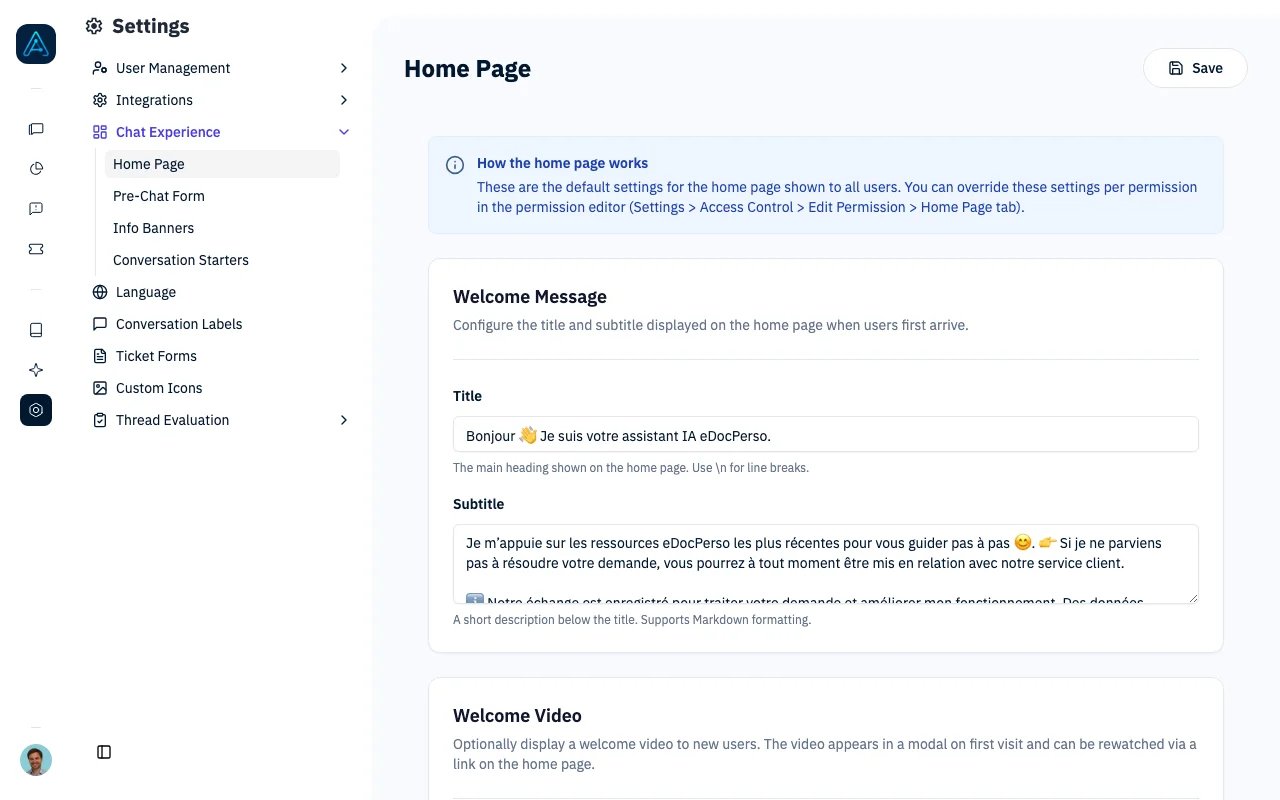 The agents homepage selection panel allows users to select an agent directly from the homepage before starting a conversation. This provides an intuitive way to guide users to the right agent for their needs.
## Overview
When enabled, this feature displays a grid of available agents on the homepage, allowing users to:
* Browse available agents with their icons and names
* Select an agent by clicking on it
* Start typing their message with the selected agent pre-configured
## Prerequisites
### System Requirements
* AGO platform deployed and accessible
* Admin access to configure settings
### Configuration Required
* At least one active agent configured
* Agent display order configured (optional)
***
## Configuration
### Via Admin Interface
1. Navigate to **Settings** → **Widget Configuration**
2. Enable **Display Agents Selection Panel**
3. Configure the heading text (e.g., "How can we help you today?")
4. Set agent display order (optional)
5. Click **Save**
### Configuration Fields
| Field | Type | Default | Description |
| -------------------------------- | ------- | ------------ | -------------------------------------------------------------- |
| `display_agents_selection_panel` | boolean | false | Enable/disable the panel on the homepage |
| `display_agents_panel_in_chat` | boolean | false | Enable/disable the panel in the chat when no agent is selected |
| `text_agents_home_page` | text | "Our agents" | Heading text above the grid |
***
## Agent Display Order
Control which agents appear and in what order:
### Setting Agent Order
To set the display order for agents:
1. Navigate to **AI Studio** → **Agents**
2. Use drag-and-drop to reorder agents in the list, or
3. Edit each agent and set the **Order** field (lower numbers appear first)
4. Click **Save**
### Order Logic
| Order Value | Behavior |
| ------------- | --------------------------- |
| Lower numbers | Appear first |
| `null` | Appear after ordered agents |
| Same number | Alphabetical by name |
***
## Permission-Based Display
The agents panel respects user permissions:
### How It Works
```mermaid theme={null}
flowchart TD
A[User Opens Homepage] --> B[Get User Permissions]
B --> C[Filter Agents by:
The agents homepage selection panel allows users to select an agent directly from the homepage before starting a conversation. This provides an intuitive way to guide users to the right agent for their needs.
## Overview
When enabled, this feature displays a grid of available agents on the homepage, allowing users to:
* Browse available agents with their icons and names
* Select an agent by clicking on it
* Start typing their message with the selected agent pre-configured
## Prerequisites
### System Requirements
* AGO platform deployed and accessible
* Admin access to configure settings
### Configuration Required
* At least one active agent configured
* Agent display order configured (optional)
***
## Configuration
### Via Admin Interface
1. Navigate to **Settings** → **Widget Configuration**
2. Enable **Display Agents Selection Panel**
3. Configure the heading text (e.g., "How can we help you today?")
4. Set agent display order (optional)
5. Click **Save**
### Configuration Fields
| Field | Type | Default | Description |
| -------------------------------- | ------- | ------------ | -------------------------------------------------------------- |
| `display_agents_selection_panel` | boolean | false | Enable/disable the panel on the homepage |
| `display_agents_panel_in_chat` | boolean | false | Enable/disable the panel in the chat when no agent is selected |
| `text_agents_home_page` | text | "Our agents" | Heading text above the grid |
***
## Agent Display Order
Control which agents appear and in what order:
### Setting Agent Order
To set the display order for agents:
1. Navigate to **AI Studio** → **Agents**
2. Use drag-and-drop to reorder agents in the list, or
3. Edit each agent and set the **Order** field (lower numbers appear first)
4. Click **Save**
### Order Logic
| Order Value | Behavior |
| ------------- | --------------------------- |
| Lower numbers | Appear first |
| `null` | Appear after ordered agents |
| Same number | Alphabetical by name |
***
## Permission-Based Display
The agents panel respects user permissions:
### How It Works
```mermaid theme={null}
flowchart TD
A[User Opens Homepage] --> B[Get User Permissions]
B --> C[Filter Agents by:
Permission links,
Access rules,
Direct assignments]
C --> D[Display Available Agents in Grid]
```
### Anonymous vs Authenticated Users
| User Type | Agents Shown |
| ------------------- | --------------------------------------------- |
| Anonymous (no JWT) | Agents linked to `widget_default_permissions` |
| Authenticated (JWT) | Agents linked to user's permissions |
| Admin | All active agents |
### Configuring Default Permissions
1. Navigate to **Settings** → **Widget Configuration**
2. Set **Default Permissions** for anonymous users
3. Set **Logged-in Default Permissions** for authenticated users
4. Click **Save**
***
## When the Panel is Displayed
The agents selection panel can appear in two locations, each controlled by a separate setting:
### Homepage Panel
Controlled by `display_agents_selection_panel`. Shown when:
1. `display_agents_selection_panel` is set to `true`
2. AND no conversation has started yet (homepage view)
3. AND user has access to multiple agents
```
Homepage Panel Visible = display_agents_selection_panel
AND no_conversation_history
AND user_has_multiple_agents
```
### Chat Panel
Controlled by `display_agents_panel_in_chat`. Shown when:
1. `display_agents_panel_in_chat` is set to `true`
2. AND no agent has been selected yet in the current session
3. AND no message is currently loading
4. AND user has access to multiple agents
```
Chat Panel Visible = display_agents_panel_in_chat
AND no_agent_selected
AND not_loading
AND user_has_multiple_agents
```
> **Note**: If the user only has access to one agent, that agent is auto-selected.
***
## User Experience
### 1. Homepage Display
When users visit the homepage, they see a grid of available agents below the main title:
**Layout:**
* **Title**: "How can we help you today?"
* **Agent Grid**: Cards showing available agents (Support Agent, Analytics Agent, Billing Agent, etc.)
* **Message Input**: Text field to type messages
Each agent card displays:
* Agent icon/avatar
* Agent name
* Agent description (if configured)
### 2. Agent Selection
Clicking on an agent card:
* Highlights the selected agent
* Pre-fills the agent in the message input
* Focuses the input field for immediate typing
### 3. Visual Feedback
* Selected agents show a highlighted border
* Agent name appears as a mention in the input
* Smooth transition animations
### 4. Smooth Transition
Users can immediately start typing their message after selecting an agent.
***
## Agent Card Display
### Card Contents
| Element | Source | Fallback |
| ----------- | ------------------------------------------- | ------------------ |
| Icon | `agent.icon` (emoji) or `agent.custom_icon` | Default robot icon |
| Name | `agent.display_name` | `agent.name` |
| Description | (Optional) Agent description | None |
### Customizing Agent Appearance
1. Navigate to **AI Studio** → **Agents**
2. Select the agent to customize
3. Configure appearance settings:
* **Display Name**: User-facing name (e.g., "Customer Support")
* **Icon**: Select an emoji icon
* **Order**: Display position (lower numbers first)
4. Click **Save**
### Using Custom Icons
1. Navigate to the agent settings
2. Click **Upload Custom Icon**
3. Select an image file (PNG, JPG, or SVG)
4. Click **Save** to apply the custom icon
***
## Responsive Design
The agents panel adapts to different screen sizes:
| Screen Size | Grid Columns |
| -------------------------- | ------------ |
| Mobile (less than 640px) | 1-2 columns |
| Tablet (640-1024px) | 2-3 columns |
| Desktop (more than 1024px) | 3-4 columns |
***
## Best Practices
### Agent Organization
* **Limit visible agents**: Show 3-6 most relevant agents
* **Clear naming**: Use descriptive display names
* **Distinct icons**: Help users differentiate agents visually
* **Logical ordering**: Place most-used agents first
### Heading Text
* **Be welcoming**: "How can we help?" is better than "Select an agent"
* **Be clear**: Users should understand what the options mean
* **Keep it short**: One line works best
### Permission Setup
* **Group by use case**: Create permissions for different user types
* **Default wisely**: Anonymous users should see general-purpose agents
* **Test thoroughly**: Verify correct agents appear for each permission
***
## Troubleshooting
**Problem**: Agents selection panel doesn't show on homepage or in chat.
**Solutions**:
1. For the homepage panel: verify `display_agents_selection_panel: true` in config
2. For the chat panel: verify `display_agents_panel_in_chat: true` in config
3. Check user has access to multiple agents
4. Verify at least one agent is active
5. Clear browser cache
**Problem**: Users see agents they shouldn't access.
**Solutions**:
1. Review permission configurations
2. Check `widget_default_permissions` setting
3. Verify access control rules
4. Test with user impersonation
**Problem**: Agents appear in wrong order.
**Solutions**:
1. Verify `order` field is set on each agent
2. Use bulk update to set all orders at once
3. Check for duplicate order values
**Problem**: Custom icons don't appear.
**Solutions**:
1. Verify icon file was uploaded successfully
2. Check `custom_icon_id` is correctly assigned
3. Verify image format is supported (PNG, JPG, SVG)
4. Check network requests for 404 errors
***
## Related Documentation
* [Agents](../agent/agents) - Agent configuration
* [Agent Permissions](../users/agent-permissions) - Access control
* [Widget Configuration](./widget-configuration-admin) - Widget settings
* [Access Control Rules](../users/access-control-rules) - Dynamic permissions