> ## Documentation Index
> Fetch the complete documentation index at: https://ago.mintlify.site/llms.txt
> Use this file to discover all available pages before exploring further.
# User Management
> View and filter all users with organization linkage status
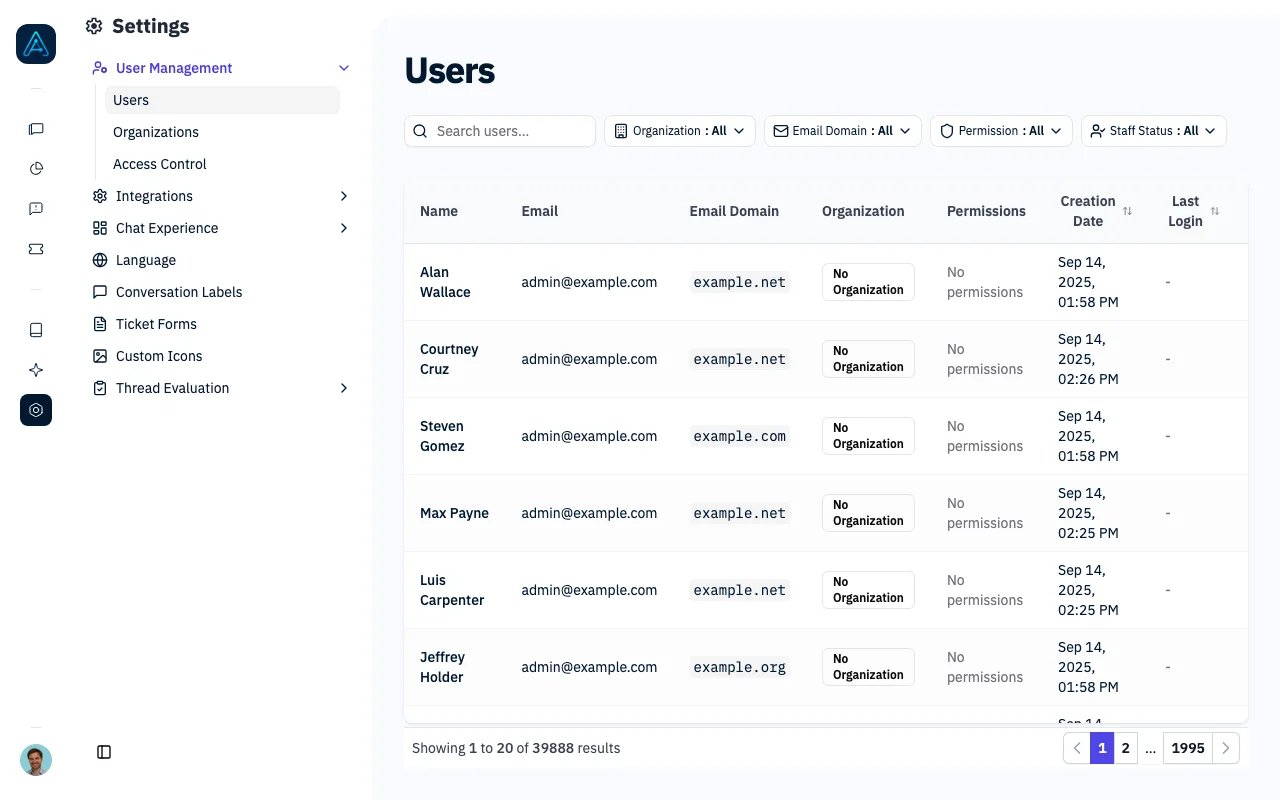
The Admin User Management feature provides administrators with the ability to view and filter all users in the system,
with specific focus on organization linkage status.
 ## Overview
This feature allows administrators to:
* View all users in the system with pagination
* Filter users by organization status
* Filter users by email domain linkage to organizations
* Filter users by staff and reviewer status
* Search users by email, first name, or last name
* View user details including organization membership and email domain information
* Manage reviewer status for staff users
## Accessing User Management
Navigate to **Settings** → **User Management** → **Users** in the admin sidebar.
## Filters
### Organization Filter
* **All**: Shows all users regardless of organization status
* **Has Organization**: Shows only users directly linked to an organization
* **No Organization**: Shows only users without direct organization links
### Email Domain Filter
* **All**: Shows all users regardless of email domain status
* **Has Domain Link**: Shows users whose email domain matches an organization's email domains
* **No Domain Link**: Shows users whose email domain doesn't match any organization's email domains
### Permission Filter
* **All**: Shows all users regardless of permission status
* **Specific Permission**: Shows only users who have been assigned the selected permission
### Staff Status Filter
* **All Users**: Shows all users regardless of staff or reviewer status
* **Staff Only**: Shows only users with staff privileges
* **Viewers Only**: Shows only users with read-only viewer access
* **Reviewers Only**: Shows only staff users who are also reviewers
* **Non-Reviewer Staff**: Shows staff users who are not reviewers
### Search
Search across user emails, first names, and last names with real-time filtering.
## User Information Displayed
For each user, the following information is shown:
* **Name**: Display name (first name + last name) or email if no name is set
* **Email**: User's email address
* **Email Domain**: Extracted domain from the user's email
* **Organization**: Direct organization membership (if any)
* **Permissions**: User's assigned permissions displayed as badges
* **Reviewer**: Shows reviewer status for staff users with a badge and checkbox to toggle the status
## Creating Users in Advance
You can create a user before they ever sign in, and assign their information up front. When that person logs in for the first time, AGO matches them by email and reuses the record you prepared — no duplicate is created, and the details you set are kept.
To create a user:
1. Go to **Settings** → **User Management** → **Users**.
2. Click **Create User** in the top-right corner.
3. Enter the user's **email** (required). This is the address they will sign in with.
4. Optionally set:
* **First name** and **last name**
* **Organization** — pick one, or leave it empty to let AGO link the user automatically from their email domain on first login
* **Permissions** — one or more permissions to grant
* **Additional info** and **Business context** — extra data as JSON, useful for permission rules that match on these fields
* **Statuses** — Reviewer, Viewer, or Admin
5. Click **Save**.
If the email already belongs to an existing user, the form updates that user instead of creating a new one, and tells you so.
**Notes:**
* **Reviewer** requires the user to also be an Admin.
* **Admin (staff)** can only be granted by a superuser. The checkbox is disabled for other admins.
## Use Cases
### Finding Unlinked Users
Use the combination of "No Organization" and "No Domain Link" filters to identify users who aren't connected to any
organization, either directly or through their email domain. This helps with:
* User onboarding and organization assignment
* Identifying users who may need manual organization linking
* Data cleanup and organization management
### Organization Management
* View all users within specific organizations
* Identify users who should be linked to organizations based on their email domains
* Manage user-organization relationships
### Viewer Role
Viewers are users with read-only access to the admin interface. They can:
* View conversations and chat history
* View analytics dashboards
* View knowledge documents
* Edit feedback and ratings on messages
Viewers **cannot** modify settings, change configurations, delete data, or manage users. This role is useful for QA teams, compliance officers, or supervisors who need visibility without configuration access.
### Managing Reviewers
Reviewers are staff users who have special privileges to review and evaluate conversations or content. To manage reviewer status:
1. **Filter for staff users**: Use the "Staff Status" filter to show only staff users or reviewers
2. **Toggle reviewer status**: Click the checkbox in the "Reviewer" column next to a staff user's name
3. **View reviewer badge**: Active reviewers display a "Reviewer" badge next to their checkbox
4. **Quick identification**: Use the "Reviewers Only" filter to see all current reviewers
**Note**: Only staff users can be assigned as reviewers. Non-staff users will show a dash (-) in the reviewer column.
> **ℹ️ NOTE**: User management is also available via API. The Public API exposes `POST /api/v1/users` (and an equivalent `upsert_user` MCP tool) to create or update a user, both requiring the `accounts:write` scope. For security, the API can never grant Admin (staff) status. See the [Users API](../api/users-api) for endpoint details.
## Overview
This feature allows administrators to:
* View all users in the system with pagination
* Filter users by organization status
* Filter users by email domain linkage to organizations
* Filter users by staff and reviewer status
* Search users by email, first name, or last name
* View user details including organization membership and email domain information
* Manage reviewer status for staff users
## Accessing User Management
Navigate to **Settings** → **User Management** → **Users** in the admin sidebar.
## Filters
### Organization Filter
* **All**: Shows all users regardless of organization status
* **Has Organization**: Shows only users directly linked to an organization
* **No Organization**: Shows only users without direct organization links
### Email Domain Filter
* **All**: Shows all users regardless of email domain status
* **Has Domain Link**: Shows users whose email domain matches an organization's email domains
* **No Domain Link**: Shows users whose email domain doesn't match any organization's email domains
### Permission Filter
* **All**: Shows all users regardless of permission status
* **Specific Permission**: Shows only users who have been assigned the selected permission
### Staff Status Filter
* **All Users**: Shows all users regardless of staff or reviewer status
* **Staff Only**: Shows only users with staff privileges
* **Viewers Only**: Shows only users with read-only viewer access
* **Reviewers Only**: Shows only staff users who are also reviewers
* **Non-Reviewer Staff**: Shows staff users who are not reviewers
### Search
Search across user emails, first names, and last names with real-time filtering.
## User Information Displayed
For each user, the following information is shown:
* **Name**: Display name (first name + last name) or email if no name is set
* **Email**: User's email address
* **Email Domain**: Extracted domain from the user's email
* **Organization**: Direct organization membership (if any)
* **Permissions**: User's assigned permissions displayed as badges
* **Reviewer**: Shows reviewer status for staff users with a badge and checkbox to toggle the status
## Creating Users in Advance
You can create a user before they ever sign in, and assign their information up front. When that person logs in for the first time, AGO matches them by email and reuses the record you prepared — no duplicate is created, and the details you set are kept.
To create a user:
1. Go to **Settings** → **User Management** → **Users**.
2. Click **Create User** in the top-right corner.
3. Enter the user's **email** (required). This is the address they will sign in with.
4. Optionally set:
* **First name** and **last name**
* **Organization** — pick one, or leave it empty to let AGO link the user automatically from their email domain on first login
* **Permissions** — one or more permissions to grant
* **Additional info** and **Business context** — extra data as JSON, useful for permission rules that match on these fields
* **Statuses** — Reviewer, Viewer, or Admin
5. Click **Save**.
If the email already belongs to an existing user, the form updates that user instead of creating a new one, and tells you so.
**Notes:**
* **Reviewer** requires the user to also be an Admin.
* **Admin (staff)** can only be granted by a superuser. The checkbox is disabled for other admins.
## Use Cases
### Finding Unlinked Users
Use the combination of "No Organization" and "No Domain Link" filters to identify users who aren't connected to any
organization, either directly or through their email domain. This helps with:
* User onboarding and organization assignment
* Identifying users who may need manual organization linking
* Data cleanup and organization management
### Organization Management
* View all users within specific organizations
* Identify users who should be linked to organizations based on their email domains
* Manage user-organization relationships
### Viewer Role
Viewers are users with read-only access to the admin interface. They can:
* View conversations and chat history
* View analytics dashboards
* View knowledge documents
* Edit feedback and ratings on messages
Viewers **cannot** modify settings, change configurations, delete data, or manage users. This role is useful for QA teams, compliance officers, or supervisors who need visibility without configuration access.
### Managing Reviewers
Reviewers are staff users who have special privileges to review and evaluate conversations or content. To manage reviewer status:
1. **Filter for staff users**: Use the "Staff Status" filter to show only staff users or reviewers
2. **Toggle reviewer status**: Click the checkbox in the "Reviewer" column next to a staff user's name
3. **View reviewer badge**: Active reviewers display a "Reviewer" badge next to their checkbox
4. **Quick identification**: Use the "Reviewers Only" filter to see all current reviewers
**Note**: Only staff users can be assigned as reviewers. Non-staff users will show a dash (-) in the reviewer column.
> **ℹ️ NOTE**: User management is also available via API. The Public API exposes `POST /api/v1/users` (and an equivalent `upsert_user` MCP tool) to create or update a user, both requiring the `accounts:write` scope. For security, the API can never grant Admin (staff) status. See the [Users API](../api/users-api) for endpoint details.